
Configure SCIM Provisioning for a Custom Developer Portal with Okta
SCIM (System for Cross-domain Identity Management) lets Okta provision and update identities in a custom Developer Portal based on the API7 Developer Portal Boilerplate. This integration adds a server plugin and database schema; it is not a setting that enables an endpoint in the official frontend image.
Provisioning an identity does not automatically create portal organization membership or grant access to API products. Connect the provisioning lifecycle to your application's authorization model before using it to manage developer access.
Prerequisites
- Your custom Developer Portal is deployed from the API7 Developer Portal Boilerplate.
- You have already configured the portal and can access its authentication routes.
- You have an Okta account with administrative privileges.
The procedure below targets Boilerplate v0.15.3, which uses Better Auth 1.7.1. Check your application's locked Better Auth version before selecting a different SCIM plugin version.
Create a SCIM Application in Okta
Before modifying portal code, create a SCIM application in Okta.
- Log in to the Okta Admin Console.
- Go to Applications -> Applications.
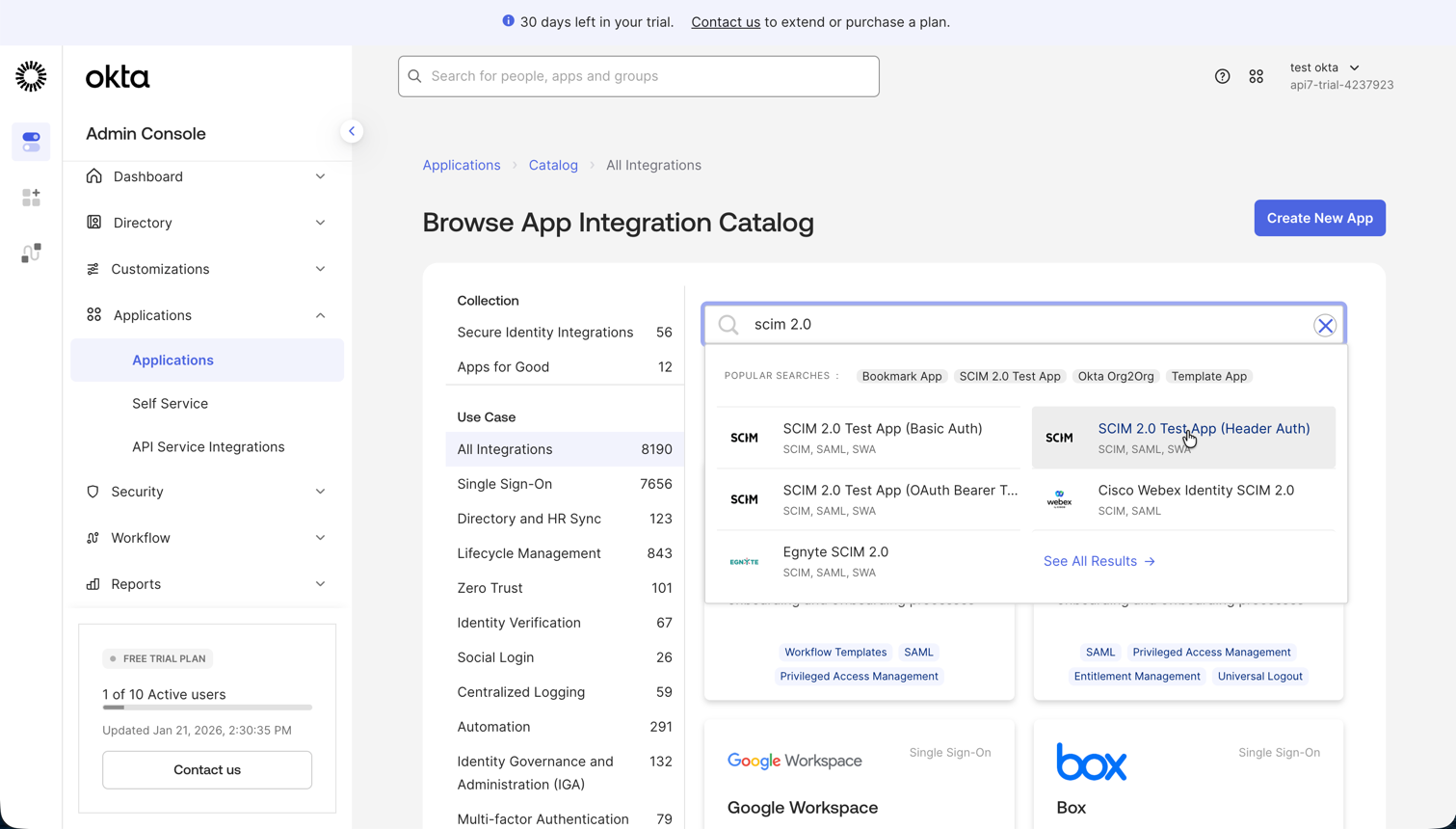
- Click Browse App Catalog.
- Search for
SCIM. - Select SCIM 2.0 Test App (Header Auth).
- Click Add Integration.
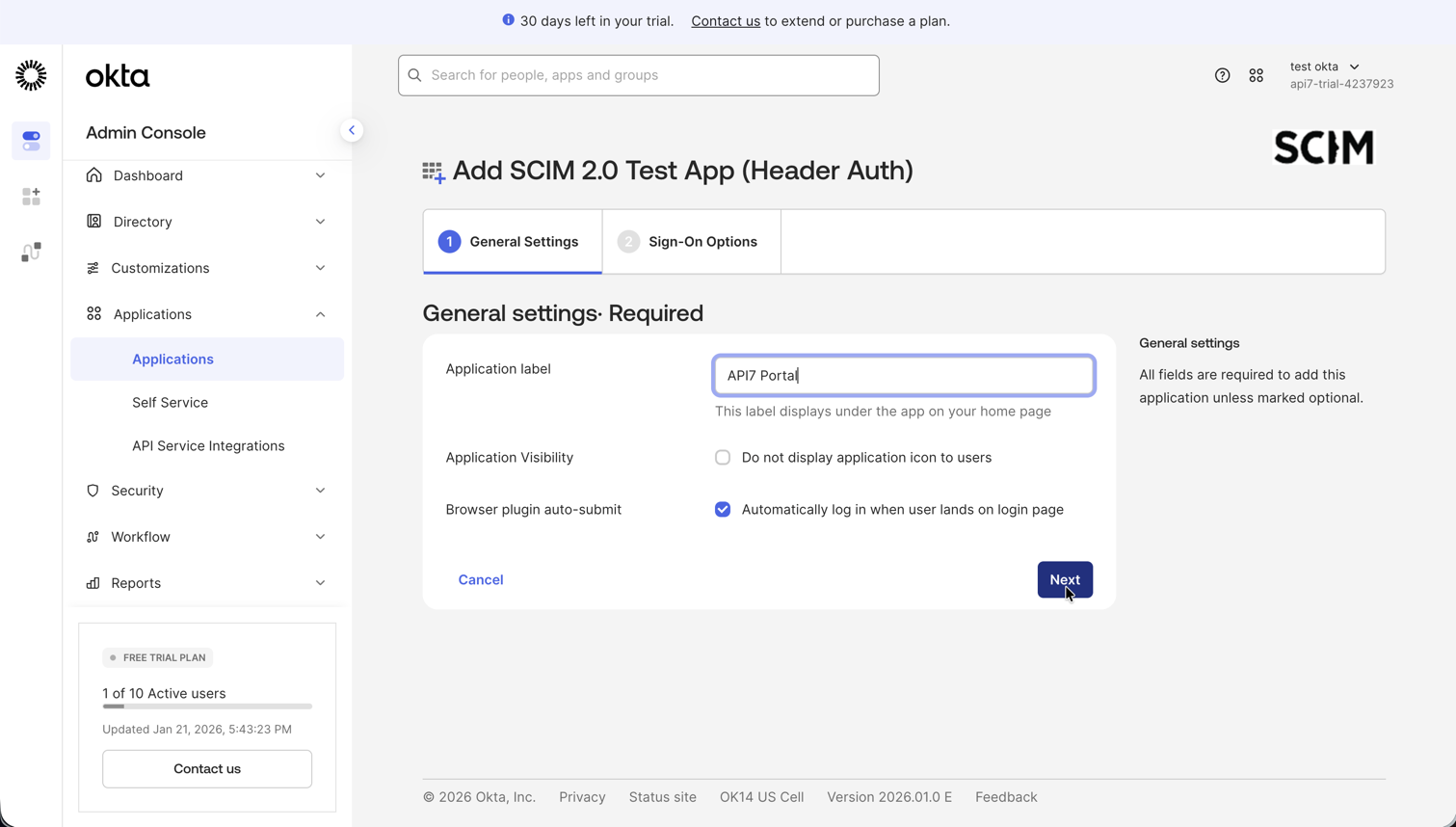
- In General Settings, name the application, such as
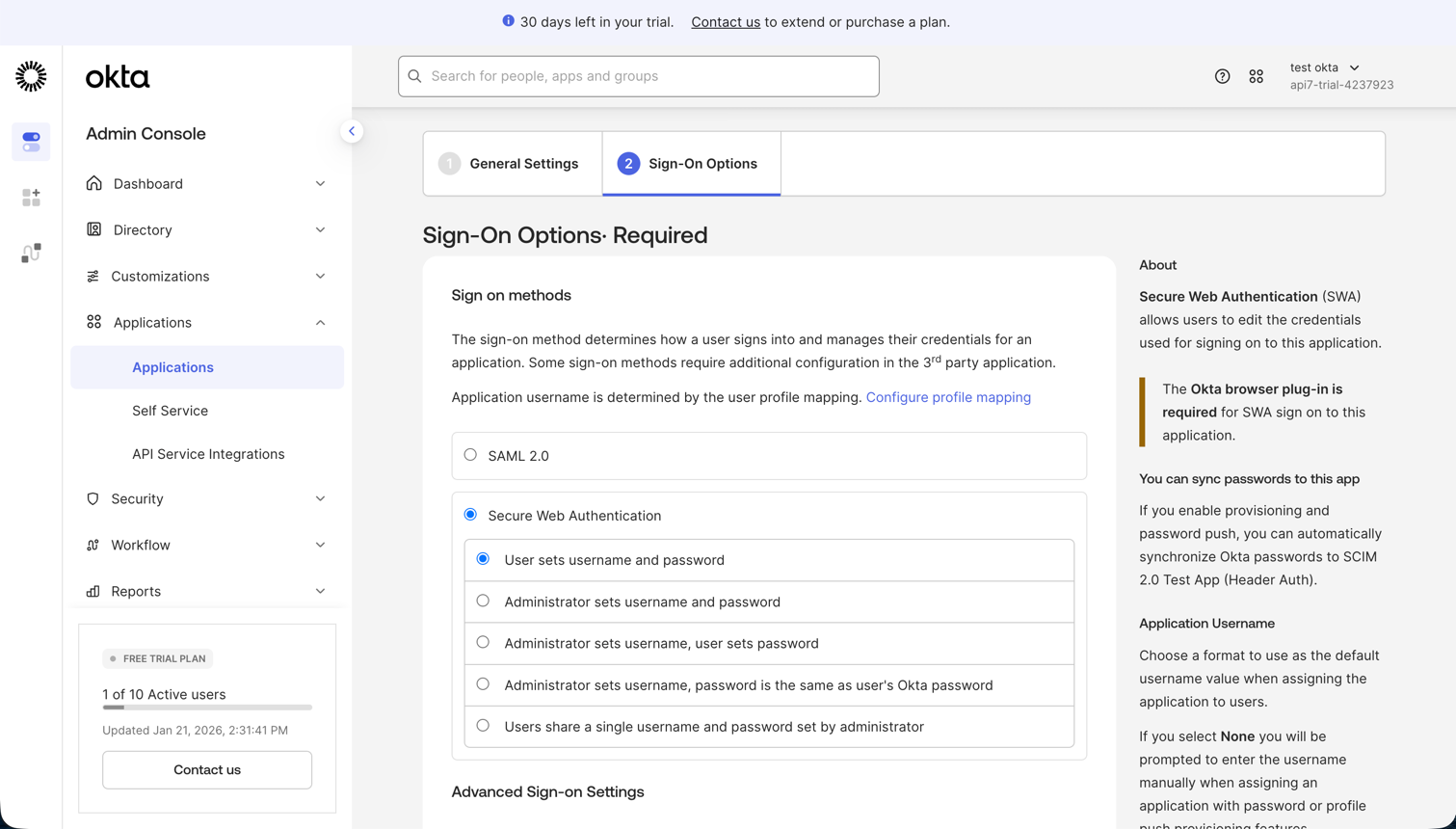
API7 Portal. - In Sign-On Options, select Secure Web Authentication (SWA).
- Click Done.
Install the SCIM Plugin and Create a Credential
From the Boilerplate workspace root, add the SCIM plugin to the site package:
pnpm --filter @api7ee/site add @better-auth/scim@1.7.1
Generate an opaque provisioning token without printing it:
export SCIM_TOKEN="$(openssl rand -hex 32)"
Keep this value available when generating the schema and running the application. Store it in your deployment's secret manager, and configure the same value as the Okta provisioning credential. Do not commit it to source control.
Register the Plugin in the Portal Code
In apps/site/src/lib/auth/server.ts, add the SCIM plugin to the existing server configuration. Keep the application's other plugins and hooks. Enable transactions on the existing Drizzle adapter, which the SCIM plugin requires:
import { scim } from '@better-auth/scim';

const scimToken = process.env.SCIM_TOKEN;
if (!scimToken) {
  throw new Error('SCIM_TOKEN is required');
}

export const auth = betterAuth({
  // Retain the other existing Better Auth options.
  database: drizzleAdapter(db, {
    provider: 'pg',
    usePlural: true,
    transaction: true,
  }),
  plugins: [
    // Retain the existing plugins here.
    scim({
      connections: [{
        id: 'okta',
        credentials: [{
          type: 'bearer',
          id: 'okta-primary',
          token: scimToken,
          scopes: ['scim.users.read', 'scim.users.write'],
        }],
      }],
    }),
  ],
});
SCIM 1.7.1 declares credentials on the connection. It does not provide a browser scimClient plugin or a generateSCIMToken API. User read/write scopes support the user-provisioning workflow below; group provisioning requires its own scopes and application integration.
Check the Route Handler
The TanStack Start handler in apps/site/src/routes/api/auth/$.ts already delegates GET, POST, PUT, PATCH, and DELETE to auth.handler. Keep that handler rather than adding a Next.js route or using toNextJsHandler.
Apply Database Migrations
The SCIM plugin requires additional database tables.
cd apps/site
pnpm dlx auth@1.7.1 generate \
  --config ./src/lib/auth/server.ts \
  --output ./src/lib/db/schema.ts
pnpm db:generate
pnpm db:migrate
You should see migration output indicating that the schema changes were applied successfully.
Deploy the updated application with its configured SCIM_TOKEN. Verify that the auth routes are reachable before connecting Okta.
For the local application, a read check is:
curl --fail-with-body -i \
  "http://localhost:3001/api/auth/scim/v2/Users?count=1" \
  -H "Authorization: Bearer ${SCIM_TOKEN}" \
  -H "Accept: application/scim+json"
Replace the origin for a remote deployment. A 200 SCIM list response, which may contain no resources yet, verifies endpoint authentication and database access. It does not verify portal authorization. The connection ID okta is selected through the bearer credential and is not part of the URL.
Configure Okta API Integration
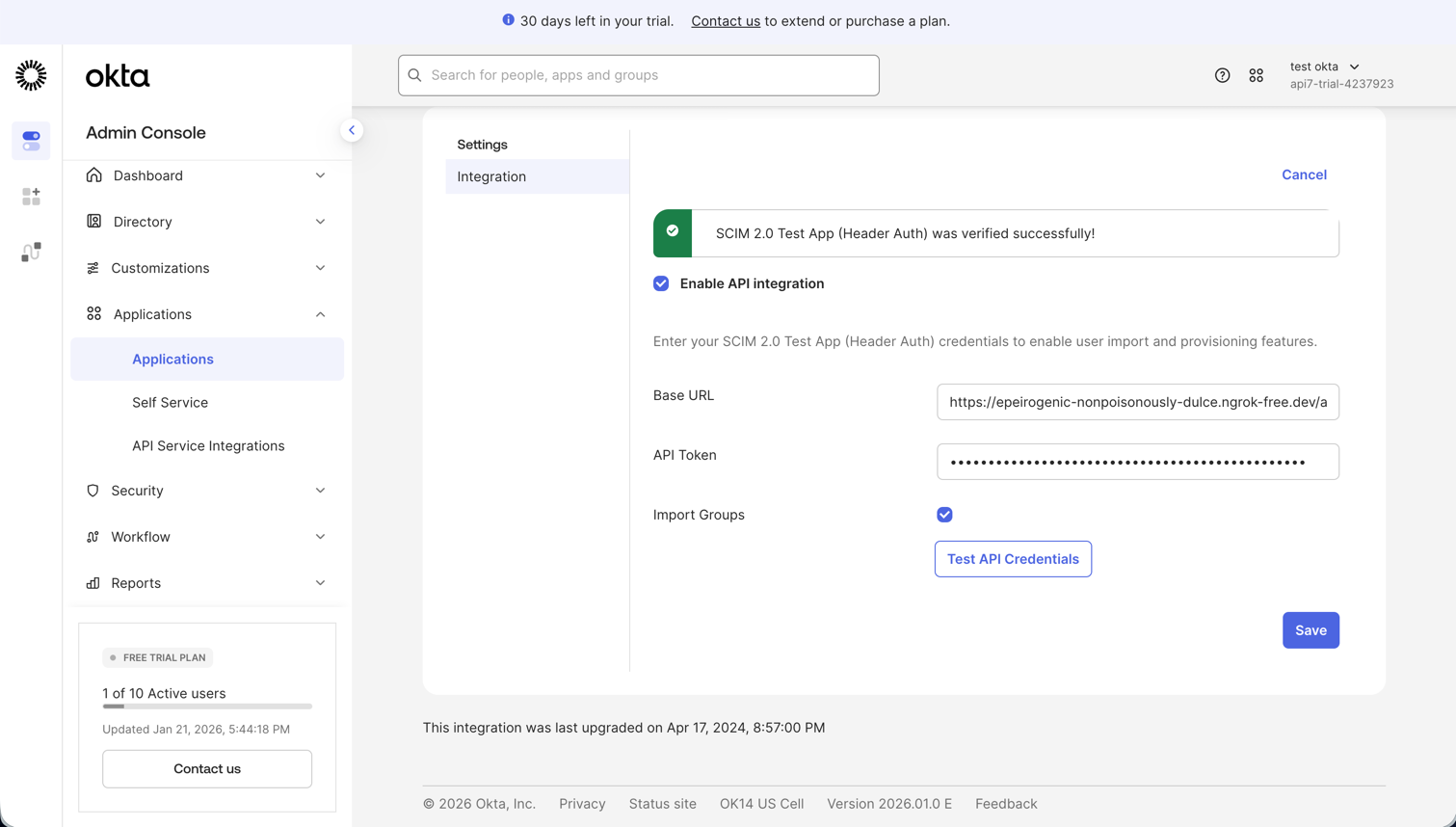
- In Okta, open the Provisioning tab of your SCIM application.
- Click Configure API Integration.
- Enable API integration.
- Set:
- SCIM 2.0 Base URL to
https://<YOUR_PORTAL_DOMAIN>/api/auth/scim/v2 - API Token to
Bearer <YOUR_SCIM_TOKEN>
- SCIM 2.0 Base URL to
- Click Test API Credentials.
- If the test succeeds, click Save.
Configure Provisioning and Assign Users
Configure Provisioning
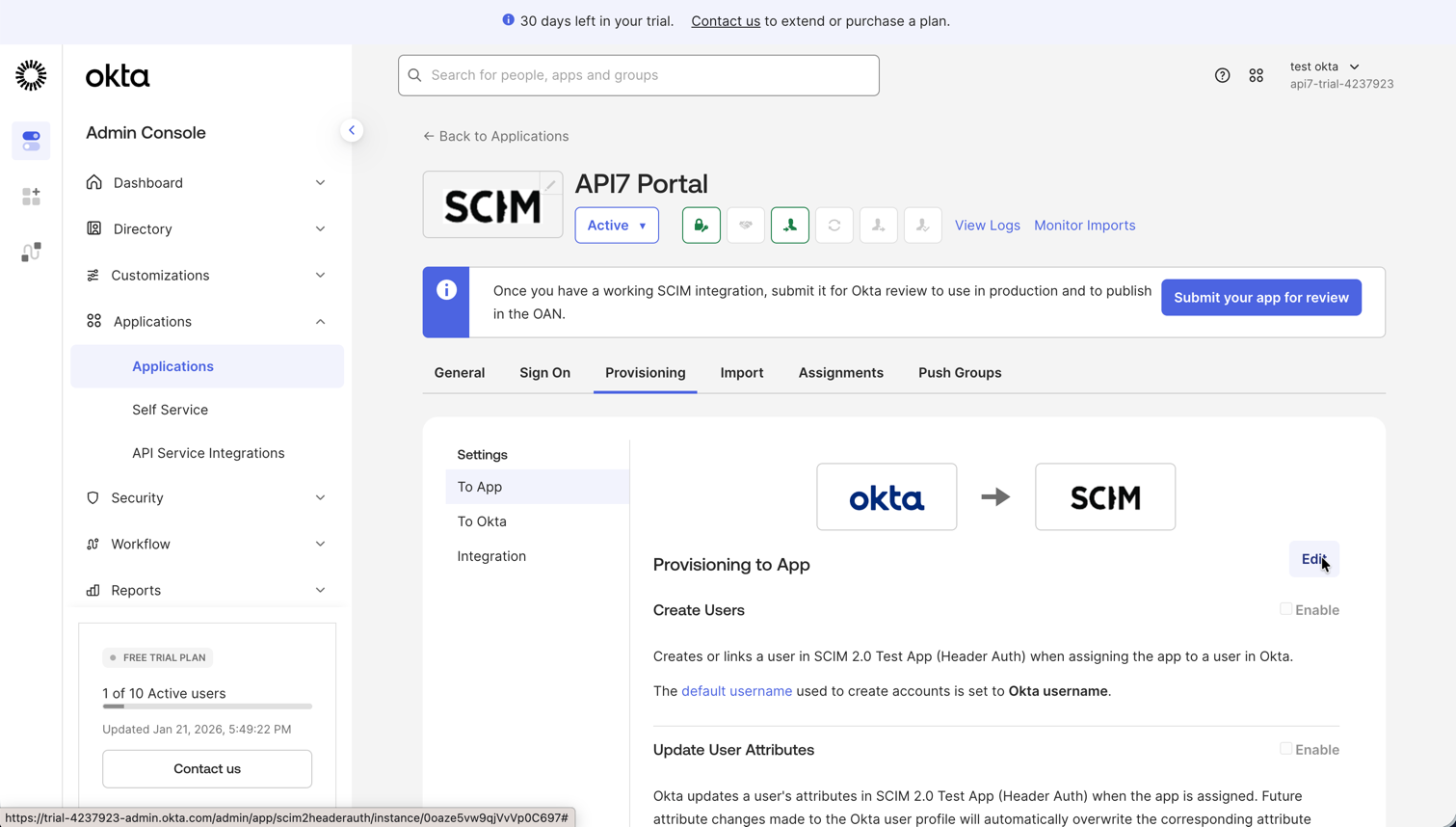
- In the Provisioning tab, select To App.
- Click Edit.
- Enable the features you need:
- Create Users
- Update User Attributes
- Deactivate Users
- Click Save.
Assign Users
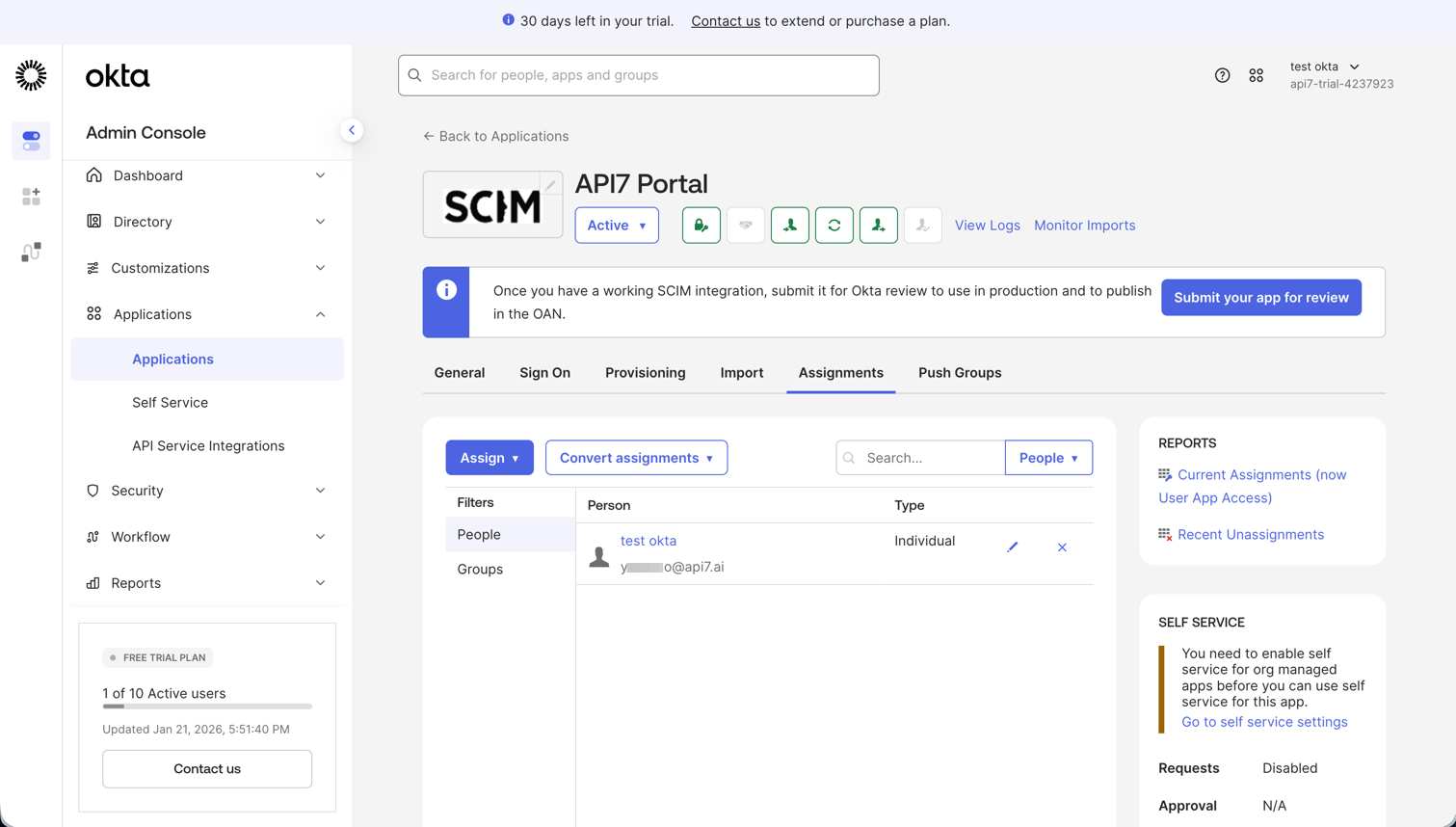
- Open the Assignments tab.
- Click Assign -> Assign to People or Assign to Groups.
- Select the users or groups to provision.
- Click Assign, then Done.
Verify Provisioning
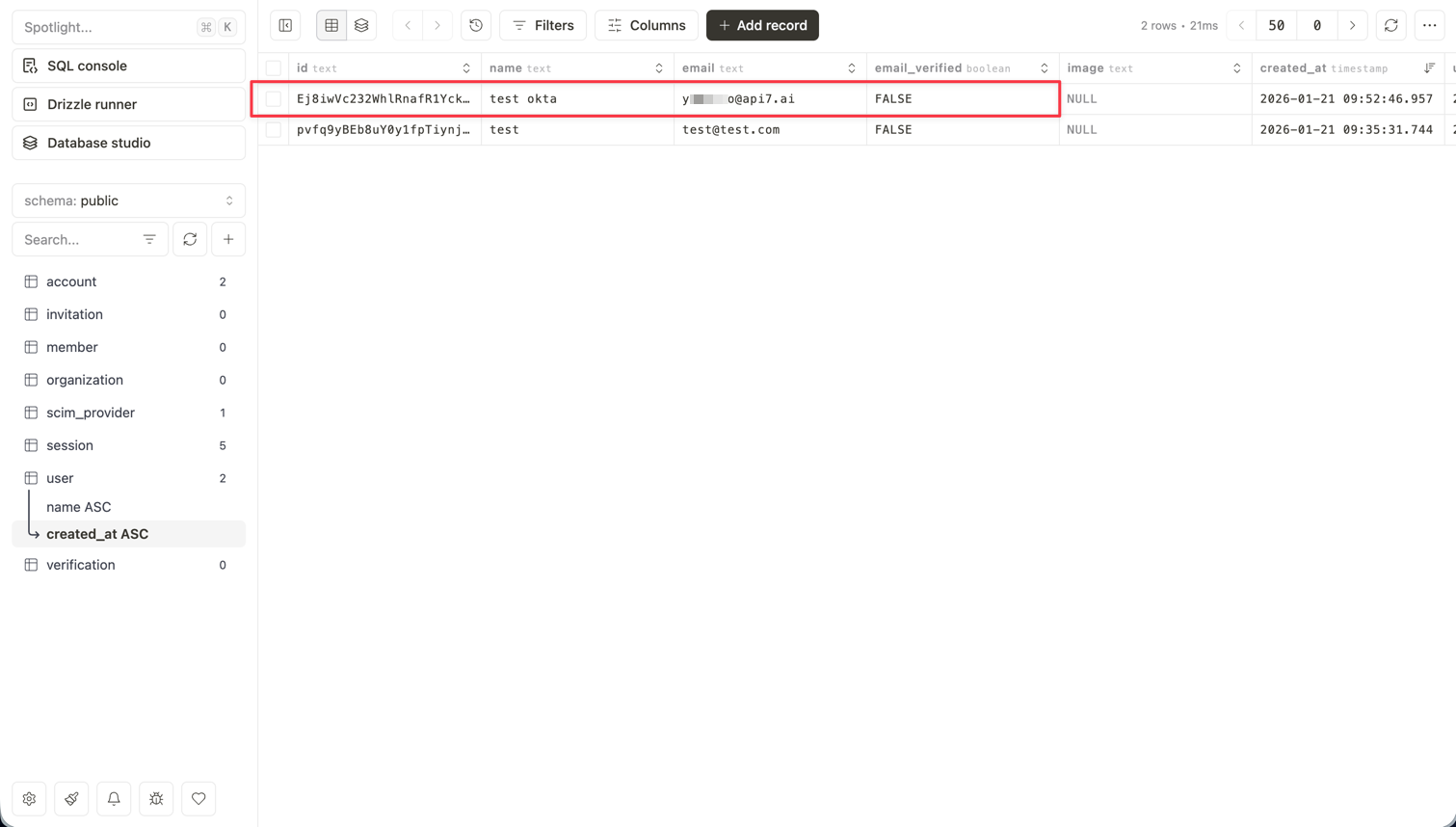
Verify that assignment creates a SCIM resource, an attribute update changes that resource, and deactivation marks it inactive. Inspect the SCIM API and backing database rather than assuming that a portal user-list entry proves the complete integration.
Then test the authorization integration you implemented: organization membership, sign-in, subscriptions, and access through previously issued credentials. SCIM deactivation does not by itself prove that all portal or gateway access has been revoked.
Next Steps
- Configure the Developer Portal — manage the released portal settings and application configuration.
- Customize the Developer Portal — extend the boilerplate with additional behavior.
- Developer Portal SSO Status — review the released component mismatch before planning interactive login options alongside SCIM provisioning.