Install API7 Enterprise on OpenShift
This guide walks you through how to deploy API7 Enterprise on an OpenShift cluster.
Architecture
Overview
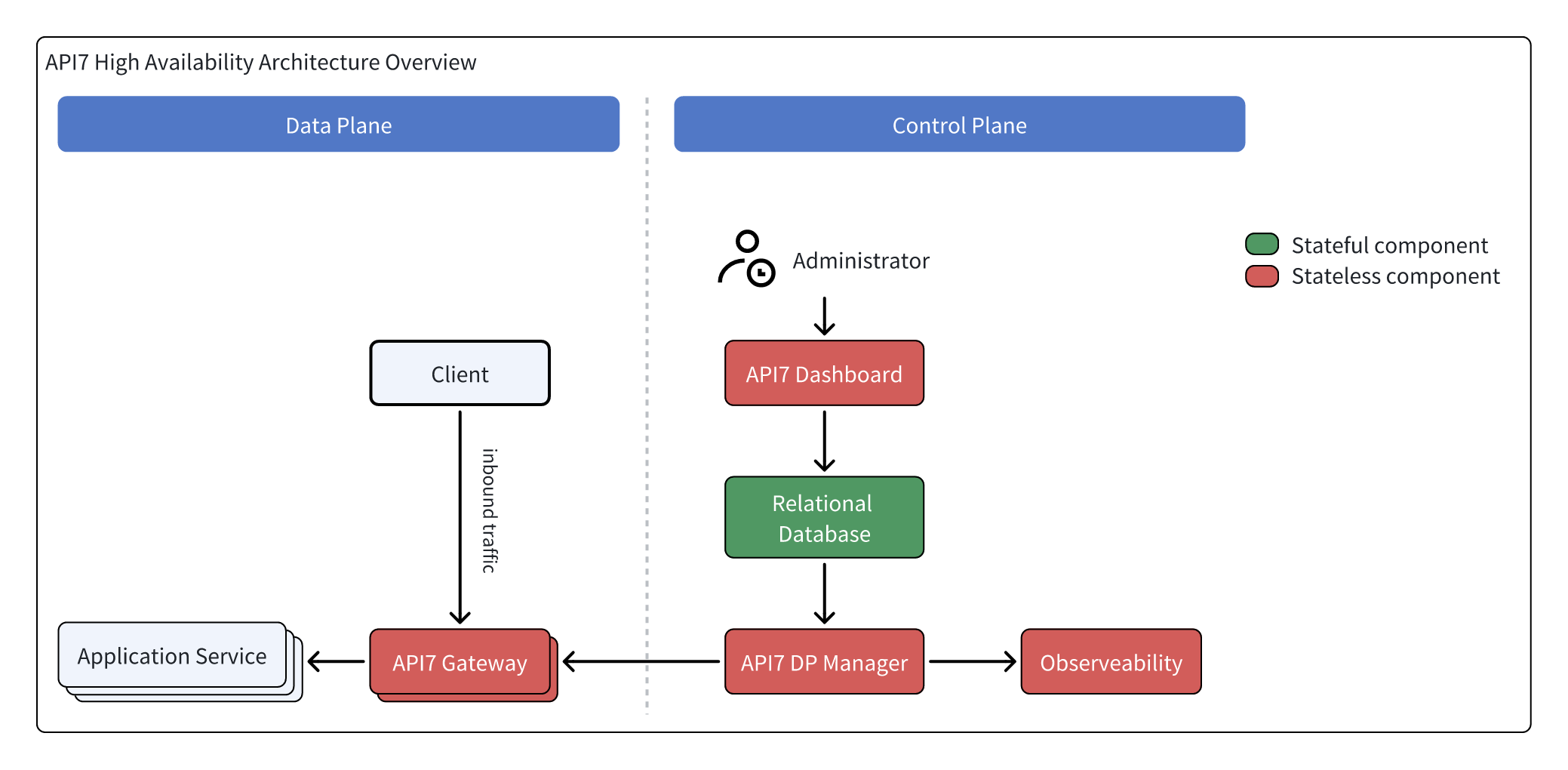
API7 Enterprise includes two sets of components:
- Control Plane: API7 Dashboard, API7 DP Manager, Database (can use RDS instead), Other Components.
- Data Plane: API7 Gateway.
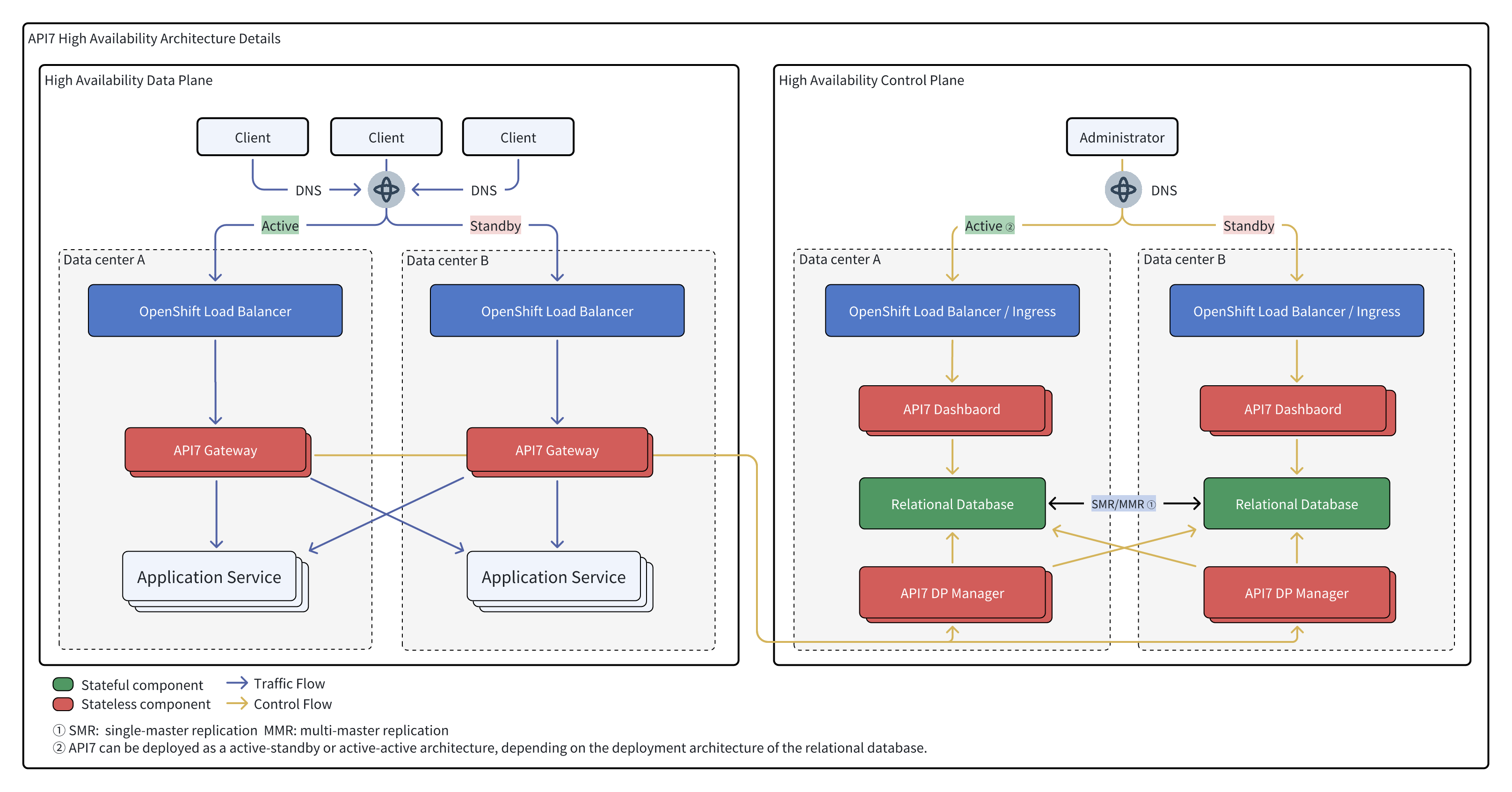
High Availability Deployment Pattern
Prerequisites
Deploy an OpenShift Cluster
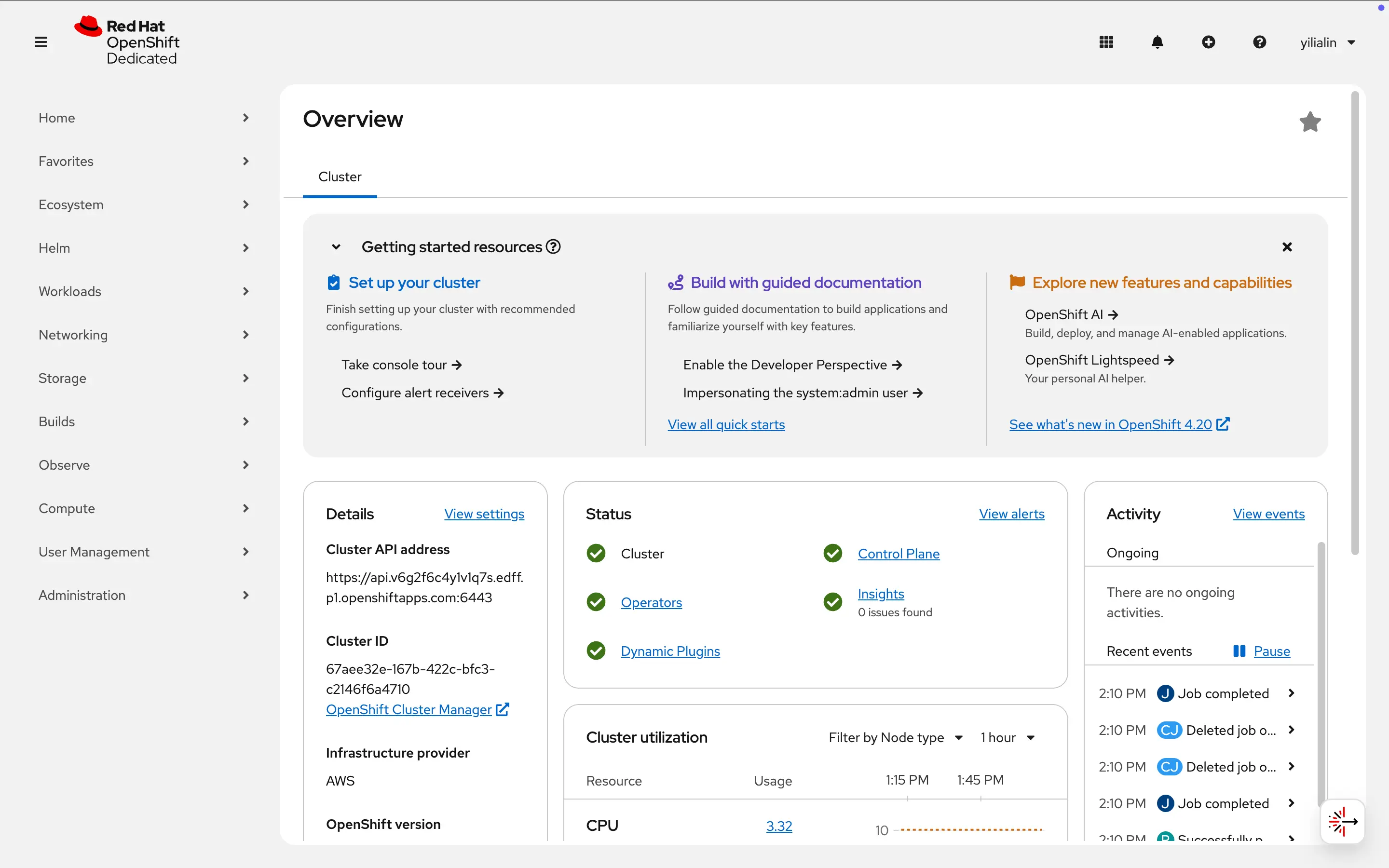
Have a running OpenShift Cluster:
Manage Security Context Constraints (SCCs)
Security Context Constraints (SCCs) are a set of APIs on OpenShift used to manage security policy constraints for pods.
The SCCs enabled by default in OpenShift are extremely strict and require the process in the container to be read-only for the file system. Follow the managing security context constraints doc to use a more flexible SCC nonroot-v2 for API7 Enterprise.
Configure OpenShift CLI
Install OpenShift CLI (oc).
Find the login command on the console:
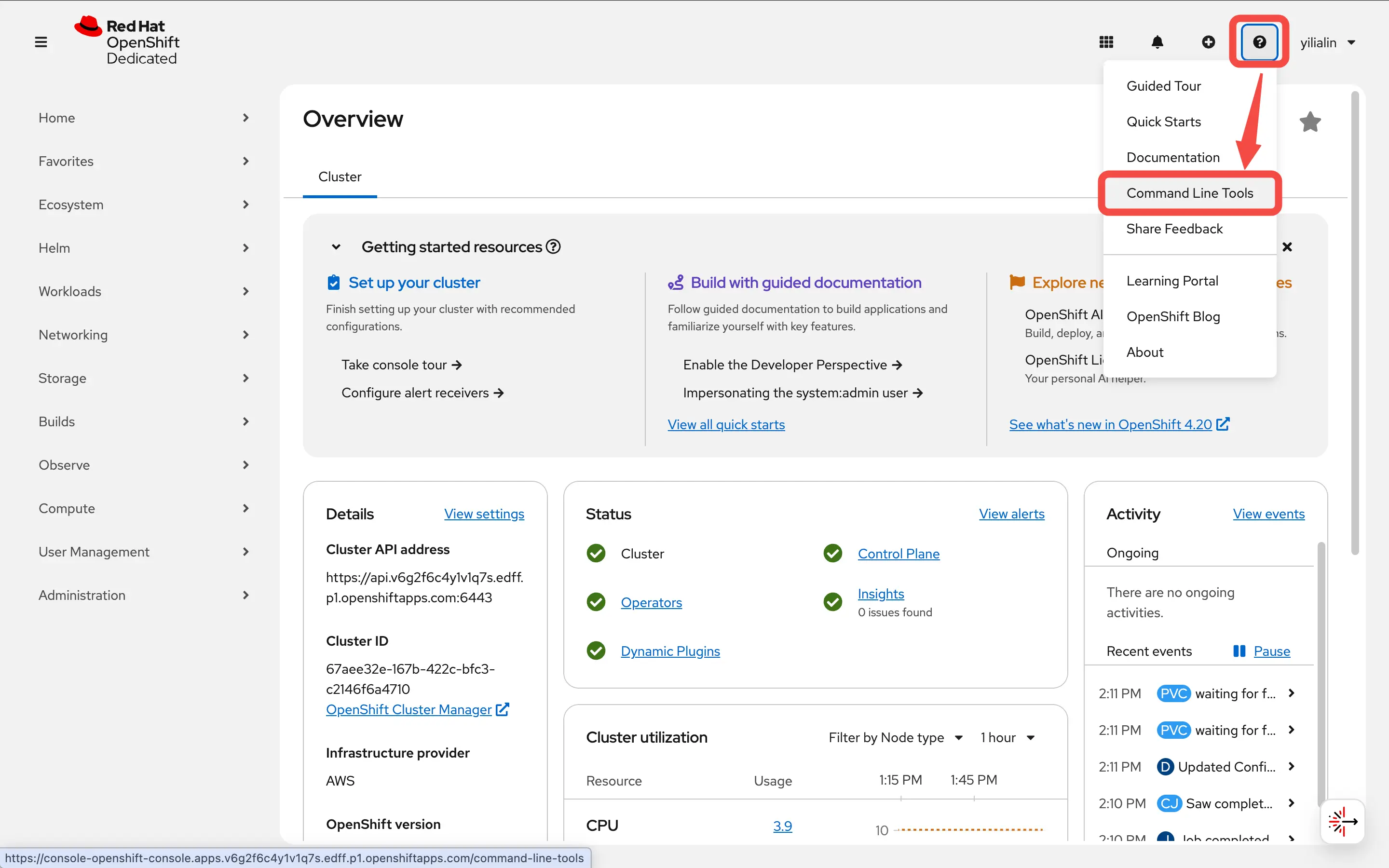
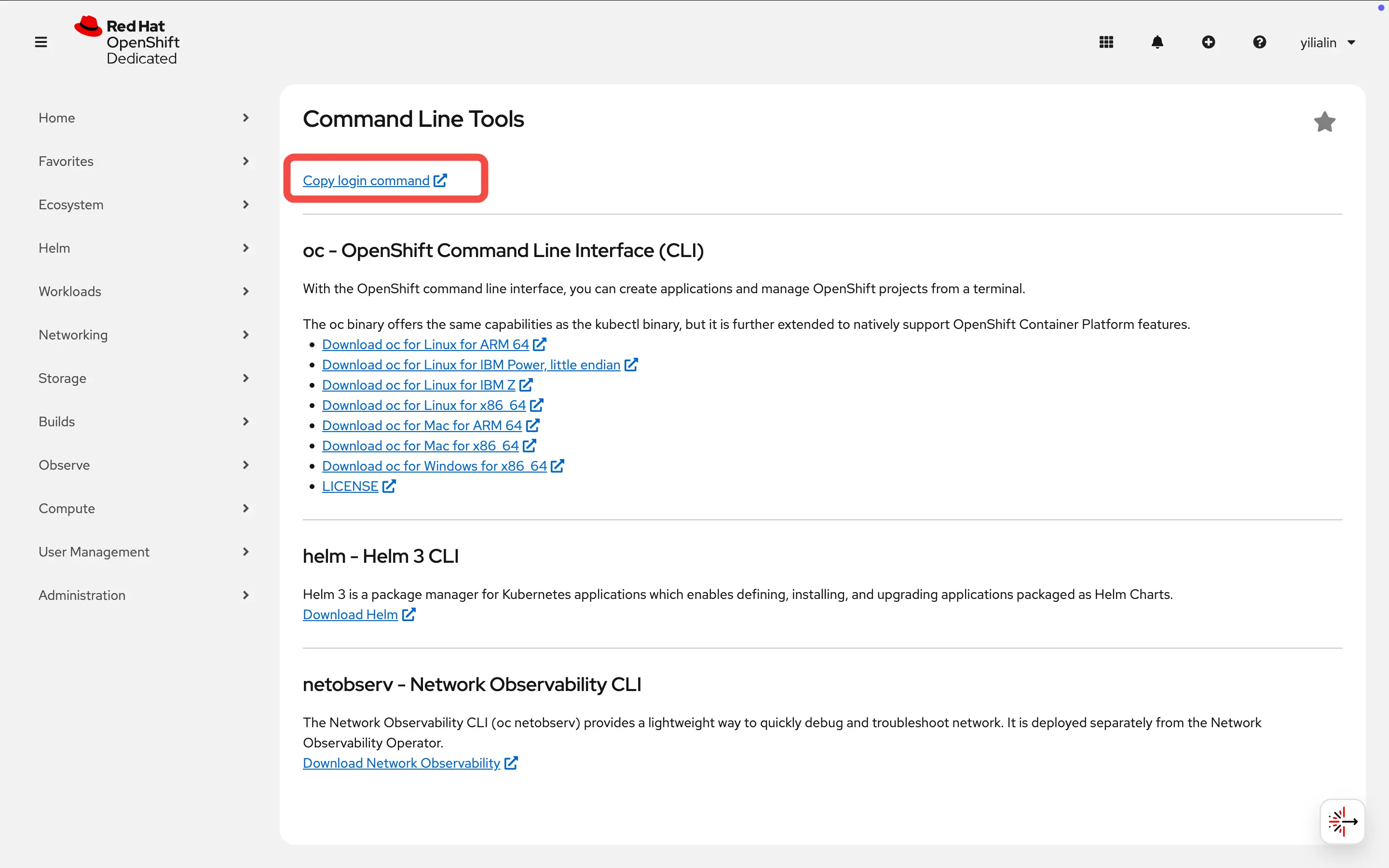
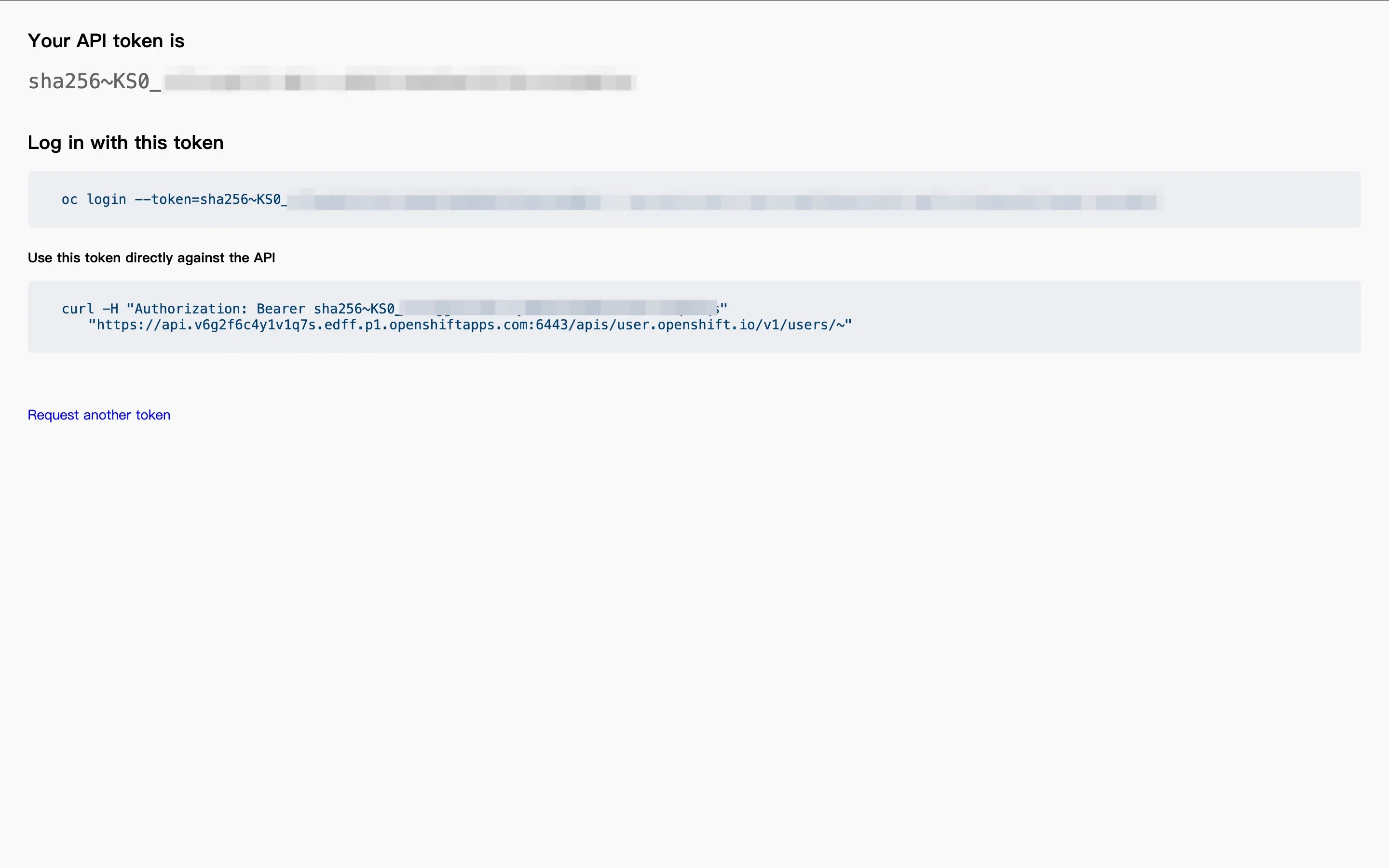
Log in to the OpenShift Cluster with your token and server address:
oc login \
  --token=sha256~Jk9gi578fm8tkdCje1qL0IyKc5ntqMOaladPjH3TuAk \
  --server=https://api.v6g2f6c4y1v1q7s.edff.p1.openshiftapps.com:6443
Make sure that your user account has the cluster-admin role to perform cluster management.
You should see a response similar to the following:
Logged into "https://api.v6g2f6c4y1v1q7s.edff.p1.openshiftapps.com:6443" as "admin" using the token provided.

You have access to 107 projects, the list has been suppressed. You can list all projects with 'oc projects'

Using project "default".
Create a Project
Create a project in the console:
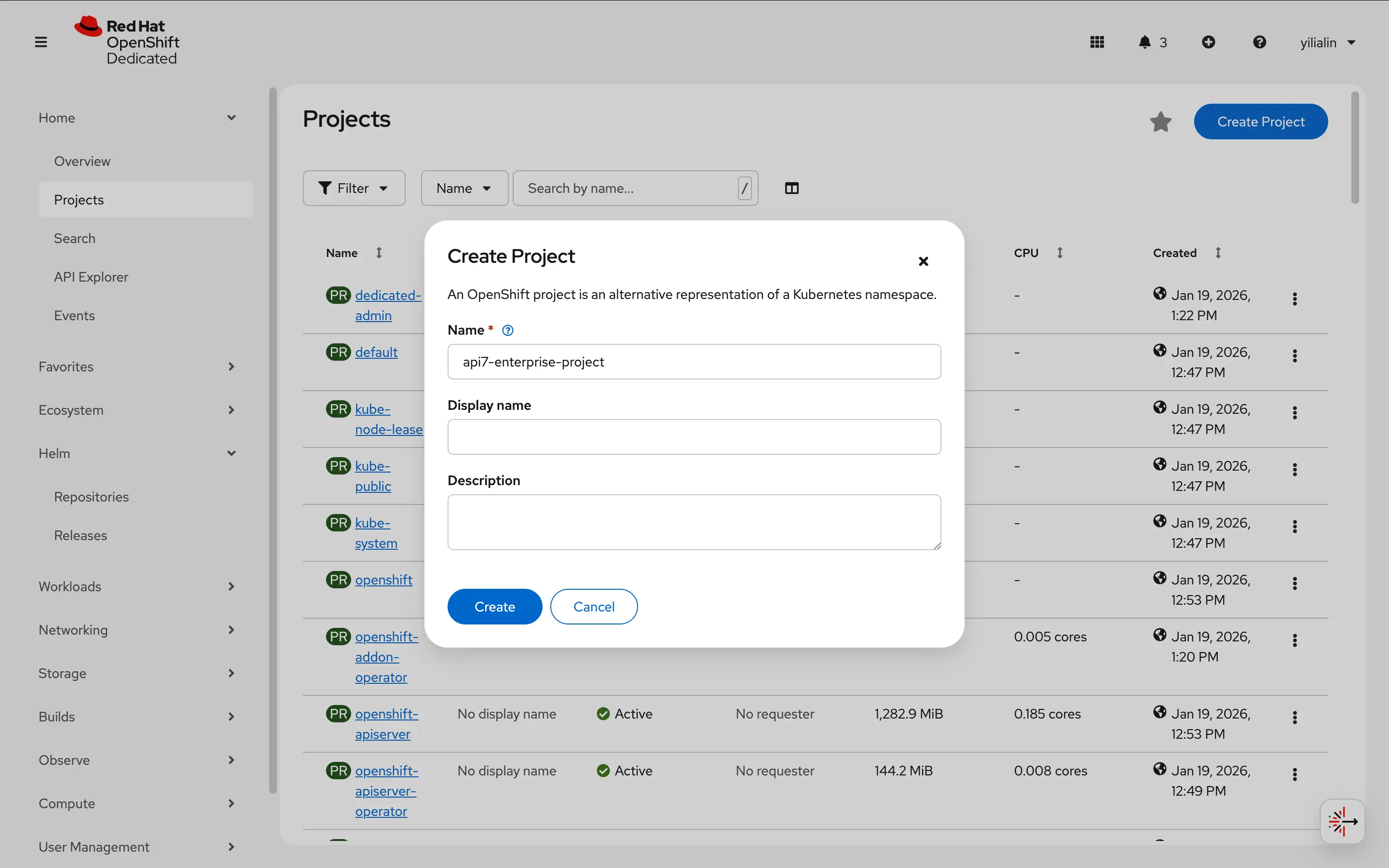
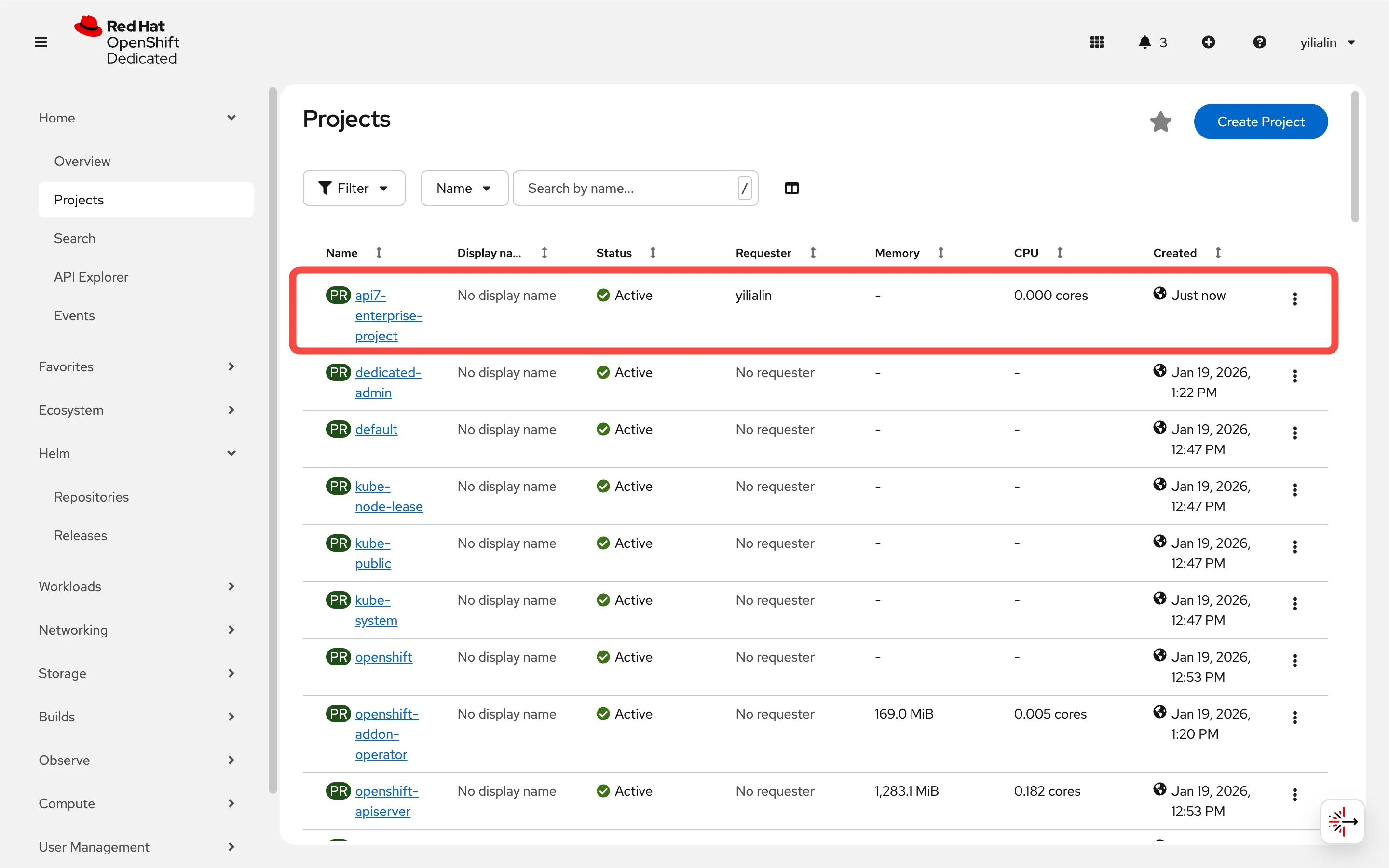
Alternatively, you can create a project using the CLI:
oc new-project api7-enterprise-project
The project name will be used as the Kubernetes namespace.
Switch the default project to api7-enterprise-project:
oc project api7-enterprise-project
Install API7 Enterprise
Add API7 Helm Chart Repository
Select "Repositories" under the "Helm" tab.
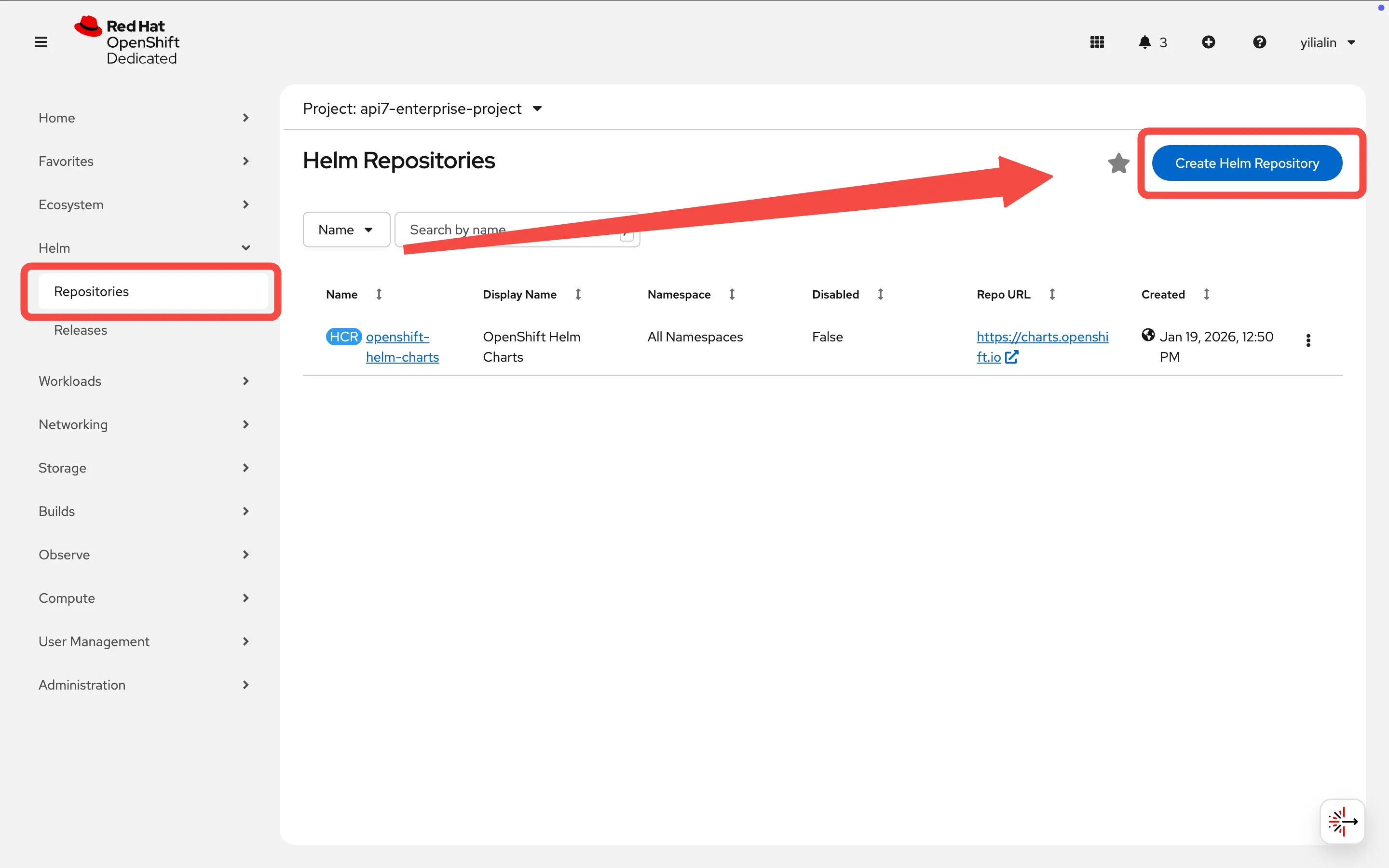
Add the API7 repository https://charts.api7.ai.
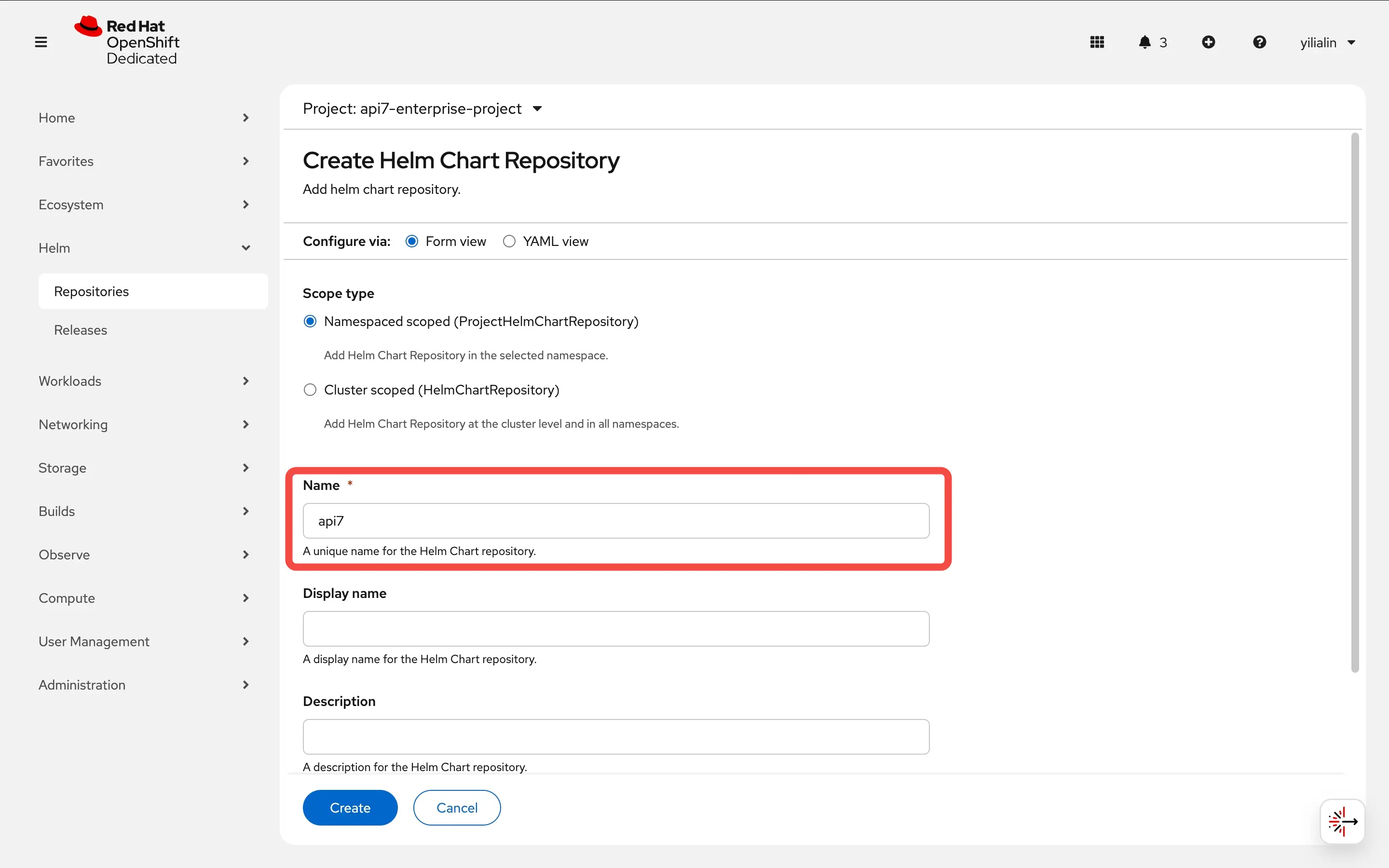
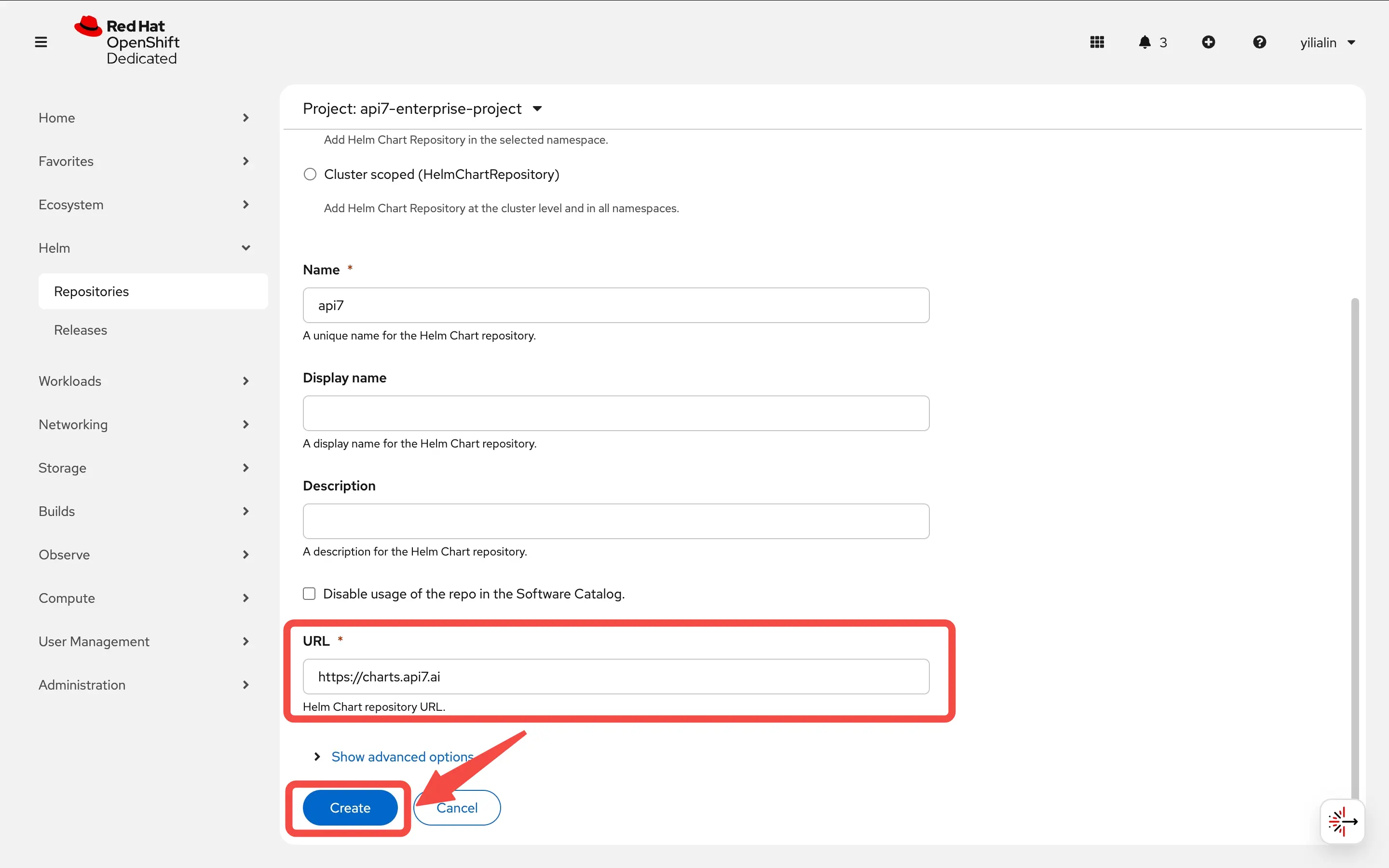
Install Control Plane
Select "Releases" under the "Helm" tab to create Helm releases.
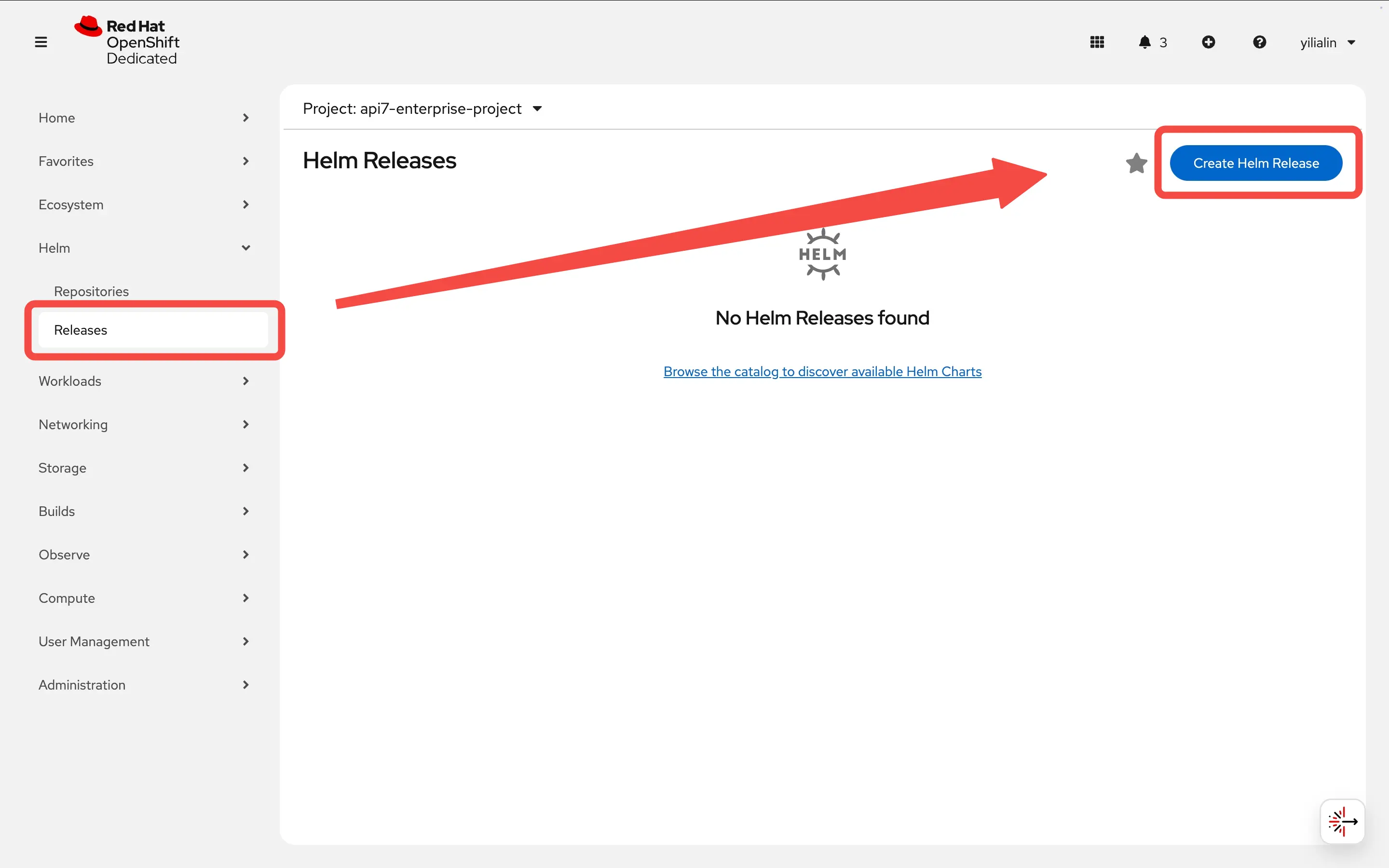
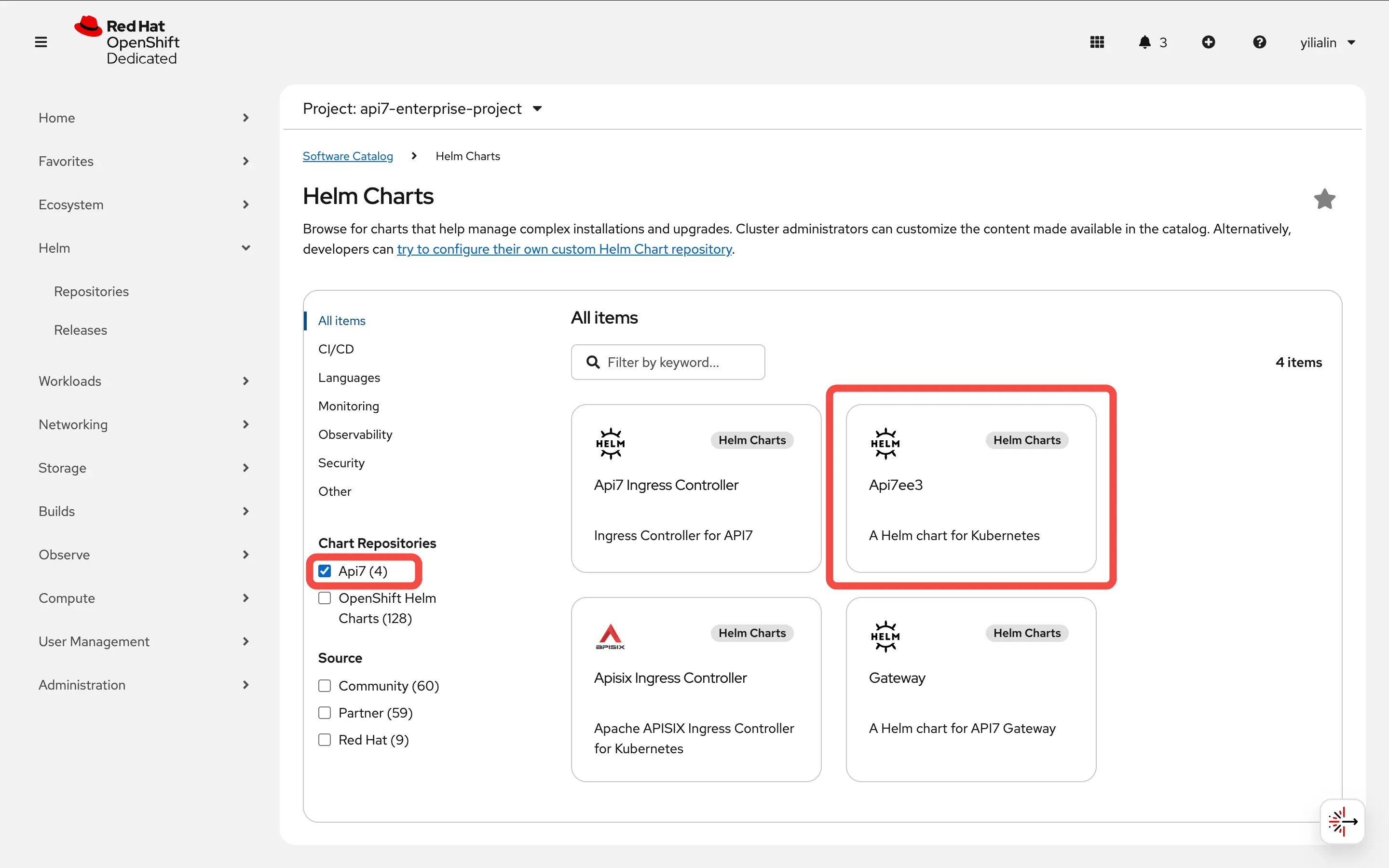
Select Api7 first and click Api7ee3 Helm chart to create.
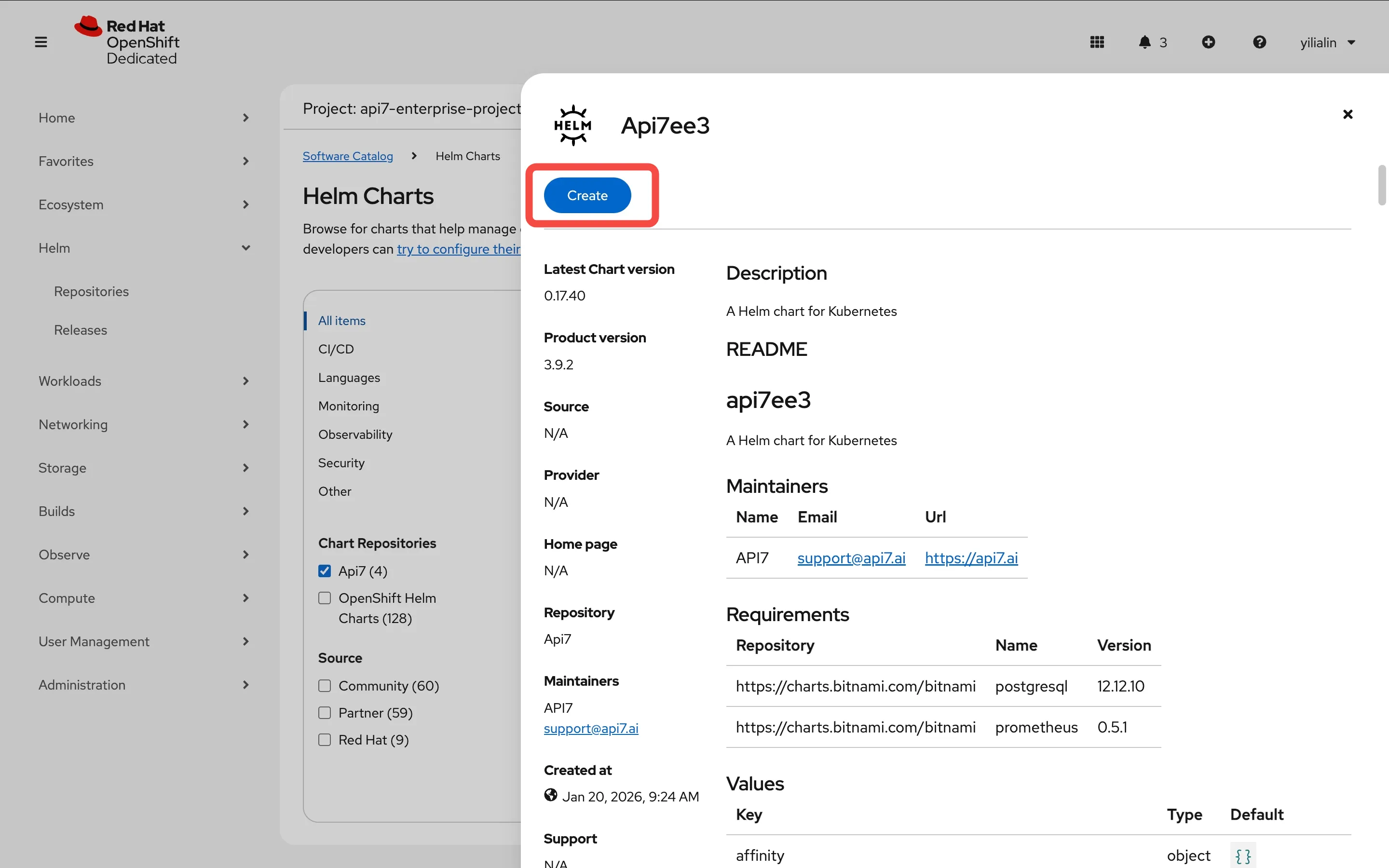
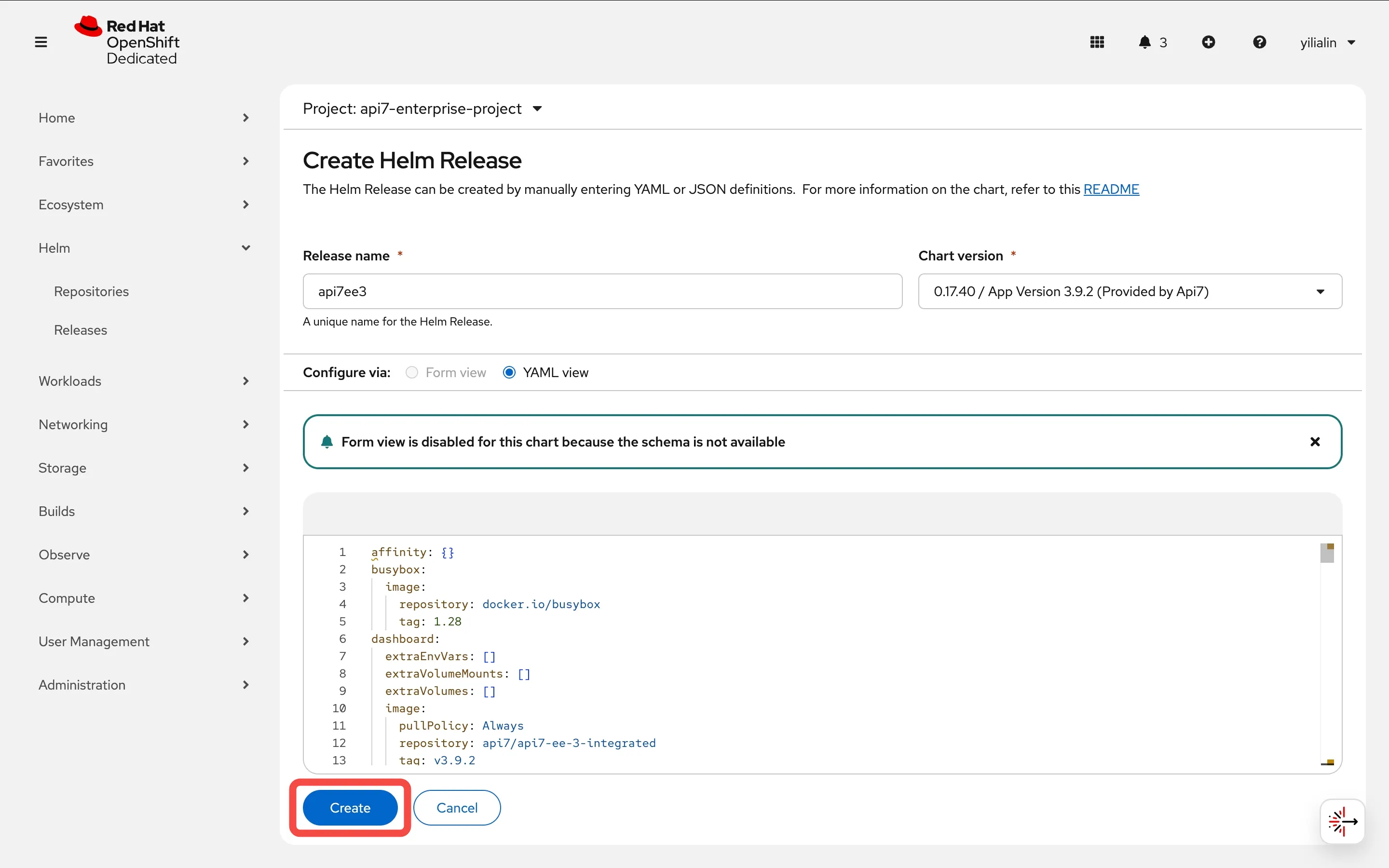
Use the default latest chart version and paste the following snippet to replace the default values:
# adjust the values if needed for additional customizations
postgresql:
  primary:
    podSecurityContext:
      enabled: false
    containerSecurityContext:
      enabled: false
prometheus:
  server:
    podSecurityContext:
      enabled: false
    containerSecurityContext:
      enabled: false
Finish by clicking Create.
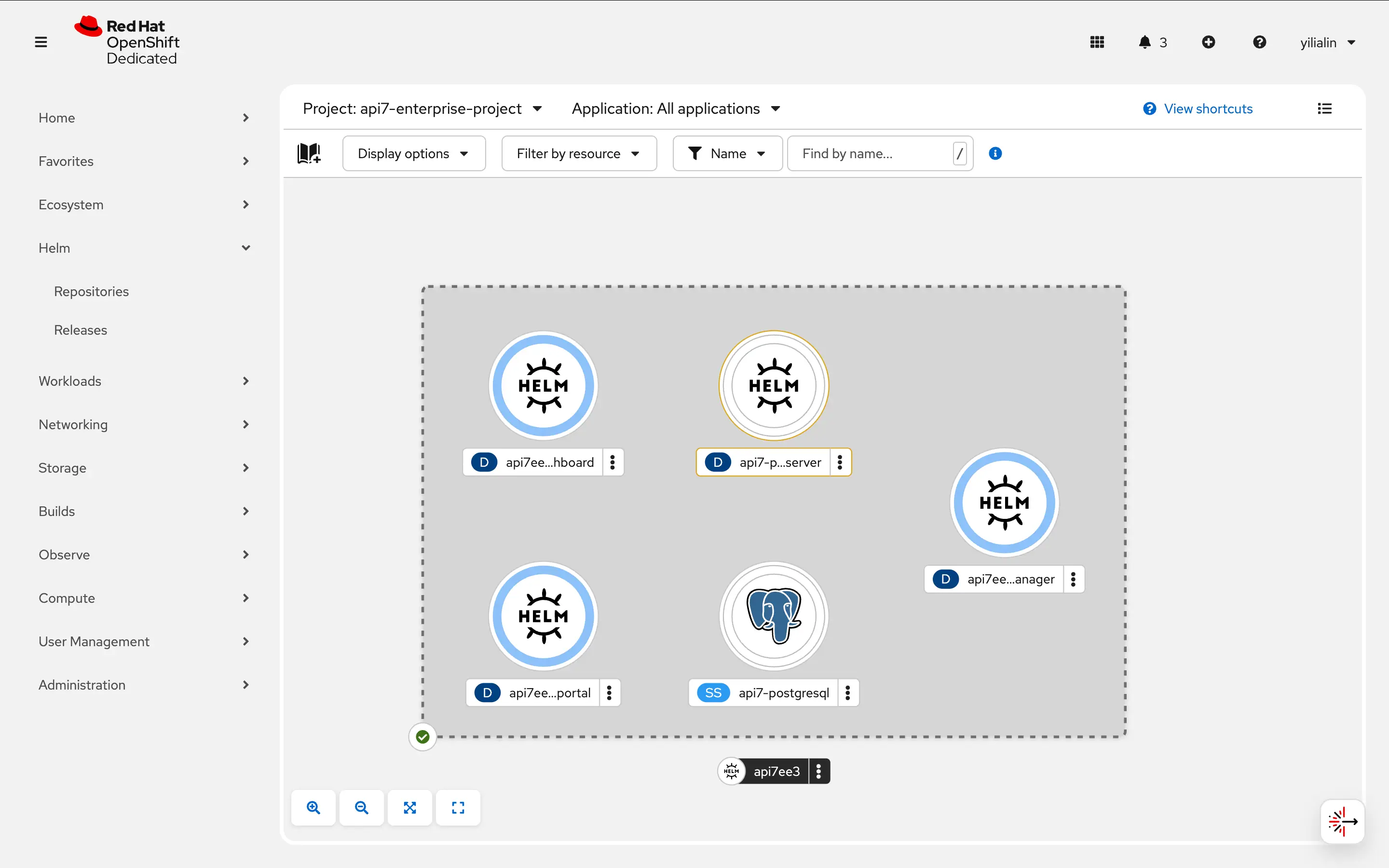
You should see the components installed.
See all the created services:
kubectl get svc -owide -l app.kubernetes.io/name=api7ee3

NAME                       TYPE        CLUSTER-IP       EXTERNAL-IP   PORT(S)             AGE   SELECTOR
api7ee3-dashboard          ClusterIP   172.30.39.137    <none>        7080/TCP,7443/TCP   35s   app.kubernetes.io/component=dashboard,app.kubernetes.io/instance=api7ee3,app.kubernetes.io/name=api7ee3
api7ee3-developer-portal   ClusterIP   172.30.114.132   <none>        4321/TCP            35s   app.kubernetes.io/component=developer-portal,app.kubernetes.io/instance=api7ee3,app.kubernetes.io/name=api7ee3
api7ee3-dp-manager         ClusterIP   172.30.232.75    <none>        7900/TCP,7943/TCP   35s   app.kubernetes.io/component=dp-manager,app.kubernetes.io/instance=api7ee3,app.kubernetes.io/name=api7ee3
Activate License in the Dashboard
Port forward the Dashboard service to localhost:7443:
kubectl port-forward svc/api7ee3-dashboard 7443:7443
If successful, you should be able to visit the dashboard at https://localhost:7443.
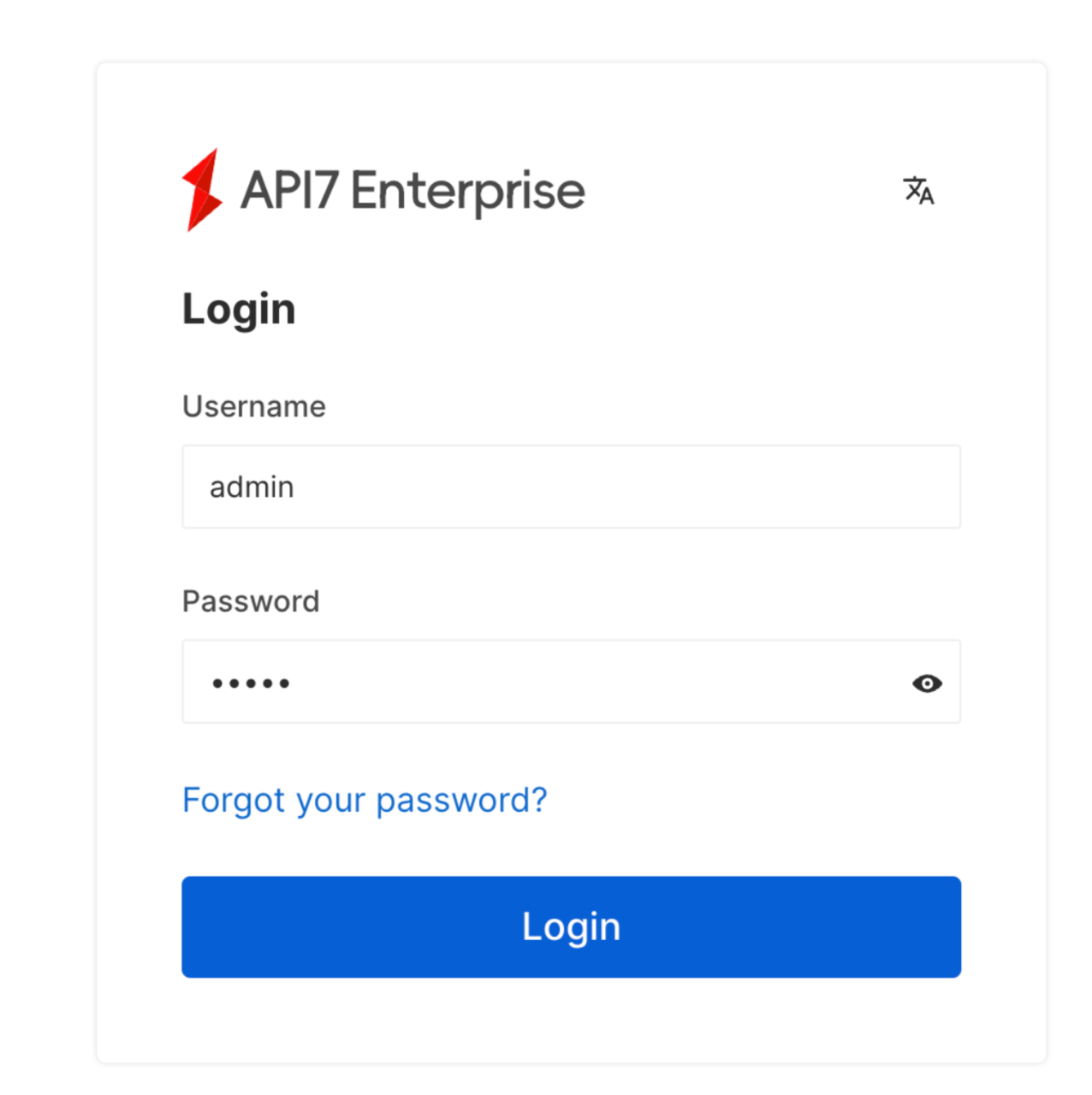
Log in with admin as both the username and the password:
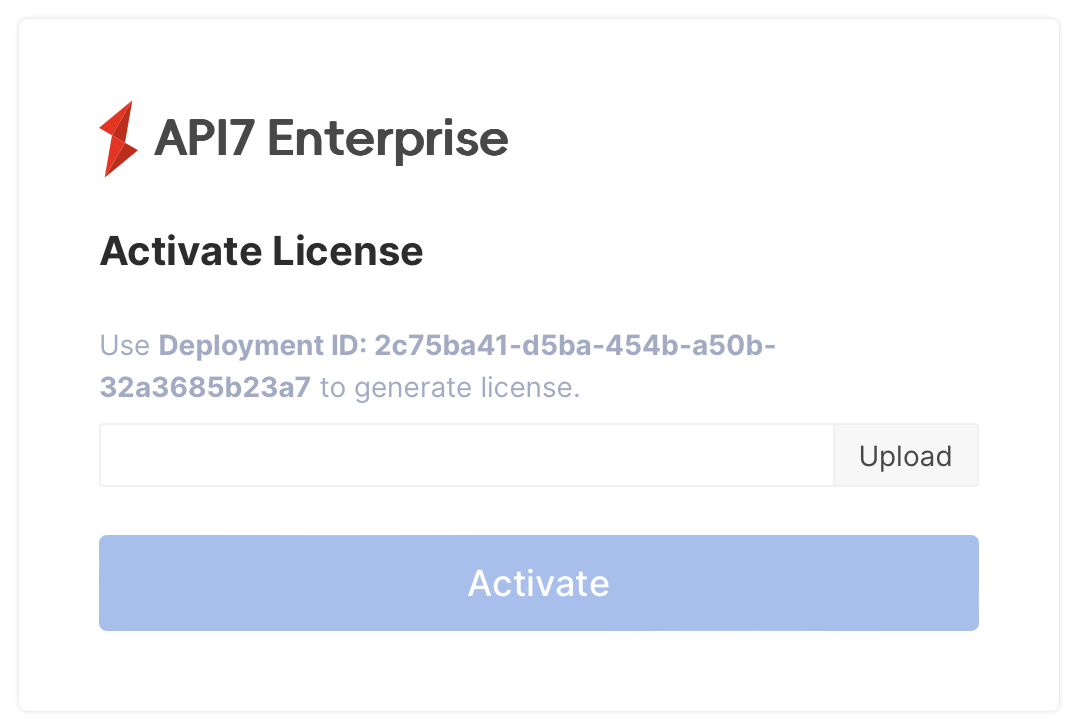
Then upload your license. If you do not have a license, you can request a 30-day trial license.
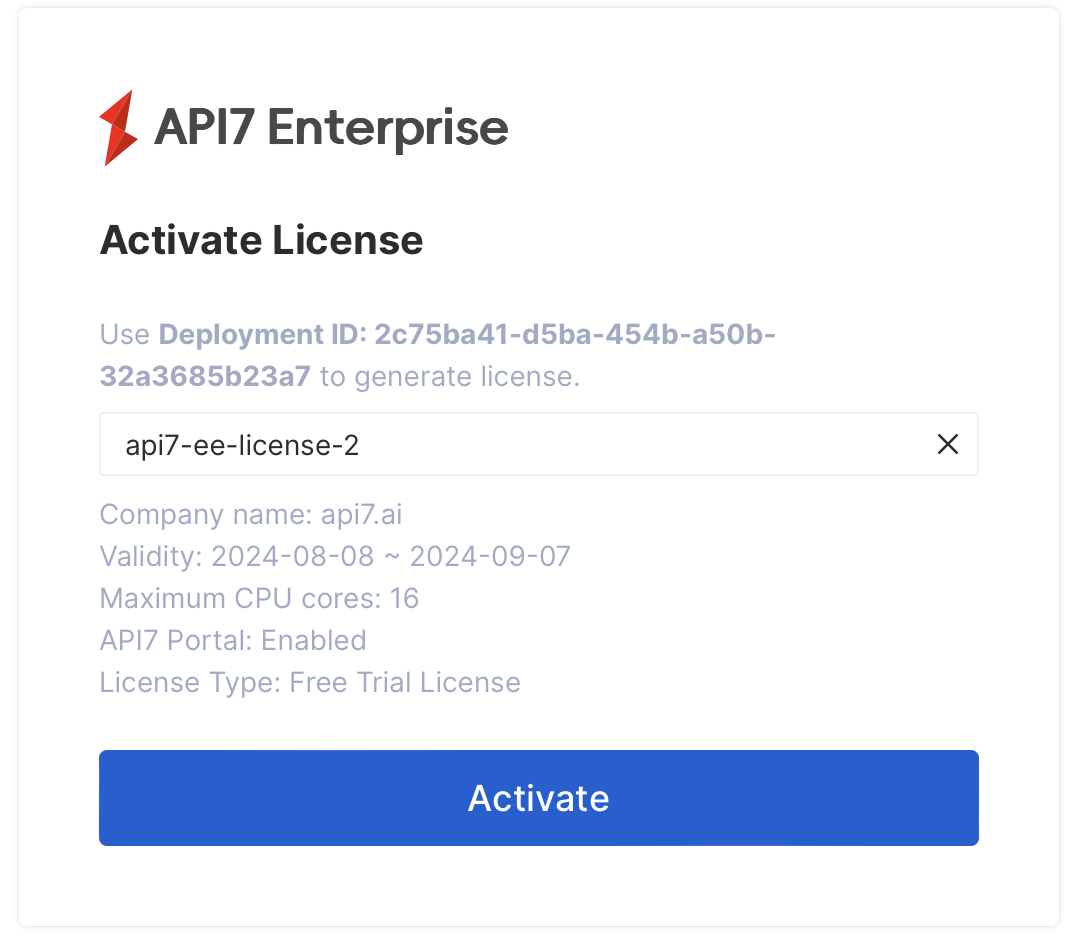
Select Activate:
You should now be redirected to the Dashboard main interface.
Add Control Plane Address
Before adding more Gateway instances, first configure the connection address of the control plane.
In the same cluster, the data plane and control plane follow the format of https://{service-name}.{namespace}.svc.cluster:7943, regardless of whether they are deployed under the same namespace.
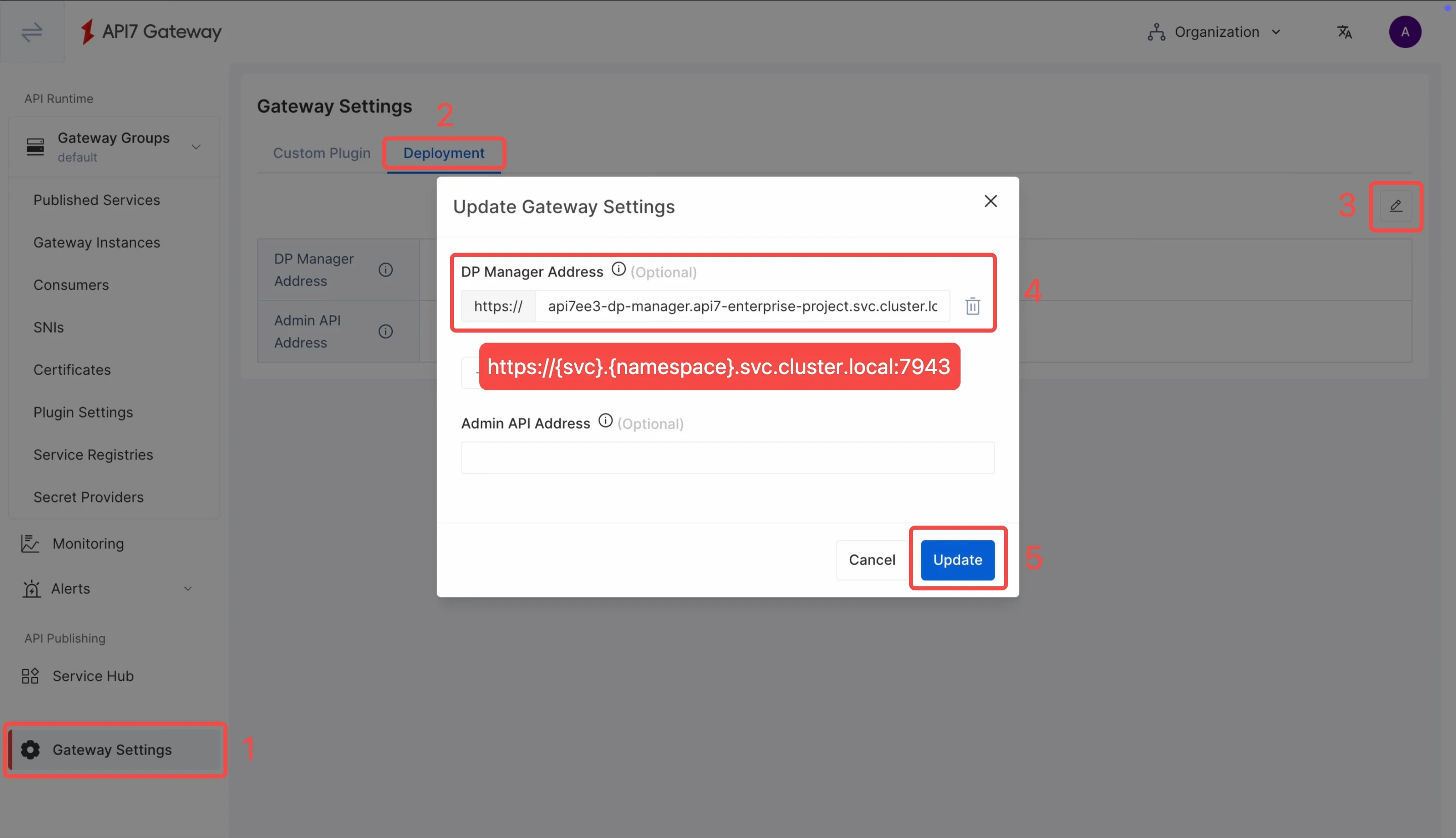
By default, API7 Gateway and the control plane will authenticate with mTLS for verification. Configure https://{service-name}.{namespace}.svc.cluster:7943 as the DP manager address.
Install Data Plane
Configure SCC for API7 Gateway
API7 Gateway needs to generate local files at runtime, including nginx.conf, logs, and cached files. The nonroot-v2 SCC is sufficient with the required permissions.
Create a service account:
oc create serviceaccount api7-gateway -n api7-enterprise-project
Create a role with nonroot-v2 SCC:
oc create role api7-gateway \
  --verb=use \
  --resource=scc \
  --resource-name=nonroot-v2 \
  -n api7-enterprise-project
Bind the role to the service account:
oc create rolebinding api7-gateway \
  --role=api7-gateway \
  --serviceaccount=api7-enterprise-project:api7-gateway \
  -n api7-enterprise-project
Generate and Run Deployment Script
Compared with Apache APISIX, API7 Enterprise introduces an additional logical grouping called Gateway Group, where you can manage different sets of Gateway instances with the same API7 Dashboard.
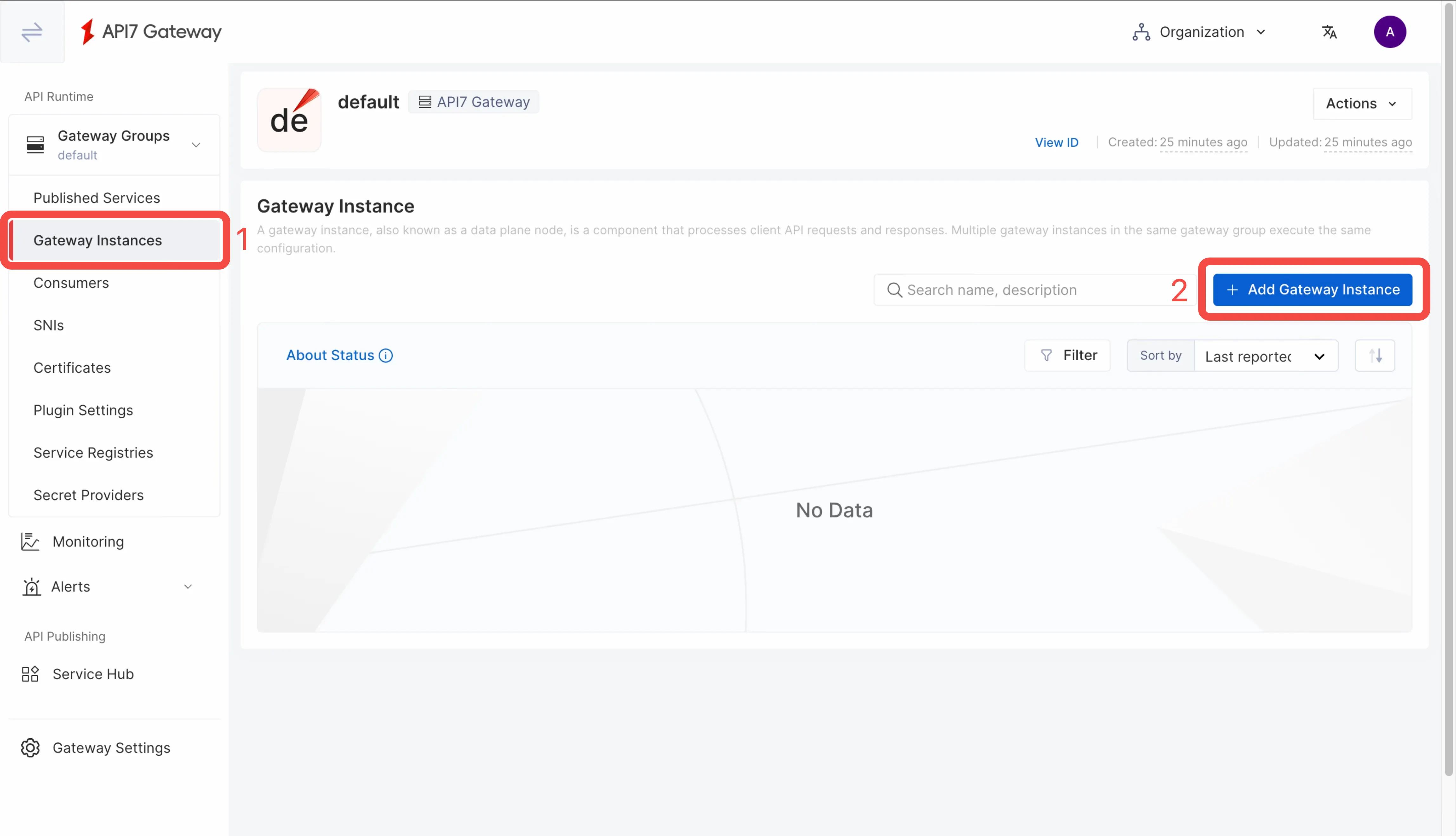
First, you should create or choose the target Gateway Group. In this guide, you will select the default gateway group. Then, select Gateway Instances and Add Gateway Instance:
Switch to the Kubernetes tab and fill out the parameters. Once finished, click Generate to see the deployment script.
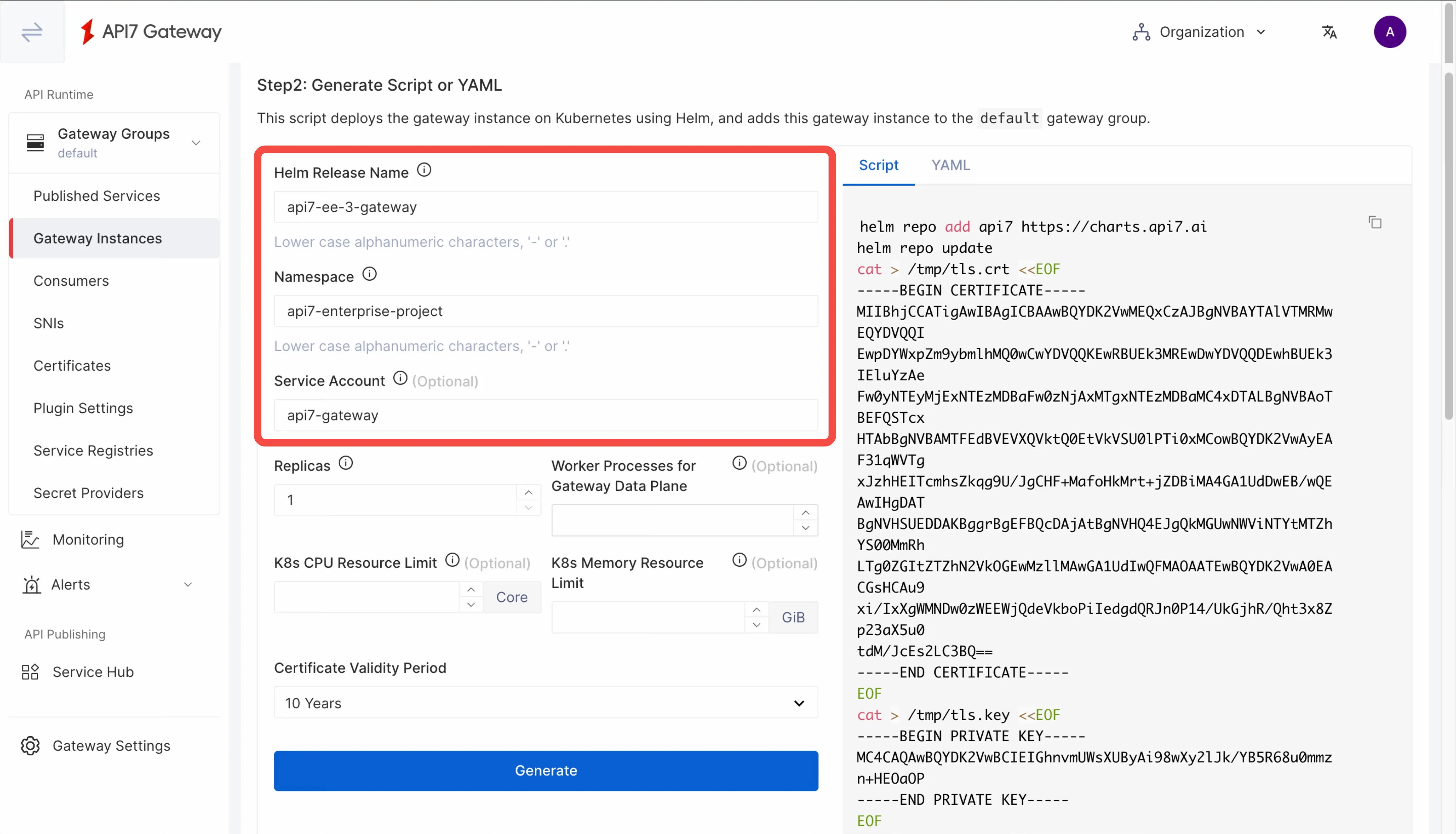
The generated script closes without a backslash (\). Ensure the apisix.image.tag line ends with \ and that the additional securityContext settings are appended to the end of the Helm command.
The command should be similar to the following:
helm repo add api7 https://charts.api7.ai
helm repo update
cat > /tmp/tls.crt <<EOF
-----BEGIN CERTIFICATE-----
MIIBhjCCATigAwIBAgICBAAwBQYDK2VwMEQxCzAJBgNVBAYTAlVTMRMwEQYDVQQI
EwpDYWxpZm9ybmlhMQ0wCwYDVQQKEwRBUEk3MREwDwYDVQQDEwhBUEk3IEluYzAe
Fw0yNTEyMjIwMjQ1MTRaFw0zNjAxMTkwMjQ1MTRaMC4xDTALBgNVBAoTBEFQSTcx
HTAbBgNVBAMTFEdBVEVXQVktQ0EtVkVSU0lPTi0xMCowBQYDK2VwAyEAj7eA6FJM
3TV6J5TfRQ8cyDR53YwoH3i9SHo/yI3UJgajZDBiMA4GA1UdDwEB/wQEAwIHgDAT
BgNVHSUEDDAKBggrBgEFBQcDAjAtBgNVHQ4EJgQkY2I2M2I4MjgtZTAxNC00ZDNh
LTg1YzMtNDk4OTQyZjhkMGE0MAwGA1UdIwQFMAOAATEwBQYDK2VwA0EALyFv3wdZ
inocl8npyQcplqGk9RdLIcSSRaTBWag7fruRnPHMoUJ7WLt0c9LdtNYY65I/l1fi
mKiOgbdJJF4XDQ==
-----END CERTIFICATE-----
EOF
cat > /tmp/tls.key <<EOF
-----BEGIN PRIVATE KEY-----
MC4CAQAwBQYDK2VwBCIEIKeCxj1X5nGbk1DPPOjuHbD4onJnpD1m0FwBvaiN6UR4
-----END PRIVATE KEY-----
EOF
cat > /tmp/ca.crt <<EOF
-----BEGIN CERTIFICATE-----
MIIBeDCCASqgAwIBAgIRAMGXTGlvMme6bPd9BWxagY0wBQYDK2VwMEQxCzAJBgNV
BAYTAlVTMRMwEQYDVQQIEwpDYWxpZm9ybmlhMQ0wCwYDVQQKEwRBUEk3MREwDwYD
VQQDEwhBUEk3IEluYzAgFw0yNTEyMjIwMjE4MzlaGA8yMDg2MDEwNjAyMTgzOVow
RDELMAkGA1UEBhMCVVMxEzARBgNVBAgTCkNhbGlmb3JuaWExDTALBgNVBAoTBEFQ
STcxETAPBgNVBAMTCEFQSTcgSW5jMCowBQYDK2VwAyEAPCLKi9q/Mwe5HsmzgJyP
hYtvnHDxu15fQJBaoO/LjEujLzAtMA4GA1UdDwEB/wQEAwIChDAPBgNVHRMBAf8E
BTADAQH/MAoGA1UdDgQDBAExMAUGAytlcANBAKZrWTp4fogln52BvMmYr83oYSGU
S3yFz4wi1VW+0r47VSNnFkKSwcAiIpJ4Uu9MNJz4vbK3zDwrmLaMLS/ATAU=
-----END CERTIFICATE-----
EOF
kubectl create namespace api7-enterprise-project --dry-run=client -o yaml | kubectl apply -f -
kubectl create secret generic -n api7-enterprise-project api7-ee-3-gateway-tls --from-file=tls.crt=/tmp/tls.crt --from-file=tls.key=/tmp/tls.key --from-file=ca.crt=/tmp/ca.crt
helm upgrade --install -n api7-enterprise-project --create-namespace api7-ee-3-gateway api7/gateway \
  --set "etcd.auth.tls.enabled=true" \
  --set "etcd.auth.tls.existingSecret=api7-ee-3-gateway-tls" \
  --set "etcd.auth.tls.certFilename=tls.crt" \
  --set "etcd.auth.tls.certKeyFilename=tls.key" \
  --set "etcd.auth.tls.verify=true" \
  --set "gateway.tls.existingCASecret=api7-ee-3-gateway-tls" \
  --set "gateway.tls.certCAFilename=ca.crt" \
  --set "apisix.extraEnvVars[0].name=API7_GATEWAY_GROUP_SHORT_ID" \
  --set "apisix.extraEnvVars[0].value=default" \
  --set "etcd.host[0]=https://api7ee3-dp-manager.api7-enterprise-project.svc.cluster.local:7943" \
  --set "apisix.replicaCount=1" \
  --set "serviceAccount.name=api7-gateway" \
  --set "apisix.image.repository=api7/api7-ee-3-gateway" \
  --set "apisix.image.tag=3.9.2" \
  --set "apisix.securityContext.runAsNonRoot=true" \
  --set "apisix.securityContext.runAsUser=636"
Install API gateway instances on your cluster.
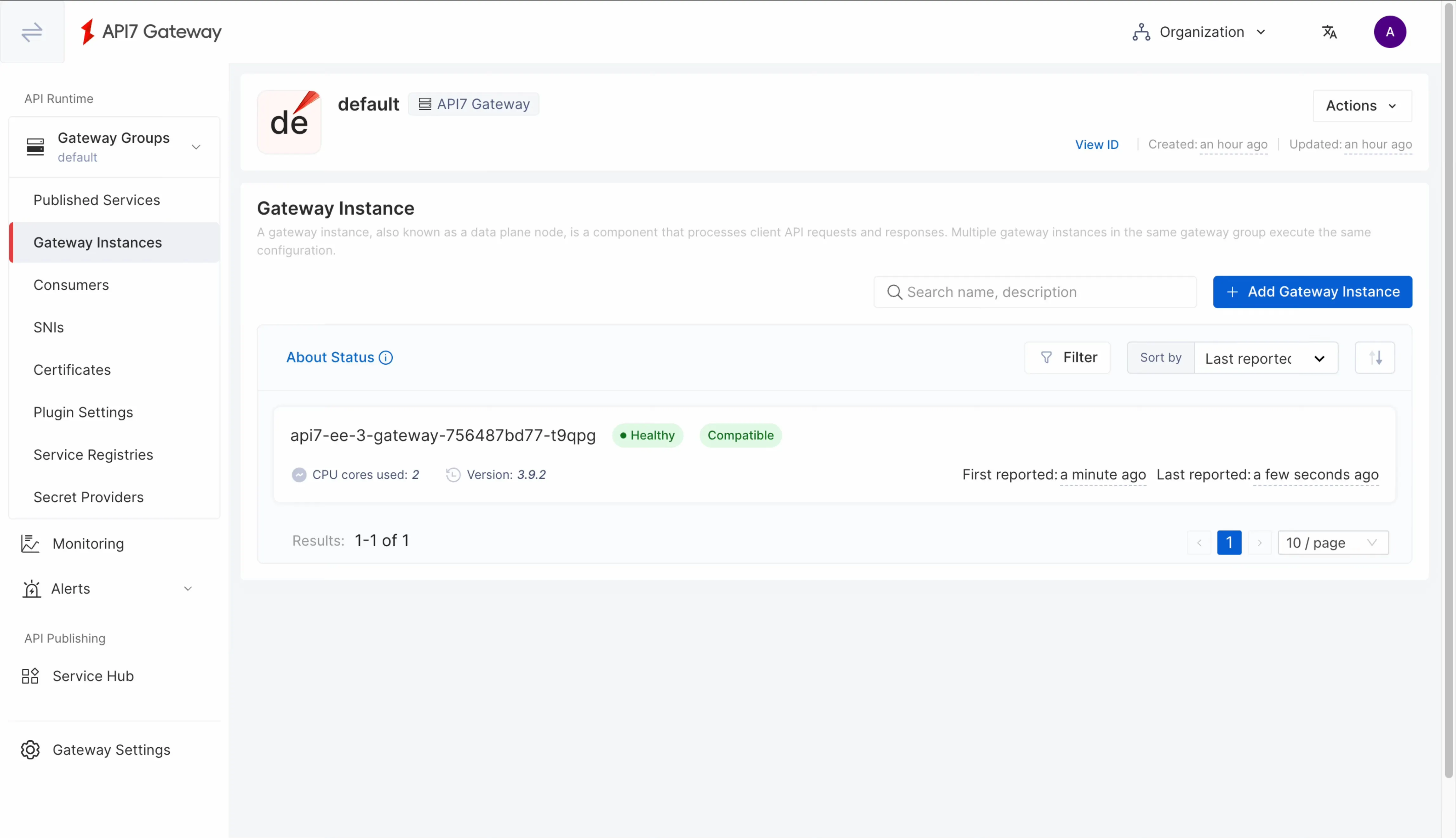
Navigating back to the gateway instance, you should see a healthy gateway instance.
Verify Installation
Create a Sample Service
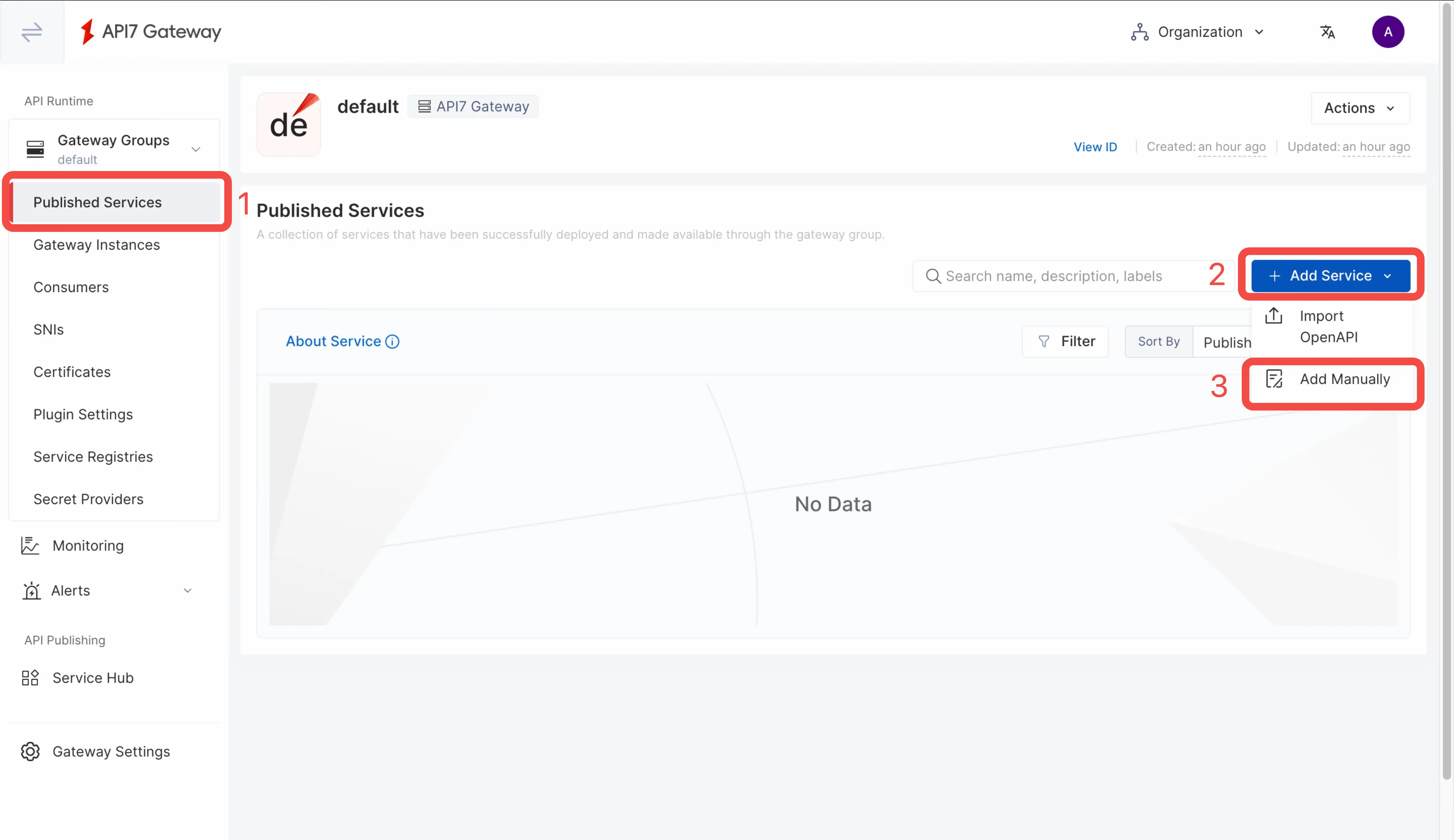
Navigate to the "Published Services" page and add a service manually.
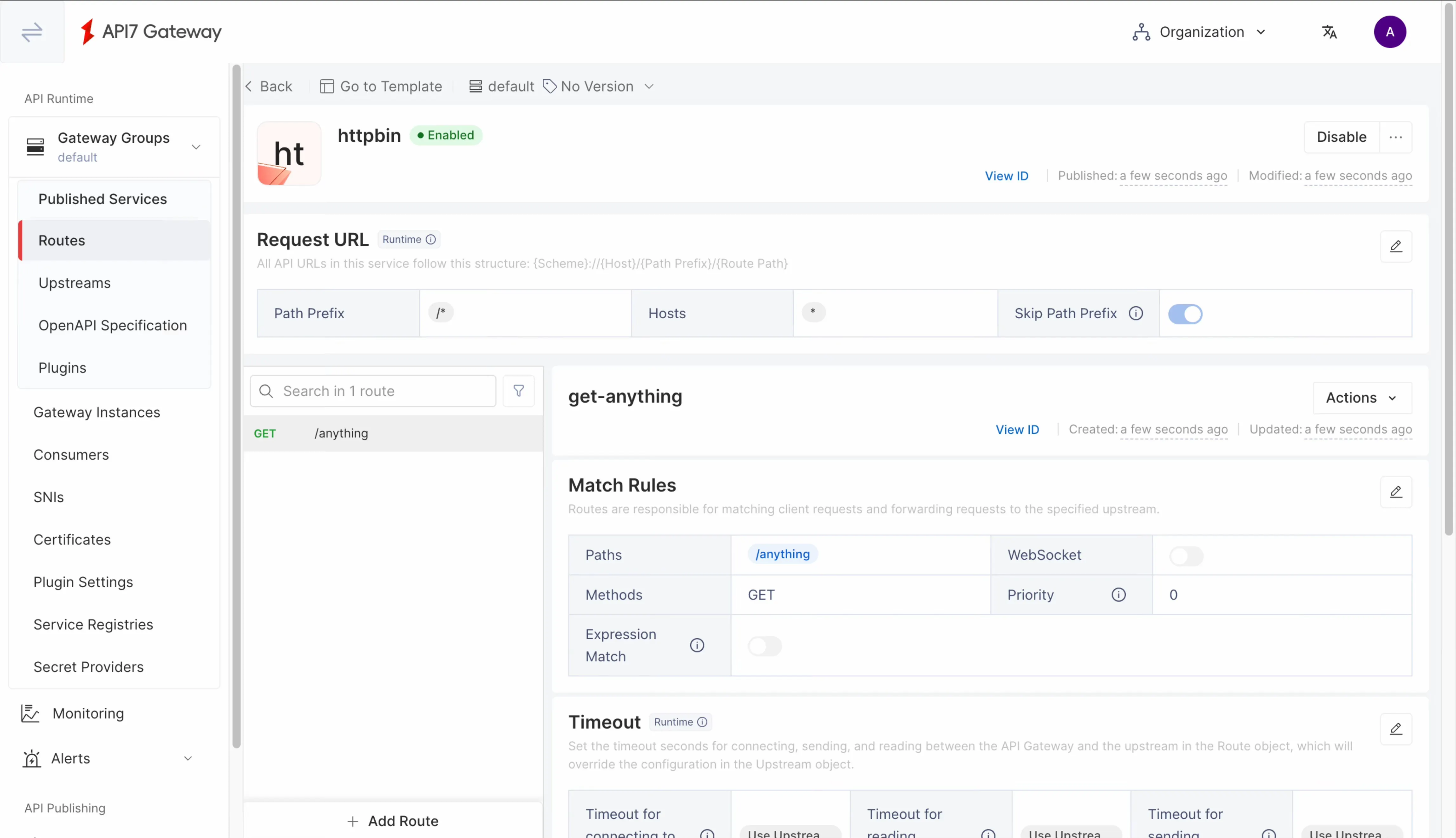
Create a service httpbin and add an upstream node httpbin.org with a port 80. Configure a route to /anything endpoint and allow only the GET method.
You should see the service now shows the created route:
Port Forward Gateway Service
Before you can send a request to the Gateway, you should first port forward the gateway listening port to localhost.
First, list all Services to check the gateway service name:
kubectl get svc
The gateway service name is api7-ee-3-gateway-gateway:
NAME                        TYPE        CLUSTER-IP       EXTERNAL-IP   PORT(S)                      AGE
api7-ee-3-gateway-gateway   NodePort    172.30.197.112   <none>        80:30515/TCP,443:31177/TCP   4h58m
api7-postgresql             ClusterIP   172.30.188.65    <none>        5432/TCP                     5h54m
api7-postgresql-hl          ClusterIP   None             <none>        5432/TCP                     5h54m
api7-prometheus-server      ClusterIP   172.30.6.167     <none>        9090/TCP                     5h54m
api7ee3-dashboard           ClusterIP   172.30.39.137    <none>        7080/TCP,7443/TCP            5h54m
api7ee3-developer-portal    ClusterIP   172.30.114.132   <none>        4321/TCP                     5h54m
api7ee3-dp-manager          ClusterIP   172.30.232.75    <none>        7900/TCP,7943/TCP            5h54m
Next, forward the gateway port 80 to localhost:9080:
kubectl port-forward svc/api7-ee-3-gateway-gateway 9080:80
Send a Request
This request receives the correct response, which means the installation is successful.
curl "http://127.0.0.1:9080/anything" -i
You should receive an HTTP/1.1 200 OK response similar to the following:
{
  "args": {},
  "data": "",
  "files": {},
  "form": {},
  "headers": {
    "Accept": "*/*",
    "Host": "localhost",
    "User-Agent": "curl/8.7.1",
    "X-Amzn-Trace-Id": "Root=1-697043ec-4be975291786b3e944175f56",
    "X-Forwarded-Host": "localhost"
  },
  "json": null,
  "method": "GET",
  "origin": "127.0.0.1, 3.1.235.149",
  "url": "http://localhost/anything"
}
What's Next
In addition to publishing services through the Dashboard UI, API7 provides a command line tool that can operate declarative configuration, so you can integrate API7 Operations with internal GitOps. See Managing APISIX Declaratively with APISIX Declarative CLI (ADC).
See Getting Started tutorials to learn more about how to work with ADC.
FAQ
How to Connect to Existing PostgreSQL?
Configure your database DSN in the Helm values file:
dashboard_configuration:
  database:
    dsn: "postgres://api7ee:changeme@api7-postgresql:5432/api7ee"

dp_manager_configuration:
  database:
    dsn: "postgres://api7ee:changeme@api7-postgresql:5432/api7ee"