
Review and Approve MCP ServersAISIX Enterprise & Cloud
Available with AISIX Enterprise and AISIX CloudAn MCP server registry entry gives agents a gateway-managed tool surface backed by an upstream MCP server or REST API. Publishing the entry lets agents invoke remote operations with caller-supplied arguments. The control plane therefore separates registration from publication: every MCP server carries an approval_status, and only an approved server is sent to the gateways.
A server that is waiting for review, or that was rejected, has no presence on the gateway at all. It does not appear in tools/list and its tools cannot be called, even by a caller API key that explicitly allowlists them. Approval is required for publication; the enabled flag then controls whether the approved server can serve tools.
This separation lets a member propose an MCP server without being able to publish it. It also prevents a different configuration from inheriting an approval: a change either comes from someone who can approve it, or waits for review. A live server keeps serving its approved configuration while a proposed change waits, so the review causes no downtime.
Prerequisites
Before starting, prepare the following:
- An AISIX organization and environment.
- For Dashboard workflows, a signed-in account with the submission or reviewer permissions described below.
- For Admin API workflows, an admin token with write scope from an identity with the
mcp_server_submissionsormcp_serverspermissions required by the task, cURL, and jq.
For AISIX Enterprise, the AISIX Enterprise getting-started guide creates the organization, environment, and write-scoped admin token. To request AISIX Cloud access, contact API7. Export the values used by the examples:
# AISIX_CP includes /api and has no trailing slash
# The local AISIX Enterprise quickstart uses http://localhost:8080/api
export AISIX_CP="YOUR_AISIX_CONTROL_PLANE_API_URL"
export AISIX_TOKEN="YOUR_ADMIN_TOKEN"
export ENV_ID="YOUR_ENVIRONMENT_ID"
How the Review Workflow Works
approval_status | On the gateways | Reached by |
|---|---|---|
pending_review | Not projected | Submitting a server, or revising a proposal. |
approved | Projected to allowed_environments | Approving it, or registering it with POST /mcp_servers. |
rejected | Not projected | Rejecting it. |
A change proposed to a server that is already live does not move it out of approved. The change waits in a separate pending_change field while every other field keeps describing what the gateways are serving. See Submit a Change to a Live Server.
Servers registered before this feature was introduced are approved, so upgrading does not interrupt tool traffic.
Configure Reviewer Permissions
Separate submitters from publishers with resource permissions:
| Role | Permissions | Capabilities |
|---|---|---|
| Approver or direct publisher | create and update on mcp_servers | Register, approve, reject, and edit live servers. Owners and admins already hold these permissions. |
| Submitter | create and update on mcp_server_submissions, without the corresponding mcp_servers permissions | Propose servers, revise pending submissions, and stage changes to live servers without publishing them. |
Use a custom role for a team that integrates its own tooling but must not publish it. Grant delete on mcp_servers separately when the role should remove registry entries.
Submit a Server for Review
- Dashboard
- Admin API
- Open MCP servers and select Submit MCP server.
- Enter
runbooksas the name andhttps://mcp.example.com/runbooksas the URL. - Choose None for authentication and select the target environment.
- Select Submit MCP server.
- Confirm that the saved row shows Pending review and appears in the waiting band. The server remains unpublished.
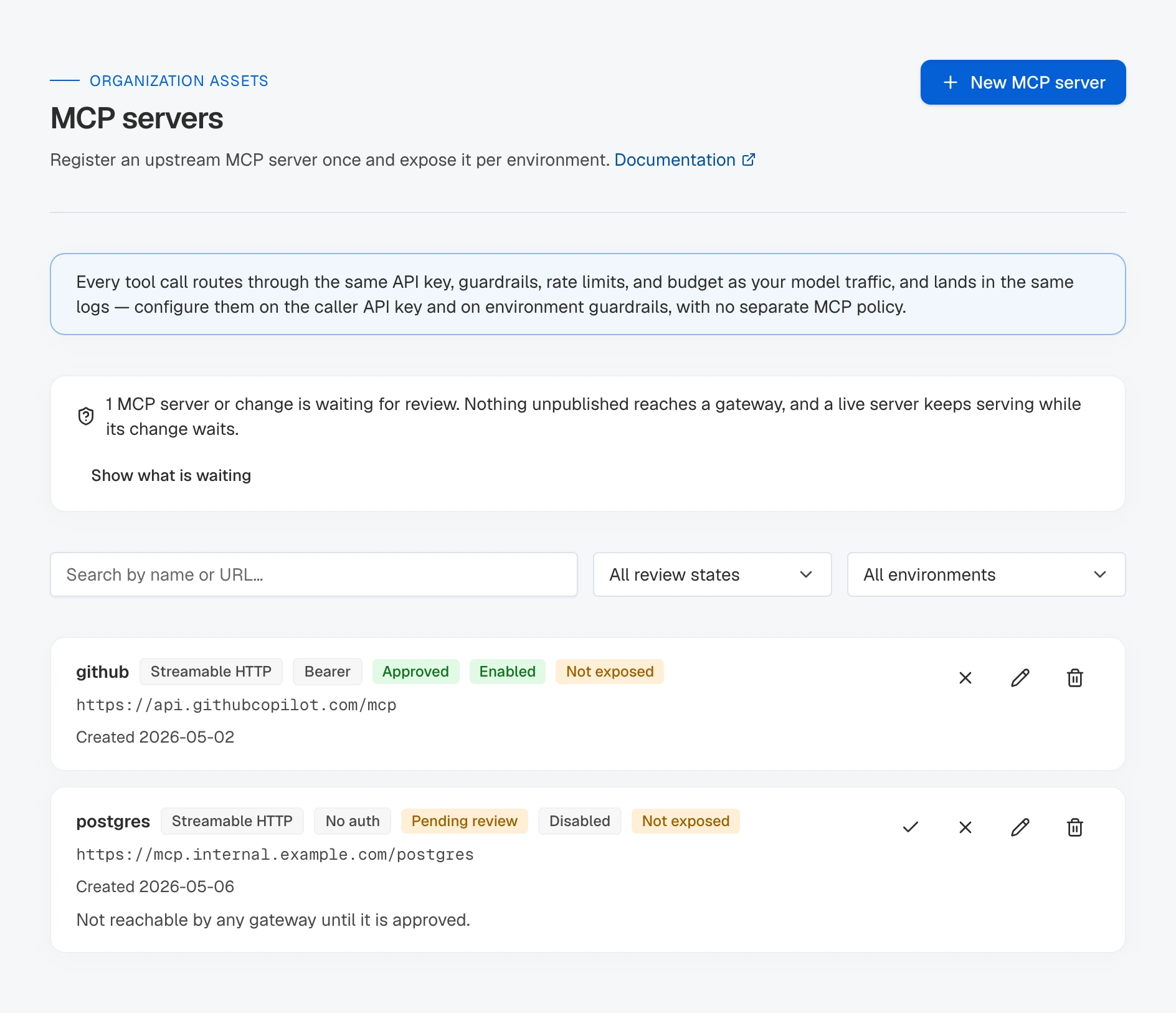
Submit the server with POST /mcp_server_submissions. The body is the same as POST /mcp_servers:
curl -sS -X POST "$AISIX_CP/mcp_server_submissions" \
  -H "Authorization: Bearer $AISIX_TOKEN" \
  -H "Content-Type: application/json" \
  -d '{
    "name": "runbooks",
    "url": "https://mcp.example.com/runbooks",
    "auth_type": "none",
    "allowed_environments": ["'"$ENV_ID"'"]
  }'
The server is registered but unpublished:
{
  "mcp_server": {
    "id": "6f64f080-17d7-44d9-b995-6a353e71f6bc",
    "name": "runbooks",
    "url": "https://mcp.example.com/runbooks",
    "enabled": true,
    "allowed_environments": ["YOUR_ENVIRONMENT_ID"],
    "approval_status": "pending_review",
    "submitted_at": "2026-07-29T09:30:00Z"
  }
}
❶ enabled and allowed_environments describe the configuration that will take effect after approval.
❷ pending_review keeps the server unpublished, so no gateway can reach it yet.
Review a Pending Server
- Dashboard
- Admin API
- Select Show what is waiting, or choose Awaiting review under Filter by review status.
- Open the proposal and review its URL, environments, authentication mode, and enabled state.
- For an OpenAPI proposal, review the generated tools. Use the Admin API single-server read when you must inspect the stored document.
- Select Approve and confirm publication, or select Reject, enter a Reason, and confirm.
To revise the proposal without deciding it:
- Select Edit.
- Change the fields and select Save.
The server remains pending and unpublished.
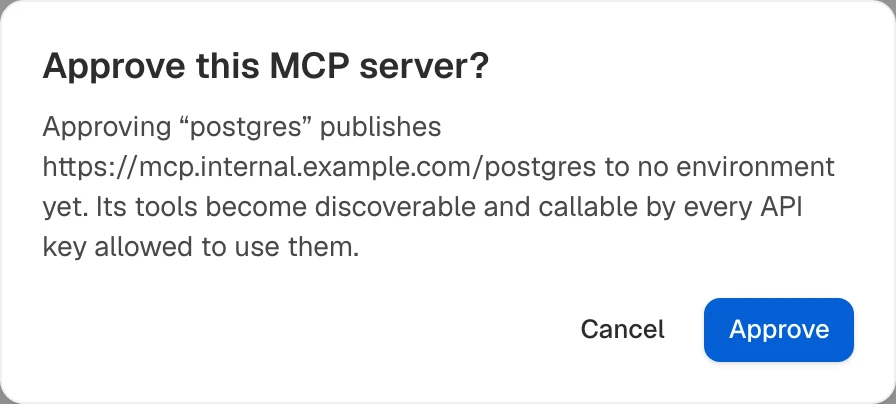
List what is waiting by reading approval_status from GET /mcp_servers:
curl -sS "$AISIX_CP/mcp_servers" \
  -H "Authorization: Bearer $AISIX_TOKEN" \
  | jq '.data[] | select(.approval_status == "pending_review") | {id, name, url}'
Review the server before approving it:
- Confirm that the name is not a near-copy of an existing server's name and that the URL identifies the intended upstream.
- Check
allowed_environmentsandenabledto confirm where the server will be available after approval. - Check the authentication mode and verify the credential's provenance through your submission process. Stored credentials are write-only and cannot be inspected from the API or dashboard; replace the credential through the approver route if its provenance is uncertain.
- For an OpenAPI-backed server, review the generated tool names and the stored document. See Review the Generated Tools in AISIX Enterprise and AISIX Cloud.
Approve it, and it is published to the environments in allowed_environments:
export MCP_SERVER_ID="YOUR_MCP_SERVER_ID"

curl -sS -X POST "$AISIX_CP/mcp_servers/$MCP_SERVER_ID/approve" \
  -H "Authorization: Bearer $AISIX_TOKEN"
Reject it with a reason instead. The note is returned on the server, so whoever proposed it can see what to change:
curl -sS -X POST "$AISIX_CP/mcp_servers/$MCP_SERVER_ID/reject" \
  -H "Authorization: Bearer $AISIX_TOKEN" \
  -H "Content-Type: application/json" \
  -d '{"review_notes": "Not on the trusted registry. Use the internal mirror."}'
Approving an already-approved server, or rejecting an already-rejected one, returns 400. A server carrying a staged change is the exception; see Submit a Change to a Live Server.
Revise a Pending Submission
- Dashboard
- Admin API
- Select Edit on the pending server.
- Correct its configuration and select Save.
- Confirm that the revised server returns to the review queue and remains unpublished.
PATCH /mcp_server_submissions/{id} corrects a submission and puts it back in the queue:
curl -sS -X PATCH "$AISIX_CP/mcp_server_submissions/$MCP_SERVER_ID" \
  -H "Authorization: Bearer $AISIX_TOKEN" \
  -H "Content-Type: application/json" \
  -d '{"url": "https://mcp.internal.example.com/runbooks"}'
On a server that is not published yet, the change is applied to the row and the server stays in the queue. On a server that is already live, the same call stages the change instead of applying it.
Submit a Change to a Live Server
- Dashboard
- Admin API
- Select Edit on the approved server.
- Change its configuration and select Save.
- Confirm that the current configuration remains live while the row shows Change awaiting review.
A role holding only the mcp_server_submissions permissions cannot publish, so its patch to a live server cannot take effect on its own. It must not take the server down while it waits either, so PATCH /mcp_server_submissions/{id} stages it:
curl -sS -X PATCH "$AISIX_CP/mcp_server_submissions/$MCP_SERVER_ID" \
  -H "Authorization: Bearer $AISIX_TOKEN" \
  -H "Content-Type: application/json" \
  -d '{"url": "https://mcp.internal.example.com/runbooks"}'
The response is the server as it still stands, with the proposal alongside it:
{
  "mcp_server": {
    "id": "6f64f080-17d7-44d9-b995-6a353e71f6bc",
    "name": "runbooks",
    "url": "https://mcp.example.com/runbooks",
    "approval_status": "approved",
    "pending_change": {
      "changes": { "url": "https://mcp.internal.example.com/runbooks" },
      "submitted_at": "2026-07-30T09:30:00Z"
    }
  }
}
❶ Fields outside pending_change describe what the gateways are serving. Agents keep listing and calling the server's current tools throughout the review window.
❷ pending_change contains the proposed replacement values and submission metadata.
A proposal is validated when it is made, so an invalid change is refused at that point rather than at approval time. A proposed credential is encrypted at rest exactly like the live one and is never returned; pending_change.secret_set reports that the proposal sets one. Only one proposal is staged at a time, so patching again replaces it.
User-session submissions can also include submitted_by. Admin-token actions do not carry a user ID.
Review a Change to a Live Server
- Dashboard
- Admin API
- Choose Awaiting review under Filter by review status.
- Open the approved server with Change awaiting review and inspect the fields that would change.
- For an OpenAPI replacement, verify the replacement's provenance during submission. The pending response exposes its source URL and generated tool names but not the raw staged document.
- Select Apply the proposed change and confirm Approve, or select Discard the proposed change, enter a Reason, and confirm Discard change.
Approving applies the staged change and publishes it in a single step:
curl -sS -X POST "$AISIX_CP/mcp_servers/$MCP_SERVER_ID/approve" \
  -H "Authorization: Bearer $AISIX_TOKEN"
The environments a proposal names are checked again at that point, so a change proposed for an environment that was deleted while it waited is refused instead of partly applied.
Rejecting discards the proposal. The server stays approved on the configuration it was already serving, and nothing changes on the gateways:
curl -sS -X POST "$AISIX_CP/mcp_servers/$MCP_SERVER_ID/reject" \
  -H "Authorization: Bearer $AISIX_TOKEN" \
  -H "Content-Type: application/json" \
  -d '{"review_notes": "Point it at the internal mirror instead."}'
Update a Live Server as an Approver
- Dashboard
- Admin API
- Select Edit on the approved server.
- Update the configuration and select Save.
- Confirm that the change publishes immediately without entering the review queue.
Use this path to rotate a credential or make another approved operational change.
PATCH /mcp_servers/{id} takes update on mcp_servers, the same permission that approves servers. An edit made through it is a publication in its own right. The server stays approved, and the control plane projects the new configuration without taking the existing one offline for another review. This lets an approver rotate an upstream credential without first withdrawing the server.
Which fields the edit changes determines whether it counts as a new review. Changing any of the following updates reviewed_at. Requests made through a user session also set reviewed_by to that user; this field is absent for admin-token actions.
name: the namespace agents address the tools byurl: the upstream itselftransportauth_type,secret,client_id,token_url,scopes: the credential and where it is presentedallowed_environments: where the server is exposedspec_content/spec_urlandapi_key_headeron OpenAPI-backed servers: the tool surface
enabled and timeout_ms are operational knobs inside an already-reviewed configuration. Changing them is not a new review, so they leave reviewed_by and reviewed_at alone.
Narrowing allowed_environments withdraws the server from every environment it no longer names as the asynchronous projection reaches each gateway.
A holder of the mcp_server_submissions permissions alone cannot use this route; its change is staged for review instead. See Submit a Change to a Live Server. To take a live server off the gateways, reject it.
Revoke an Approval
Rejecting an approved server that carries no staged change revokes the server itself: it is withdrawn from every environment it was serving, and callers lose its tools. Use it when an upstream stops being trustworthy.
- Dashboard
- Admin API
- Select Revoke approval.
- Enter the reason and confirm.
- Confirm that the entry remains available for correction and later approval.
A user with delete permission can instead select Delete and confirm to remove the registry entry.

Reject the approved server and record why its approval is being withdrawn:
curl -sS -X POST "$AISIX_CP/mcp_servers/$MCP_SERVER_ID/reject" \
  -H "Authorization: Bearer $AISIX_TOKEN" \
  -H "Content-Type: application/json" \
  -d '{"review_notes": "Upstream credential compromised."}'
Revocation is projected to the gateways asynchronously and needs no gateway restart. To remove the registry entry entirely, delete the server instead.
Rejecting a server that does carry a staged change discards the change first, as described above. Revoking such a server takes two calls: the first discards the proposal, the second withdraws the server.
Audit Trail
Each mutation in this workflow is recorded in the organization audit log with the time and, where applicable, the server's before and after state. User-session actions include the acting user; admin-token actions do not carry a user ID.
| Action | Recorded when |
|---|---|
submit | A server is proposed for review, or a change is proposed to a live server. |
create | A server is registered directly and published. |
approve | A server is approved, or a staged change is applied. |
reject | A server is rejected, an approval is revoked, or a staged change is discarded. |
update | A server's configuration is changed. |
delete | A server is removed. |
Read them from the audit log in the dashboard, filtered to resource type mcp_server. This dashboard audit route is not an Admin API operation authenticated with an admin token.
Next Steps
You now understand how AISIX Enterprise and AISIX Cloud separate MCP server submission from publication. Use these guides to register servers directly or govern caller access:
- Set Up MCP Gateway: register a server directly and verify MCP tool access.
- Control Tool Access: choose which tools a caller API key may call.
- Manage MCP Access with Policies: configure environment- and team-level tool grants.