
Budget Alerts and Notifications
Budget alerts notify operators when spend crosses a percentage of a budget limit. Use them to warn before a blocking budget rejects traffic or to monitor a warn-only budget.
Prerequisites
Before starting, prepare the following:
- At least one existing budget.
- A webhook URL or Slack incoming webhook URL for the notification destination.
- Dashboard
- Admin API
Sign in to AISIX Enterprise or AISIX Cloud with permission to view, create, and test notification channels in the organization.
Prepare a write-scoped admin token and install curl and jq. Export the connection values used below:
# AISIX_CP includes /api and has no trailing slash.
export AISIX_CP="YOUR_AISIX_CONTROL_PLANE_API_URL"
export AISIX_TOKEN="YOUR_ADMIN_TOKEN"
Configure a Notification Channel
Notification channels are organization-level destinations. Every enabled channel receives every alert raised in the organization.
Choose one of these channel types:
- Webhook sends each alert as a JSON
POST. Use it for incident tooling, chat platforms, or another HTTP receiver. - Slack sends a readable message through a Slack incoming webhook.
- Dashboard
- Admin API
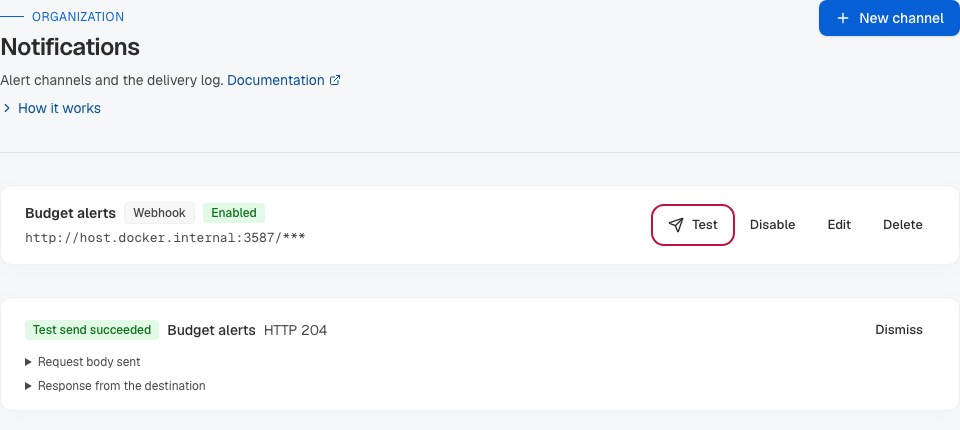
- In the organization navigation, open Notifications, then select New channel.
- Enter a Name, select the channel Type, and enter its URL.

- Keep Enabled selected, then select Create channel.
- Select Test on the new channel. Confirm that Test send succeeded appears and that the destination received the message.
Create an enabled webhook channel and retain its ID:
export CHANNEL_ID="$(
  curl -sS -X POST "${AISIX_CP}/notification_channels" \
    -H "Authorization: Bearer ${AISIX_TOKEN}" \
    -H "Content-Type: application/json" \
    -d '{
      "name": "Budget alerts",
      "type": "webhook",
      "url": "https://alerts.example.com/hooks/budgets",
      "enabled": true
    }' \
  | jq -r '.notification_channel.id'
)"
Send a test notification and confirm that ok is true and the destination received the message:
curl -sS -X POST "${AISIX_CP}/notification_channels/${CHANNEL_ID}/test" \
  -H "Authorization: Bearer ${AISIX_TOKEN}" \
  | jq '{ok, error, response_status}'
The channel URL is write-only. Dashboard and API reads return a masked value. Leave URL empty in the Dashboard or omit url from an API update to retain the stored value.
To stop deliveries temporarily, select Disable. Deleting a channel prevents future deliveries but retains its delivery history for 90 days.
For custom webhook bodies, request headers, payload fields, and channel limits, see Notification Channel Reference.
Allow Private Network Destinations
By default, an AISIX Enterprise control plane can deliver to private, loopback, and link-local destinations. This lets an intranet webhook receiver or Slack proxy work without additional configuration.
To refuse private destinations, enable SSRF protection with AISIX_CLOUD_SSRF_PROTECTION_ENABLED=true on the control plane API. The corresponding Helm value is api.outbound.ssrfProtection.enabled. You can still save a private URL, but tests and alert deliveries fail unless the host is allowed. See Private Network Access.
Configure Alert Thresholds
Alert thresholds are percentages of a budget limit:
- Dashboard
- Admin API
- Open Budgets. Select New budget, or select Edit on an existing budget.
- In Alert thresholds (%), enter one or more whole-number percentages separated by commas. For example, use
80, 100for an early warning and a limit-reached alert.
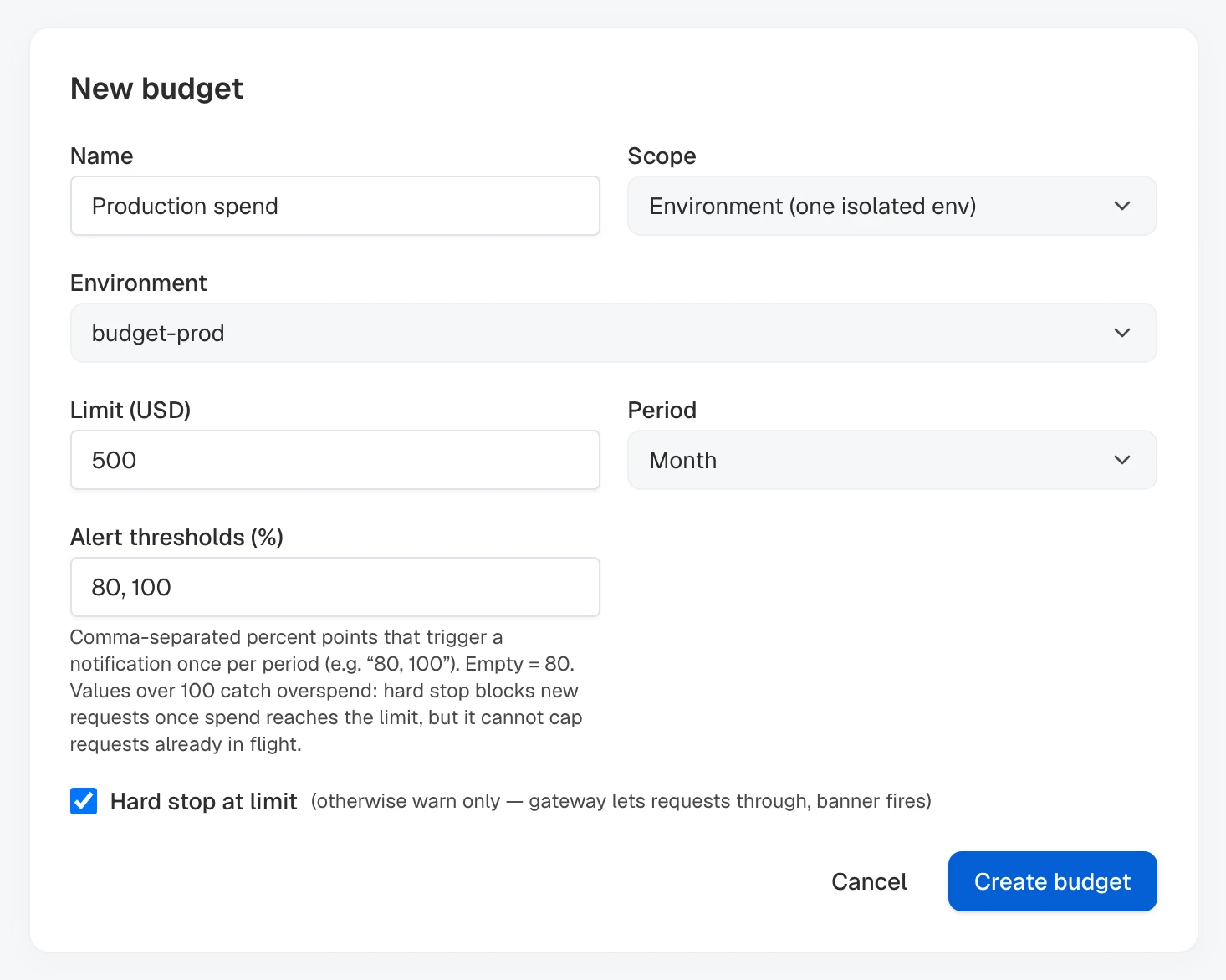
- Select Create budget or Save changes.
Set the target budget ID, then replace its alert thresholds:
export BUDGET_ID="YOUR_BUDGET_ID"

curl -sS -X PATCH "${AISIX_CP}/budgets/${BUDGET_ID}" \
  -H "Authorization: Bearer ${AISIX_TOKEN}" \
  -H "Content-Type: application/json" \
  -d '{"alert_thresholds": [80, 100]}' \
  | jq '.budget.alert_thresholds'
The response should show [80, 100].
You can configure up to 20 unique thresholds from 1 through 200. Leaving the field empty uses the default threshold of 80.
Each threshold fires once per budget period. Changing the budget time zone preserves alerts that already fired. Each threshold can fire again after the next reset in the new zone. In a webhook payload, period_start uses the budget time zone and triggered_at uses UTC. For an each-member-in-a-team budget, each member triggers alerts independently.
The control plane checks spend continuously and normally raises an alert within about 30 seconds of crossing a threshold. A blocking budget usually prevents thresholds above 100% from being reached, although a request or concurrent requests admitted below the limit can complete above it.
Verify Notifications
Verify the complete path with a non-production budget:
- Dashboard
- Admin API
- Generate enough usage to cross a configured threshold.
- Confirm that every enabled channel receives the alert.
- Open Notifications and find the event under Delivery log.
- Confirm that the entry shows Delivered. For a failed delivery, inspect its error, destination response, and payload.
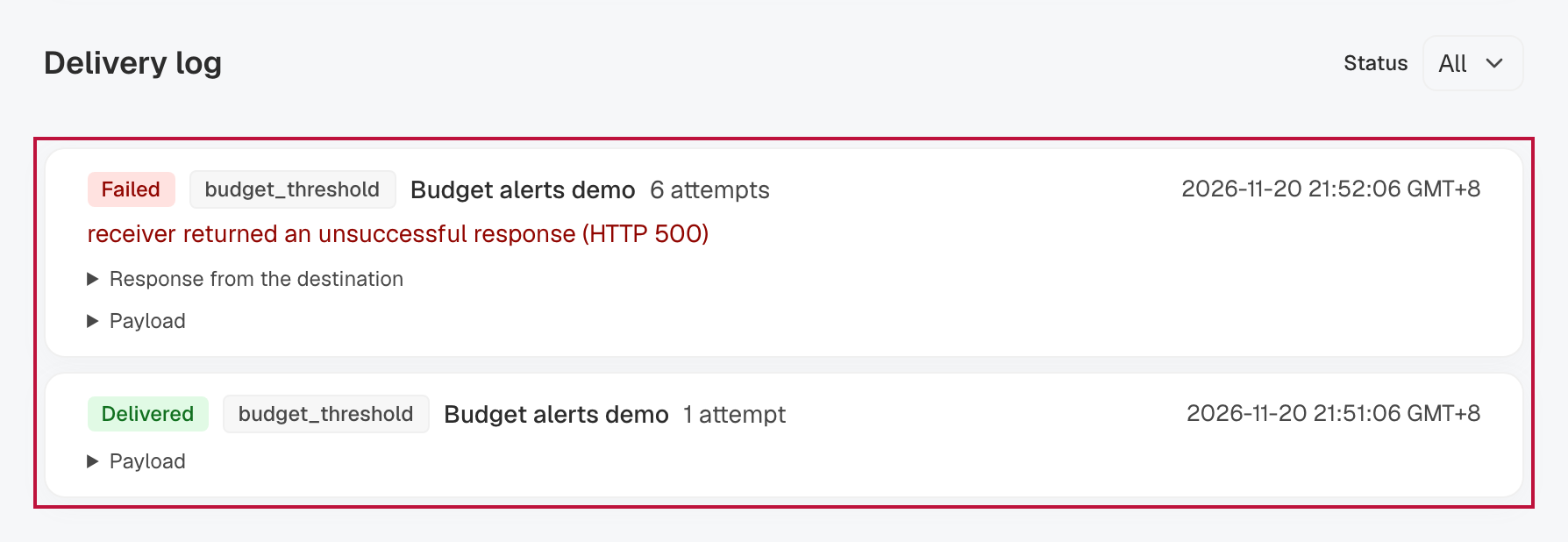
The log uses these statuses:
| Status | Meaning |
|---|---|
| Pending | The delivery is waiting for its first attempt or a retry. |
| Delivered | The destination accepted the notification. |
| Failed | AISIX exhausted the retry schedule or encountered a permanent error. |
- Generate enough usage to cross a configured threshold.
- Confirm that every enabled channel receives the alert.
- List recent deliveries and select the entries for the channel:
curl -sS "${AISIX_CP}/notification_deliveries?limit=50" \
  -H "Authorization: Bearer ${AISIX_TOKEN}" \
  | jq --arg channel_id "${CHANNEL_ID}" \
      '.data[]
       | select(.channel_id == $channel_id)
       | {status, attempts, last_error, payload}'
- Confirm that the latest entry shows
status: delivered. For a failed entry, inspectlast_errorand retrieve the individual delivery when you need its stored destination response.
A test send verifies a channel immediately but does not create a delivery-log entry. Use a real threshold alert to verify budget evaluation and delivery together.
See Delivery Behavior for retry timing, retained response details, masking, and the 90-day history window.
Next Steps
Continue with Logging and Auditing to investigate the requests and control-plane changes behind budget behavior. To interpret the spend records that drive budget evaluation, see Usage Reporting.