
Manage API7 Enterprise from an AI Client with API7-MCP
This guide covers how to connect API7 Enterprise to an MCP-compatible AI client by running API7-MCP locally. After setup, the AI client can inspect API7 resources, check monitoring data, manage RBAC, and send test traffic to the gateway by using natural language prompts.
API7-MCP is a Model Context Protocol (MCP) server that exposes API7 Enterprise management operations and gateway test requests as tools for an AI client.
This workflow is useful when you want to:
- Inspect routes, services, upstreams, or consumers without switching between the Dashboard and API calls.
- Check monitoring data such as request count and health status from an AI client.
- Delegate operational tasks such as RBAC lookups or test traffic generation to an MCP-compatible assistant.
This guide complements Expose REST APIs as MCP Tools for AI Agents. That guide explains how to expose your APIs as MCP tools, while this guide explains how to use API7 Enterprise itself through an MCP-compatible AI client.
Prerequisites
Before you begin, make sure you have:
- A running API7 Enterprise instance with Dashboard access and at least one gateway instance.
- A token from the Dashboard. API7-MCP uses the token for Dashboard API calls, which run with the token owner's permissions. Use a dedicated token with the narrowest role you need. API7-MCP also attaches the token as the
X-API-KEYheader on gateway test requests, as explained in the caution below. - An MCP-compatible AI client, such as Cursor, Claude Desktop, GitHub Copilot, or Cline.
- Node.js installed on the machine that runs the AI client. The MCP server is a Node.js process spawned by the client.
Available MCP Tools
API7-MCP exposes API7 operations as MCP tools. You do not define these tools in the client configuration:
| Category | Tools |
|---|---|
| Resource lookup | get_resource (services, routes, upstreams, consumers, credentials, certificates, gateway groups, and more) |
| Gateway traffic | send_request_to_gateway (one or more requests, in parallel) |
| Monitoring | get_prometheus_metrics, get_service_healthcheck |
| Risk scanning | check_risk |
| Roles | get_role, create_role, delete_role, update_assigned_roles_for_user, get_role_by_user_id |
| Users | get_userId_by_username |
| Permission policies | get_permission_policy, create_permission_policy, update_permission_policy, delete_permission_policy, attach_permission_policy_to_role, detach_permission_policy_from_role, get_permission_policy_by_role |
The tools advertised by the running server through the MCP tools/list request are authoritative. The api7-mcp README provides a summary.
Install and Configure API7-MCP
API7-MCP runs locally as a child process of your AI client. Add it once to the client's MCP server configuration file. The exact file location and key name vary by client, so refer to your client's MCP documentation if needed.
The configuration uses three environment variables in every case:
| Variable | Value |
|---|---|
DASHBOARD_URL | URL of the API7 Enterprise Dashboard, for example https://dashboard.example.com:7443. |
GATEWAY_URL | URL of an API7 Gateway instance you want to send test traffic to, for example http://gateway.example.com:9080. |
TOKEN | The Dashboard token used for Dashboard API calls and gateway test requests. |
API7-MCP currently uses a shared HTTP client that disables TLS certificate verification for HTTPS requests to both DASHBOARD_URL and GATEWAY_URL. The client also attaches TOKEN as X-API-KEY to gateway test requests by default, so the gateway can forward the header to the selected route's upstream. Use only trusted endpoints and networks, verify both configured addresses carefully, and do not test routes whose upstream should not receive the Dashboard token.
You can install API7-MCP from npm or from source. Both approaches run the same server. The npm installation is usually the simpler option.
From npm
{
  "mcpServers": {
    "api7-mcp": {
      "command": "npx",
      "args": ["-y", "api7-mcp"],
      "env": {
        "DASHBOARD_URL": "https://dashboard.example.com:7443",
        "GATEWAY_URL": "http://gateway.example.com:9080",
        "TOKEN": "your-api7-enterprise-token"
      }
    }
  }
}
From Source
Clone the repository and build it:
git clone https://github.com/api7/api7-mcp.git
cd api7-mcp
pnpm install
pnpm build
This produces dist/index.js. Configure your AI client to launch it with node:
{
  "mcpServers": {
    "api7-mcp": {
      "command": "node",
      "args": ["/absolute/path/to/api7-mcp/dist/index.js"],
      "env": {
        "DASHBOARD_URL": "https://dashboard.example.com:7443",
        "GATEWAY_URL": "http://gateway.example.com:9080",
        "TOKEN": "your-api7-enterprise-token"
      }
    }
  }
}
Use the absolute path to dist/index.js. Relative paths are resolved from the client's working directory, which varies by client.
After saving the configuration, restart the AI client or reload its MCP servers list. The client should show api7-mcp as connected and make its tools available.
Verify
The following checks confirm that API7-MCP can both read from the Dashboard and send traffic through the gateway. Run them in the AI client's chat.
Send Test Traffic
In the AI client, ask it to send test traffic to the gateway:
Send 5 requests to API7 Gateway.
The client invokes send_request_to_gateway. Depending on the client and its settings, it may ask for approval before running the tool. The client then reports the result.
Check Monitoring Data
In the AI client, ask it to retrieve the recent request count:
Show the API request count for API7 Enterprise over the past 10 minutes.
The client invokes get_prometheus_metrics and returns the count along with the breakdown by status code. Cross-check the result against the Monitoring page in the API7 Enterprise Dashboard:
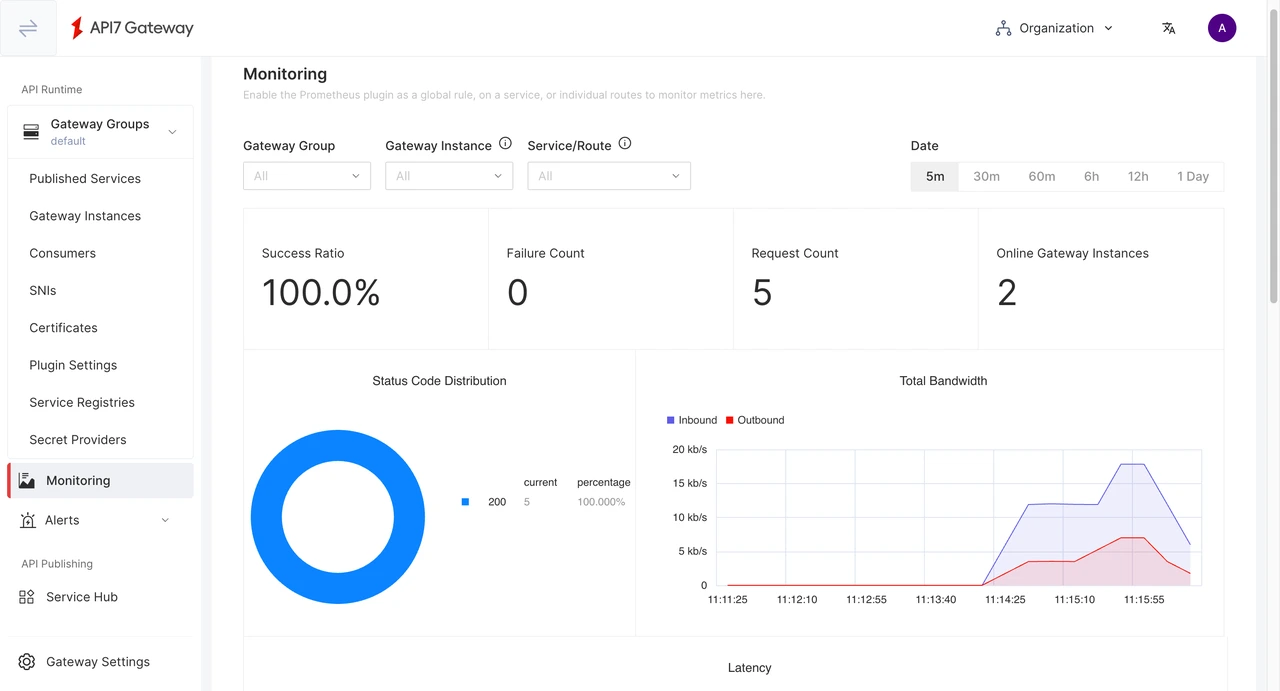
The numbers should match within a small margin. Differences of a few percent are normal and usually come from query window alignment, Prometheus scrape interval (typically 15 seconds), and propagation delay.
Operate Safely
API7-MCP gives the AI client real write access to API7 Enterprise through the configured token. Follow these precautions:
- Scope the token. Create a dedicated Dashboard token for API7-MCP and assign it a role with only the permissions required for the workflow. Avoid using an administrator token.
- Approve each tool call. Keep the AI client's per-tool approval prompt enabled, especially for write operations such as
create_permission_policy,delete_role, andupdate_assigned_roles_for_user. - Use a non-production environment for exploration. Point
DASHBOARD_URLandGATEWAY_URLat a staging instance while you experiment with prompts. - Audit usage. If your deployment has Dashboard audit logging enabled, calls made through API7-MCP appear under the token's owner, the same as any other Admin API client.
Troubleshooting
If API7-MCP does not work as expected:
- If the AI client cannot connect to
api7-mcp, check the client's MCP logs and verify the configured command, path, and Node.js installation. - If operations fail with authentication or authorization errors, confirm
TOKENis valid and that its role has the required permissions. - If
get_prometheus_metricsreturns no data, confirm the Dashboard is reachable from the AI client machine and that Prometheus scraping is configured. Recent requests may not appear immediately.
Next Steps
- Expose REST APIs as MCP Tools for AI Agents — the inverse pattern, using the
openapi-to-mcpplugin to expose your own REST APIs to AI agents. - api7-mcp on GitHub — source, tool reference, and conversation examples.