SCIM Provisioning with Okta
Okta can provision users into API7 Gateway by using SCIM (System for Cross-domain Identity Management). This lets you synchronize users from your identity provider to the API7 Dashboard automatically.
Prerequisites
Before you begin, ensure you have:
- API7 Gateway is installed and the Dashboard is accessible.
- You have an Okta account with administrative privileges.
- You have a user account in API7 Gateway with permission to manage organization settings.
Step 1: Create a SCIM Application in Okta
Search for the SCIM integration
- Log in to the Okta Admin Console.
- Go to Applications -> Applications.
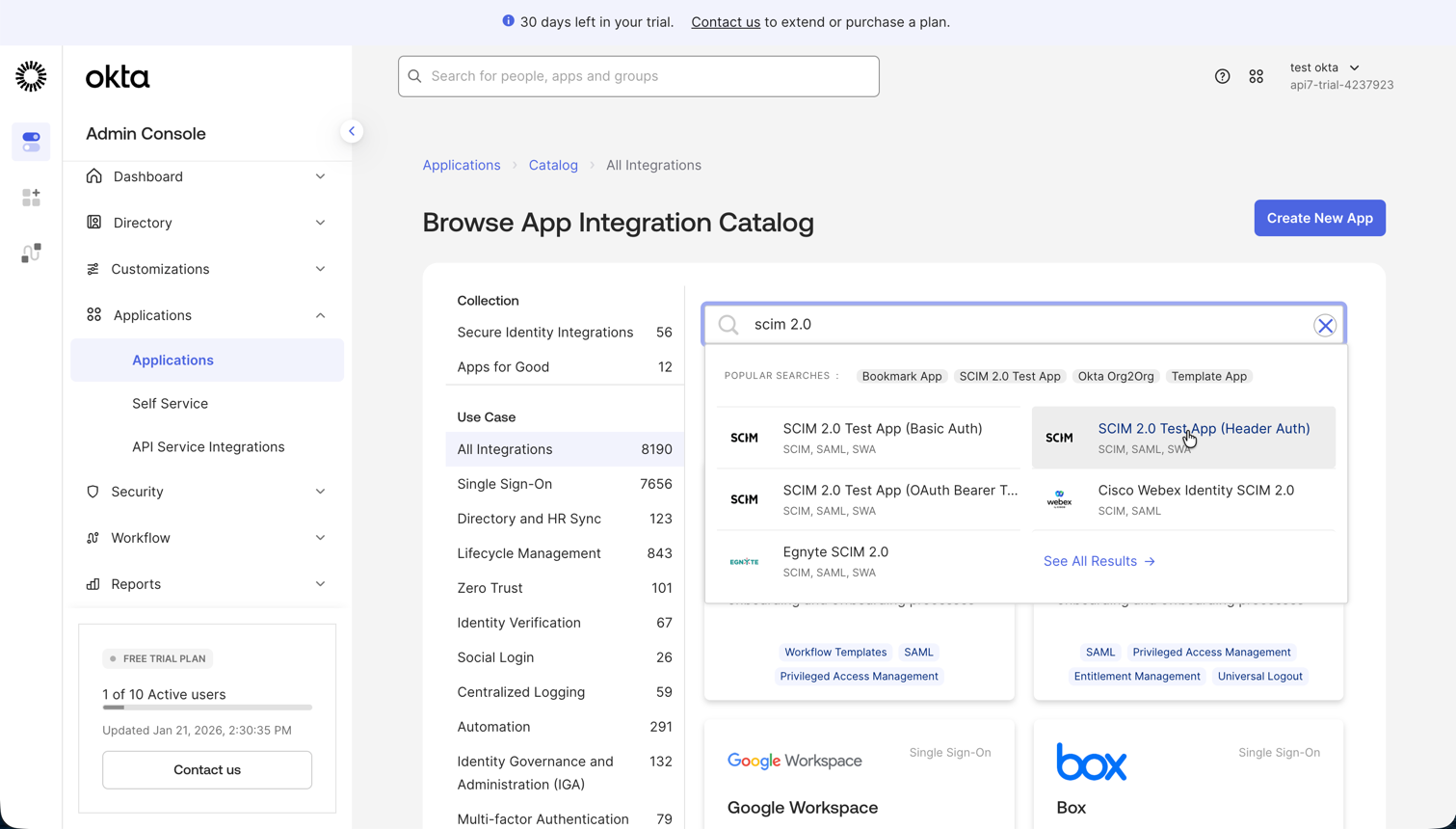
- Click Browse App Catalog.
- Search for
SCIM. - Select SCIM 2.0 Test App (Header Auth).
Add the integration
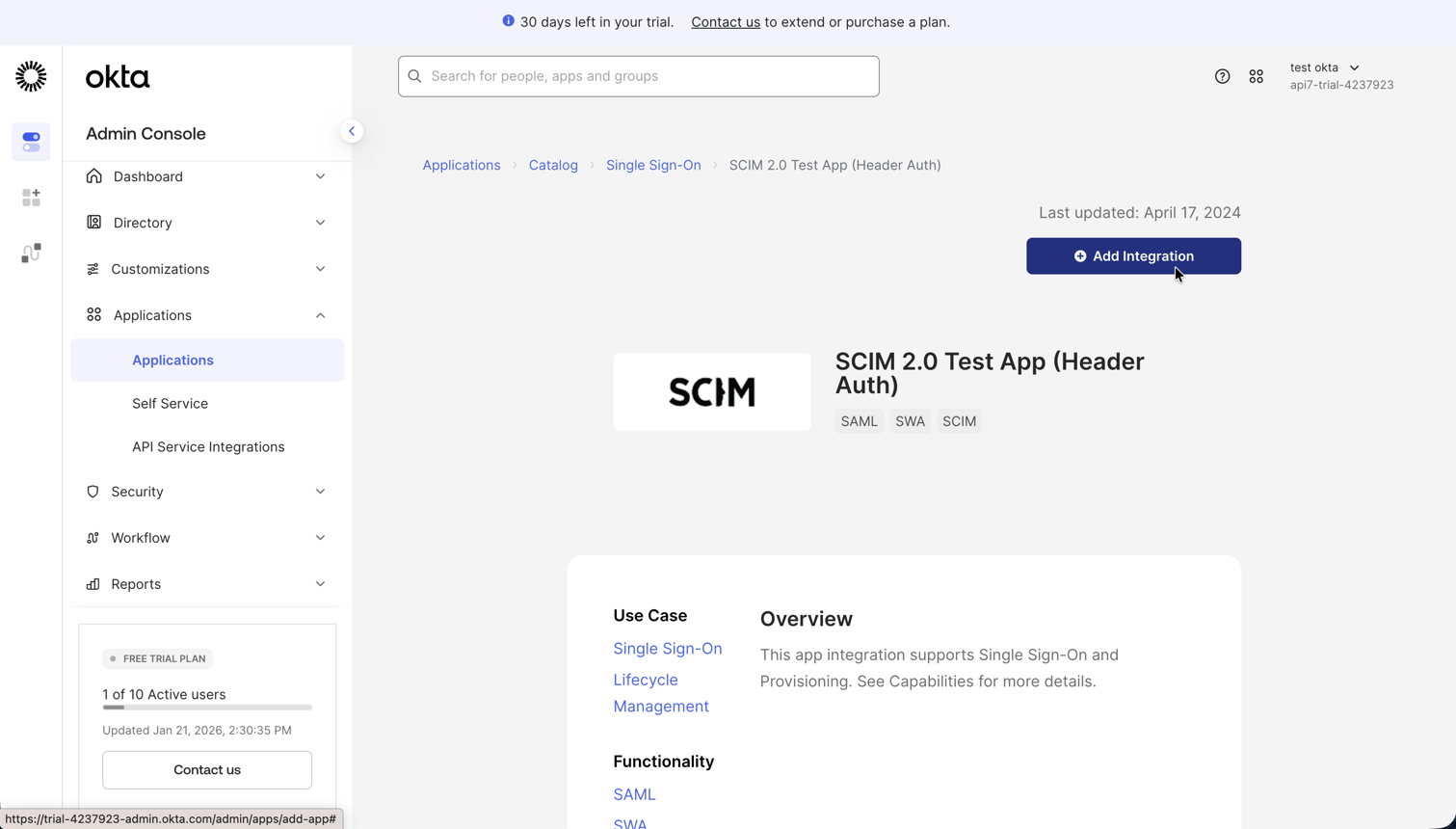
- Click Add Integration.
Configure general settings
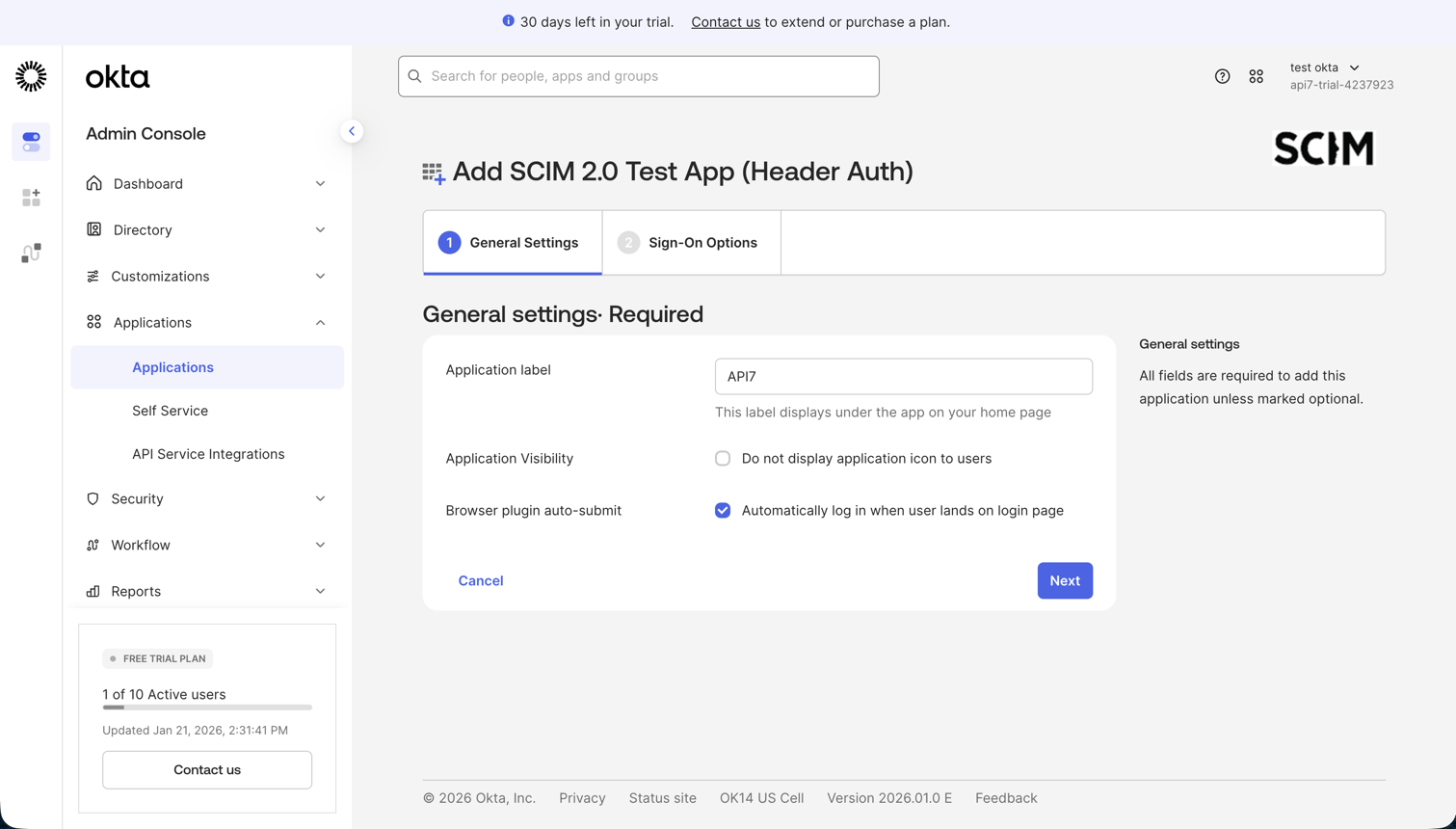
- In the General Settings tab, configure the application name and other settings as needed.
Configure sign-on options
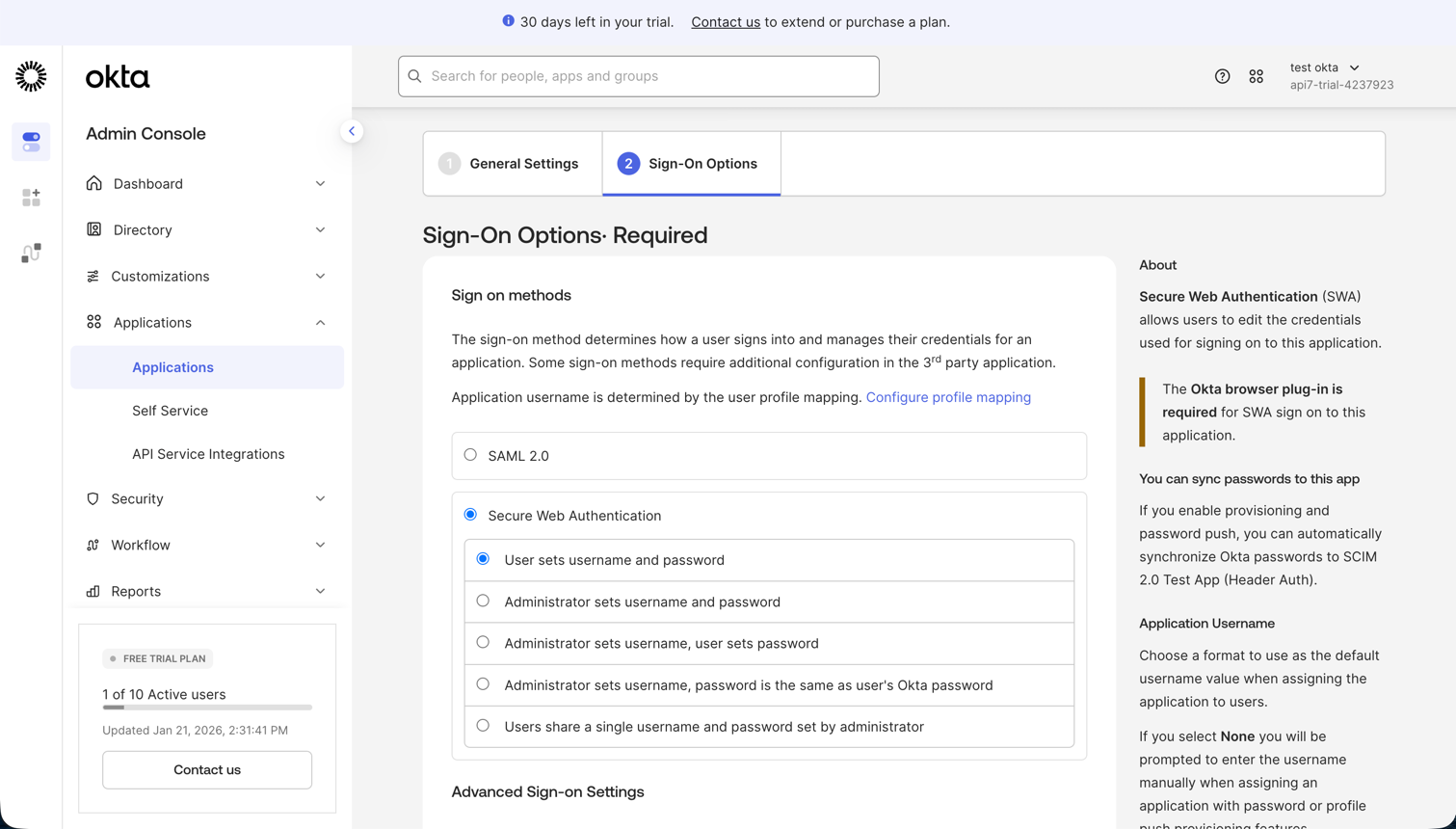
- In the Sign-On Options tab, select Secure Web Authentication (SWA) as the sign-on method.
- Click Done to save the application.
Step 2: Enable SCIM in API7 Gateway
- Log in to the API7 Dashboard with an administrative account.
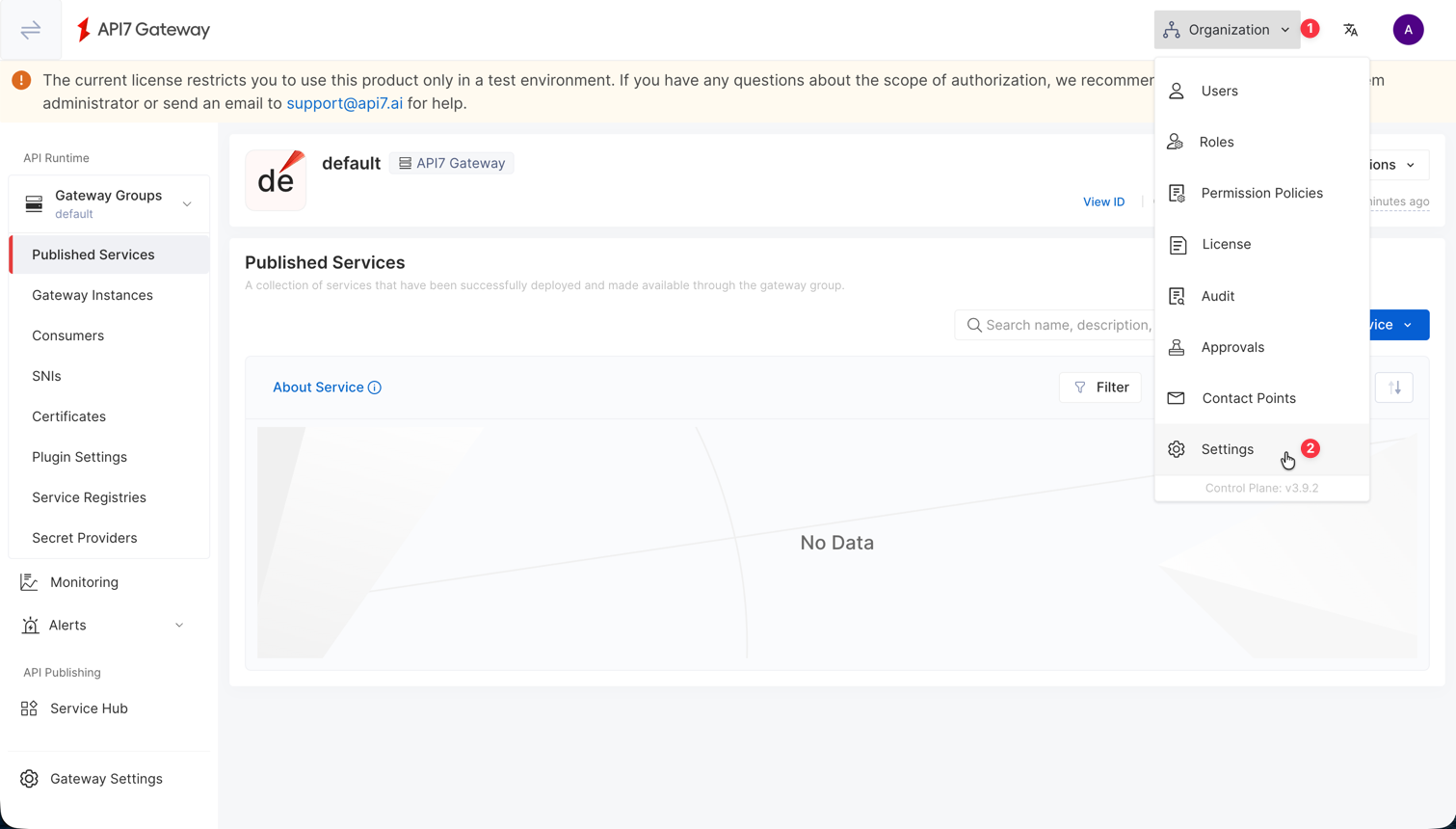
- Go to Organization -> Settings.
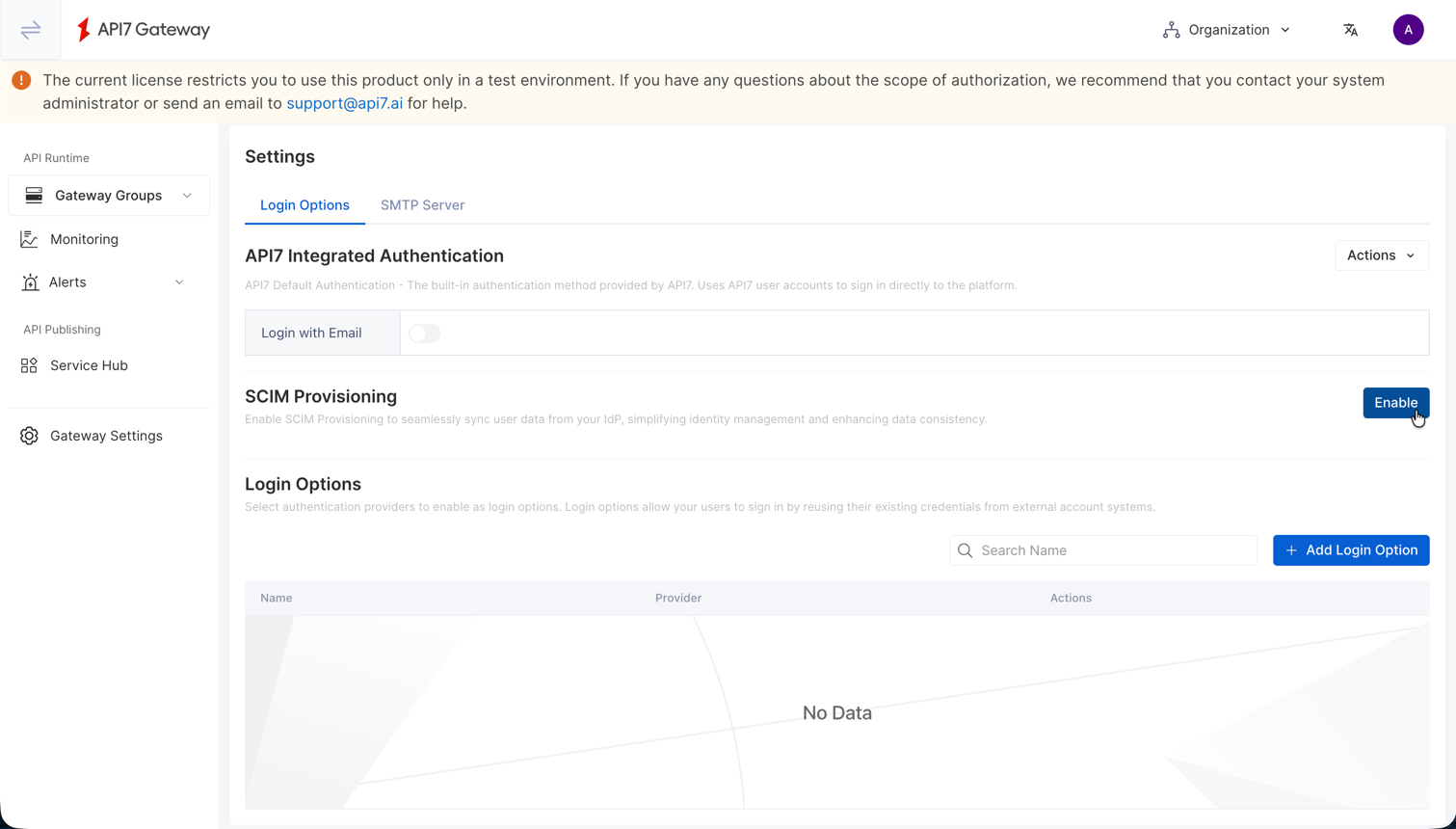
- Enable SCIM Provisioning.
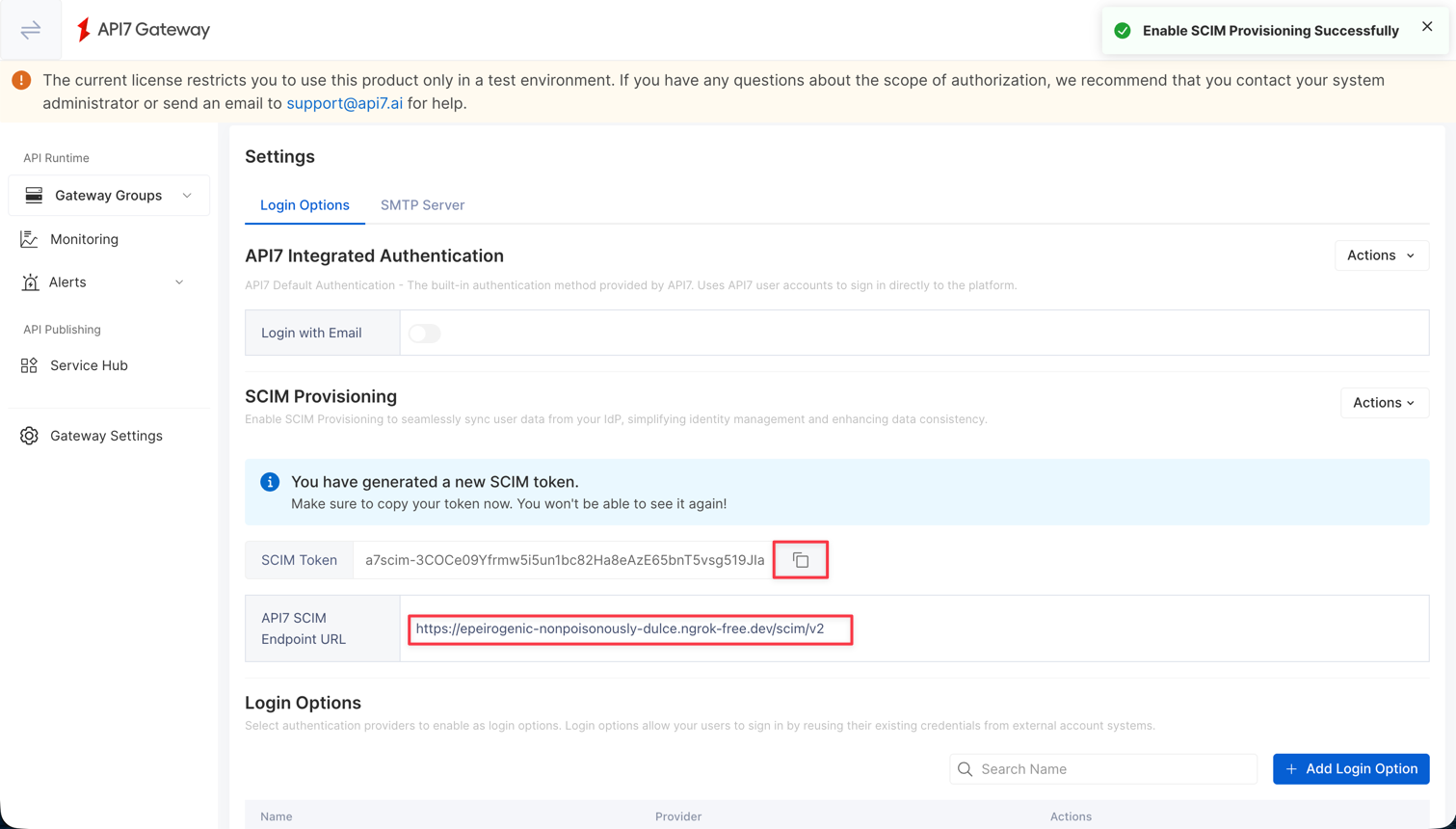
- Copy the API7 SCIM Endpoint URL and SCIM Token.
Step 3: Configure the Okta API Integration
- Return to the Okta Admin Console and open the SCIM application.
- Select the Provisioning tab.
- Click Configure API Integration.
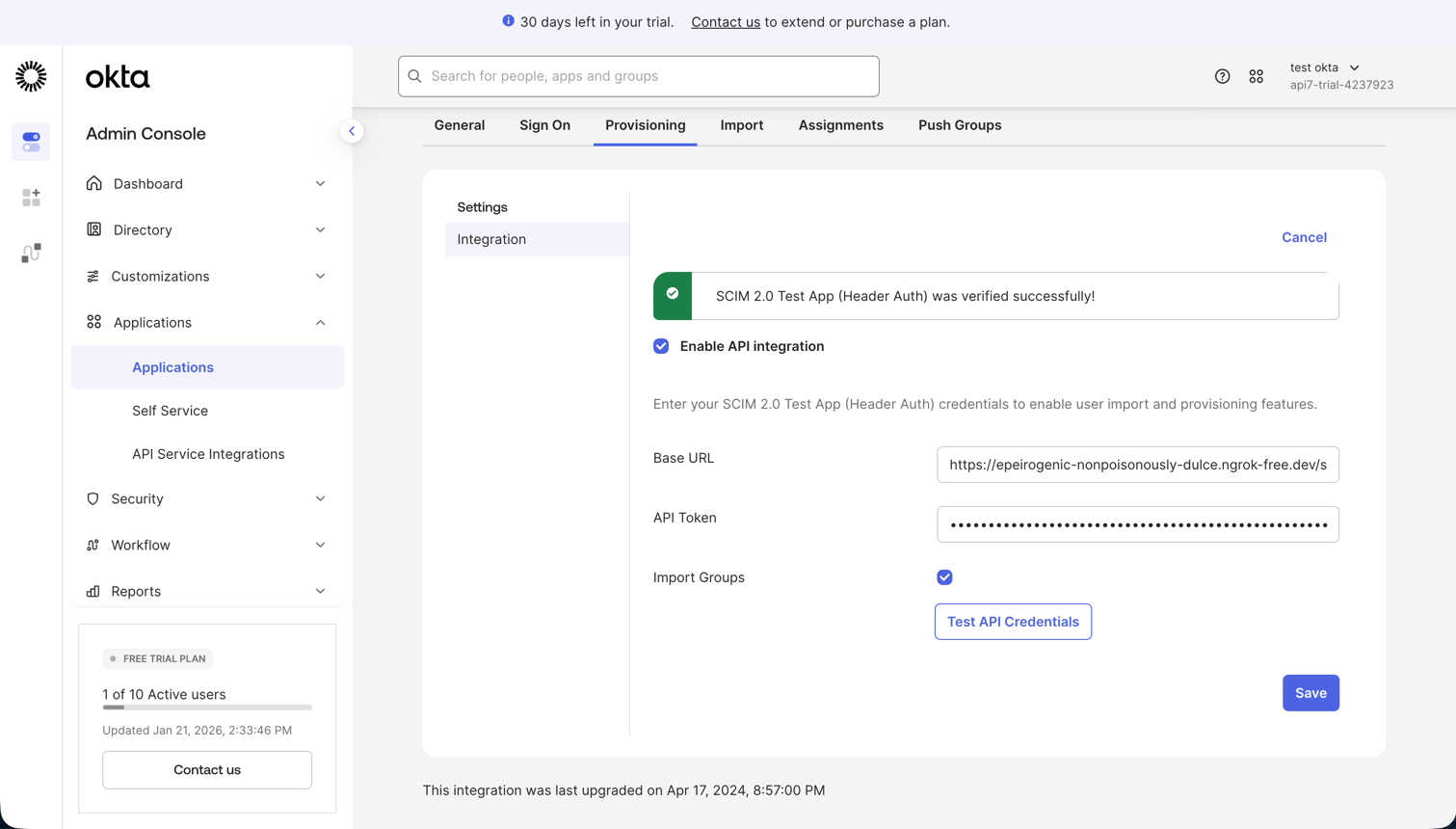
- Check Enable API Integration.
- In SCIM 2.0 Base URL, enter the SCIM endpoint copied from API7 Gateway.
- In API Token, enter
Bearer <your_token>using the SCIM token copied from API7 Gateway. - Click Test API Credentials to verify the connection.
- Click Save.
note
Make sure there is a space after Bearer.
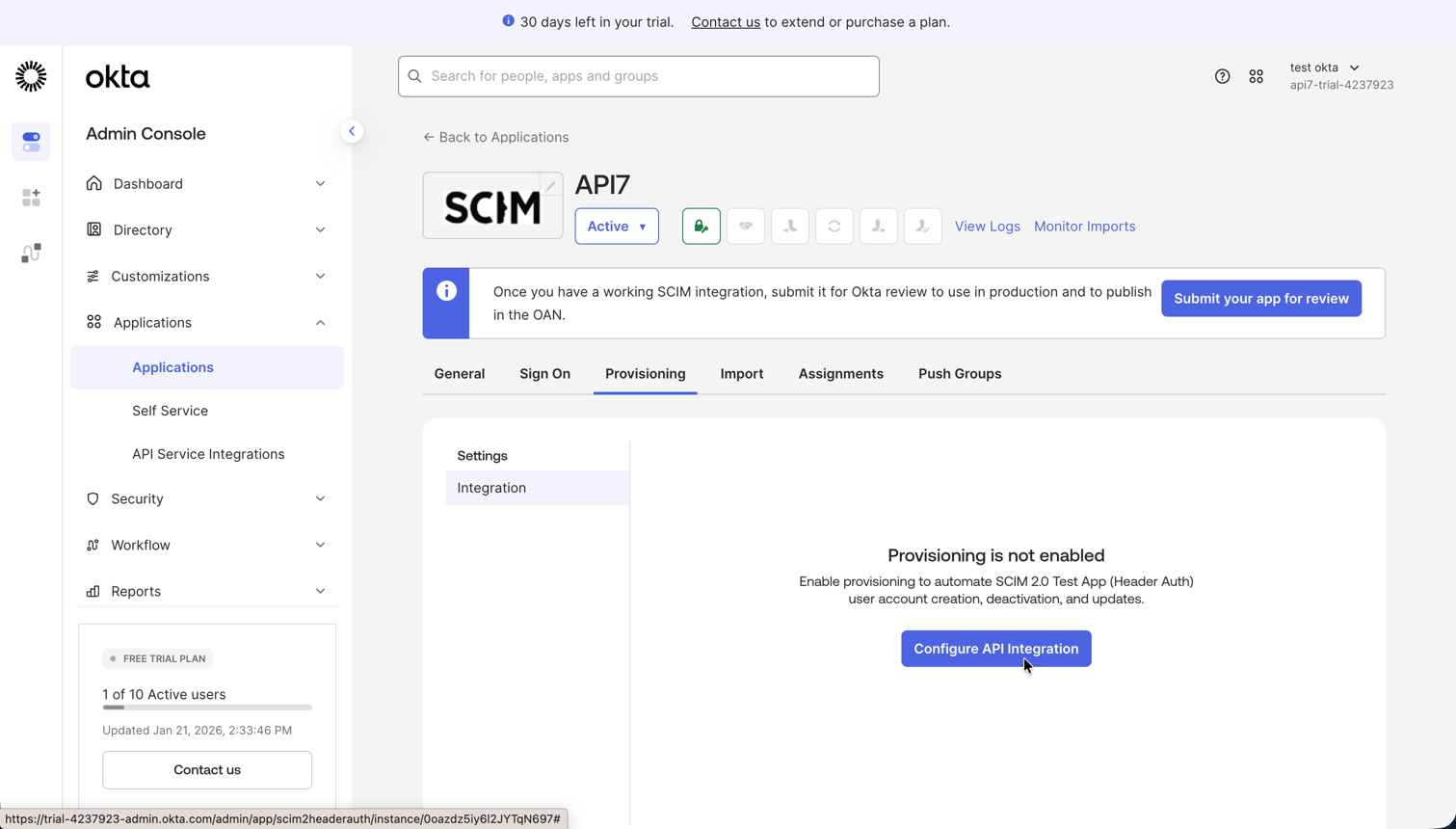
Step 4: Enable Provisioning Features in Okta
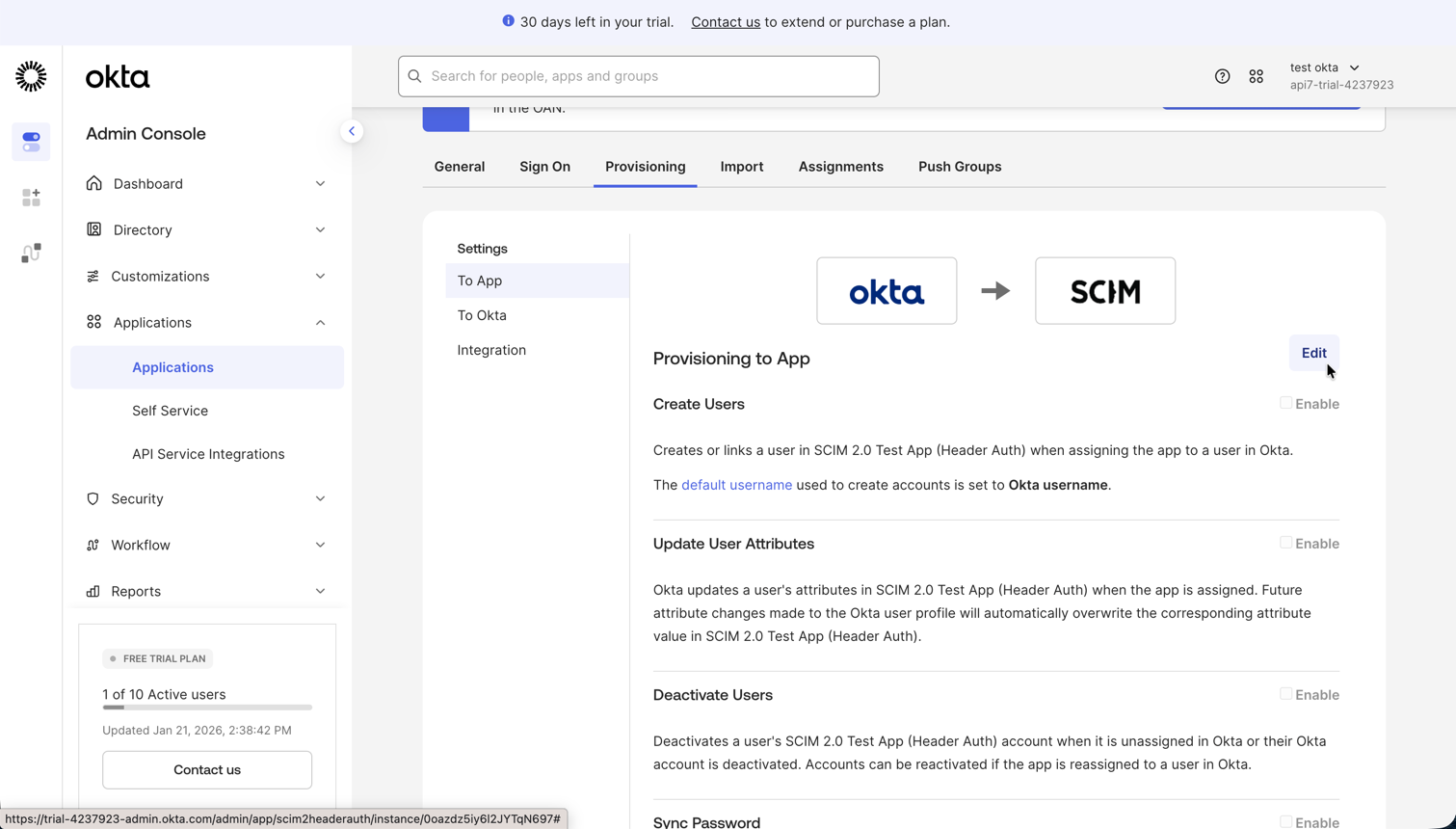
- In the Provisioning tab, select To App.
- Click Edit.
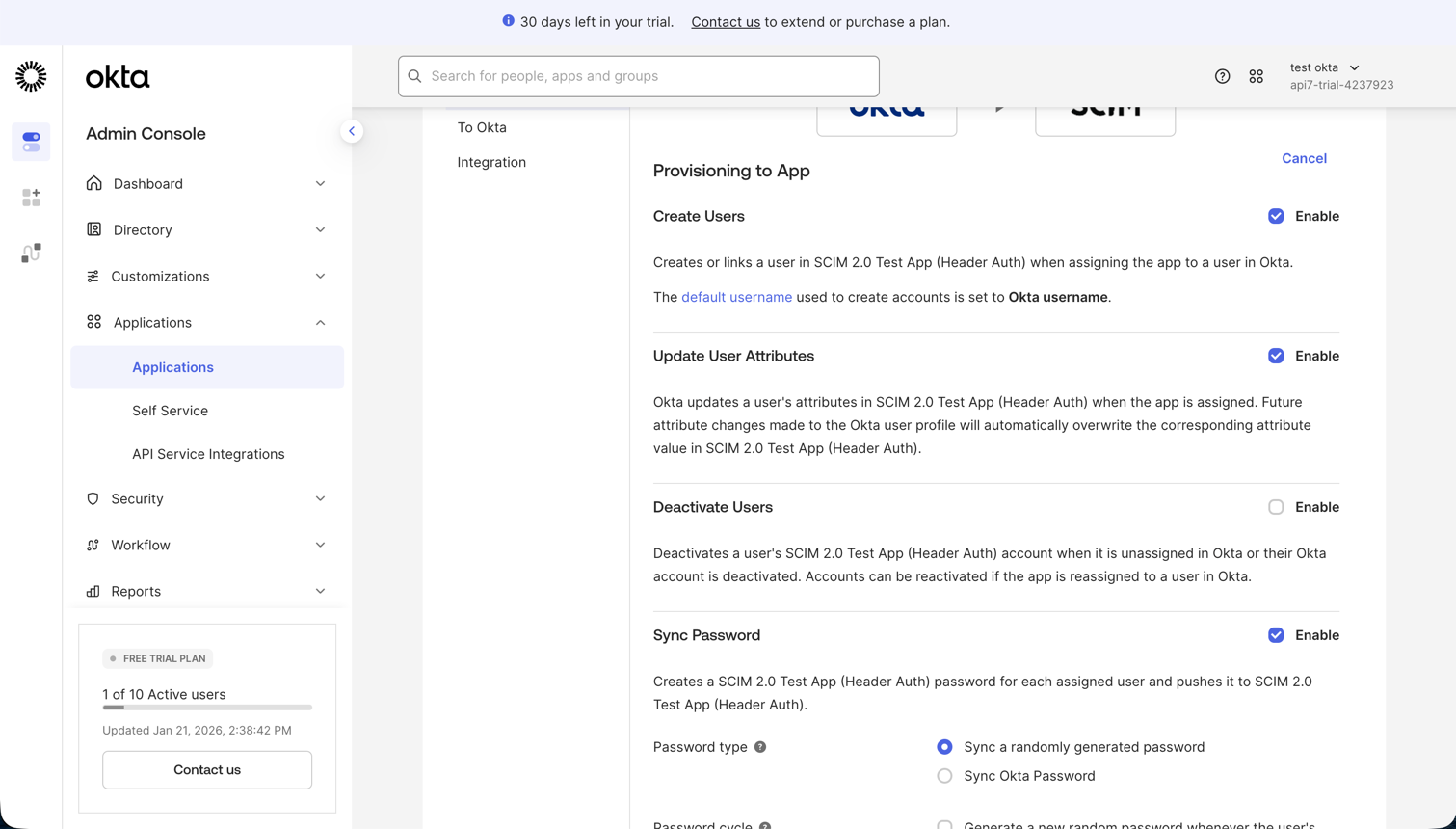
- Enable the provisioning features you need:
- Create Users
- Update User Attributes
- Deactivate Users
- Click Save.
Step 5: Assign Users in Okta
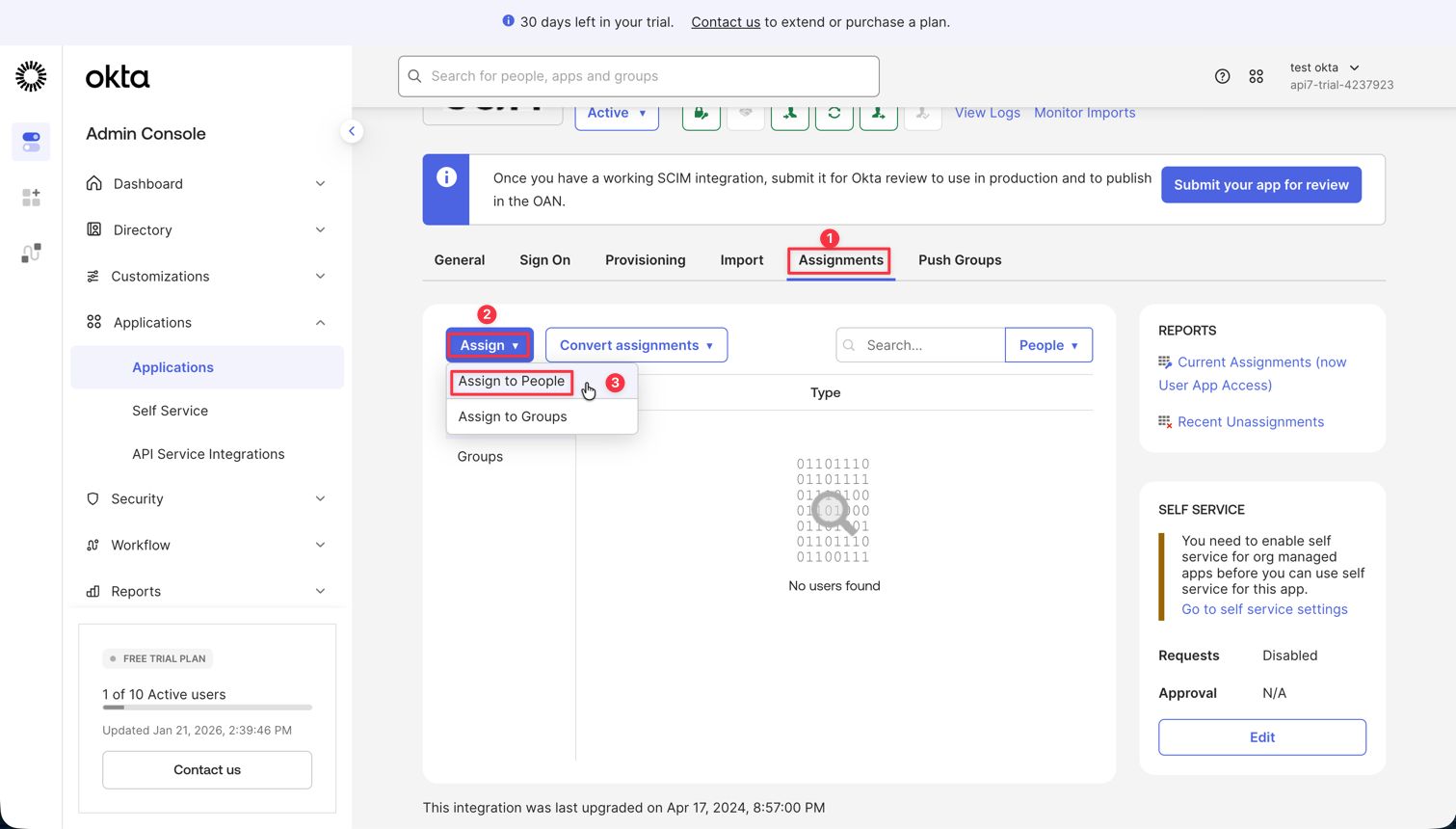
- Open the Assignments tab of the SCIM application.
- Click Assign and select Assign to People.
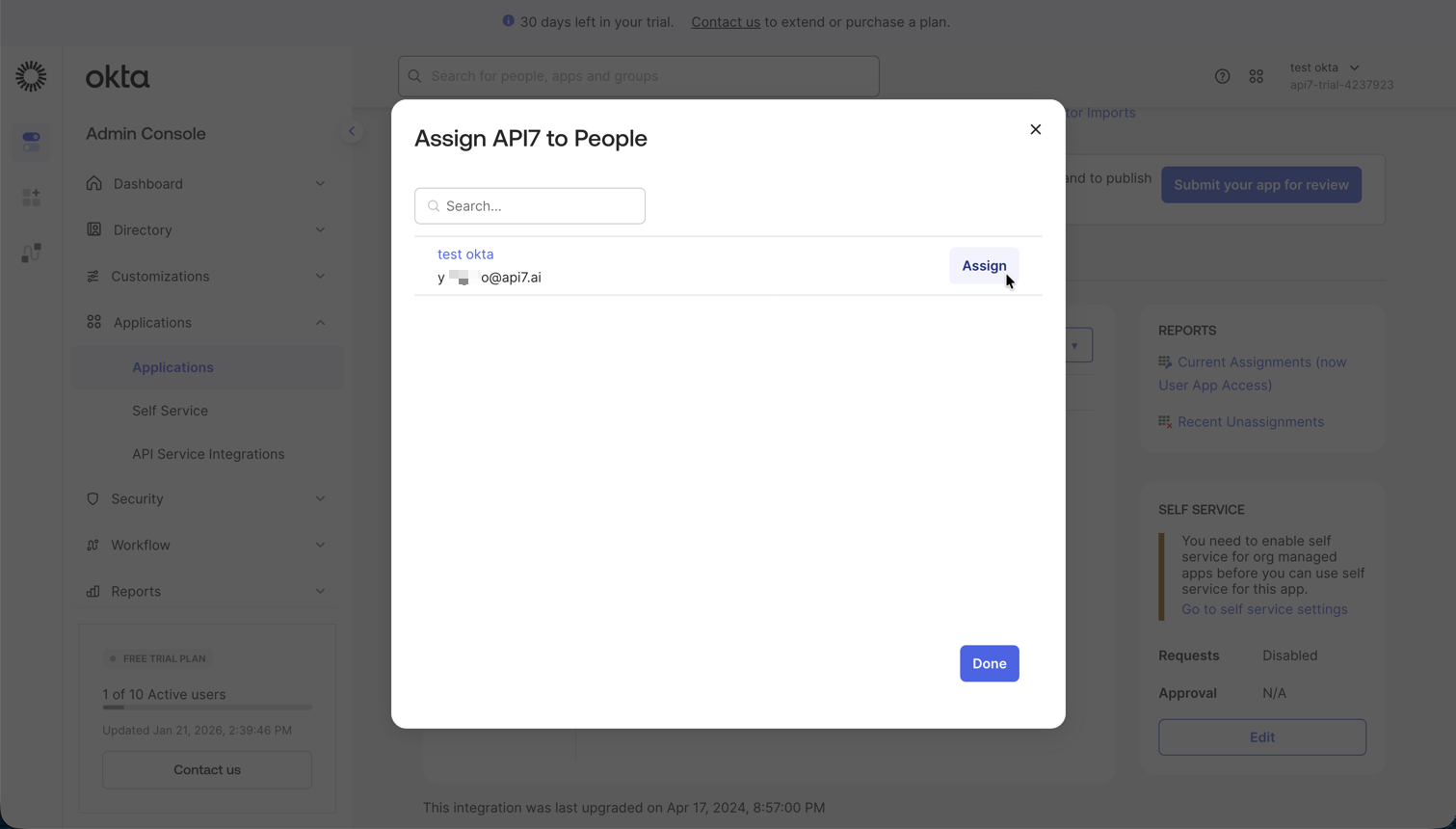
- Select the users you want to provision into API7 Gateway.
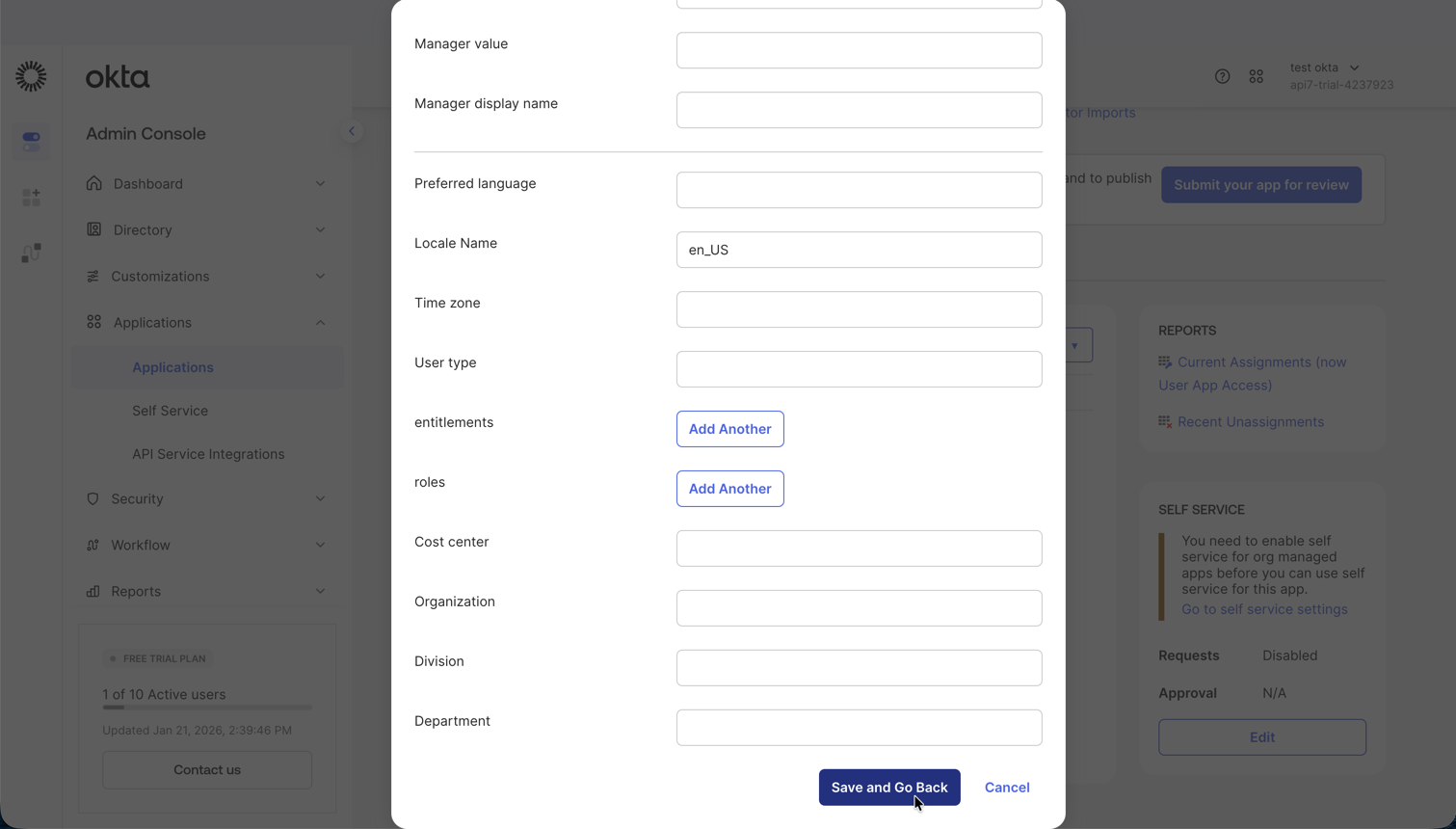
- Click Assign for each selected user, then click Done.
Step 6: Verify User Provisioning
- Return to the API7 Dashboard.
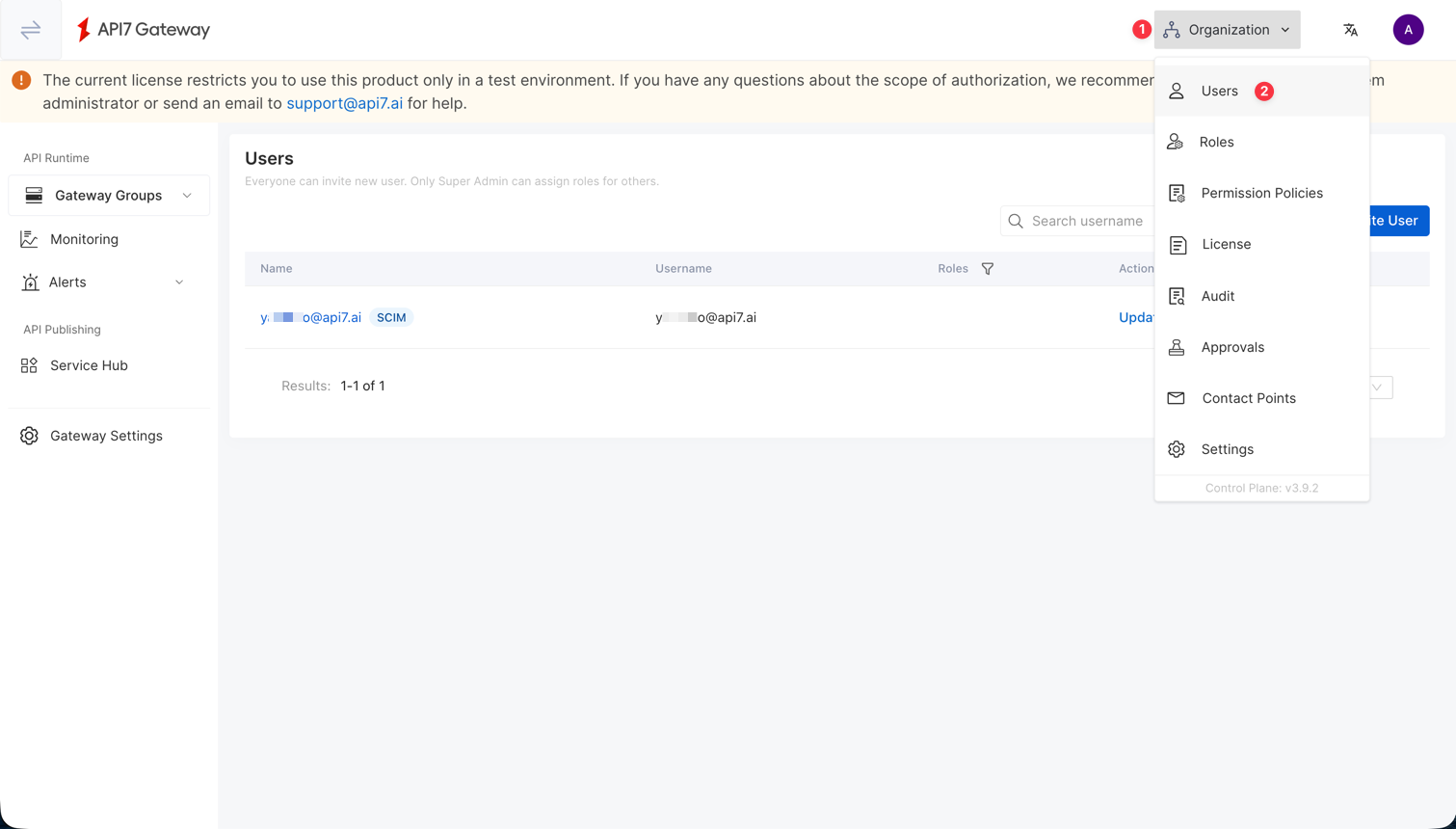
- Go to Organization -> Users.
- Confirm that the users assigned in Okta have been provisioned to API7 Gateway.
SCIM provisions the user accounts, but role assignments are still governed by API7 Gateway RBAC. If you also configure Dashboard SSO role mapping, user roles can be refreshed during login based on your SSO mapping rules.