
Implement DP Resilience with Azure Blob Storage
In this guide, you will learn how to configure Data Plane (DP) resilience in API7 Enterprise using Azure Blob Storage as the external configuration storage. API7 supports two methods for authenticating gateway nodes to access Blob Storage:
- Workload Identity – Uses a user-assigned managed identity to grant the gateway pods secure access without static credentials.
- Storage Account Access Key – Uses the storage account name and key for authentication.
Both methods allow gateway nodes to fetch configuration and continue serving traffic when the Control Plane (CP) is unavailable.
Use Workload Identity
This method leverages a user-assigned Azure Managed Identity to allow API7 gateway pods to securely access Blob Storage without embedding static credentials.
Prepare Azure Resources
You will prepare the following resources on Azure:
- A resource group to contain all related resources.
- An AKS cluster to deploy API7 gateway instances.
- An Azure storage account.
- Two Blob containers created within the storage account:
- One container for dynamic configuration of the gateway group, such as keyring and discovery data.
- One container for gateway resource configuration, such as routes and services.
- A user-assigned managed identity, used for workload identity and in the Service Connector configuration.
- A service connection via Service Connector to connect the AKS cluster to Azure Storage securely.
Resource Group
A resource group is a logical container for Azure resources.
Create an Azure resource group with a name of your choice to hold all the related resources. For detailed instructions on creating a resource group, see the official Azure documentation for the Azure CLI or the Azure Portal.
AKS Cluster
Azure Kubernetes Service (AKS) provides a managed Kubernetes environment to deploy and run your API7 Enterprise gateway instances, including both traffic gateway nodes and the backup gateway node.
Create an AKS cluster in the resource group you created previously.
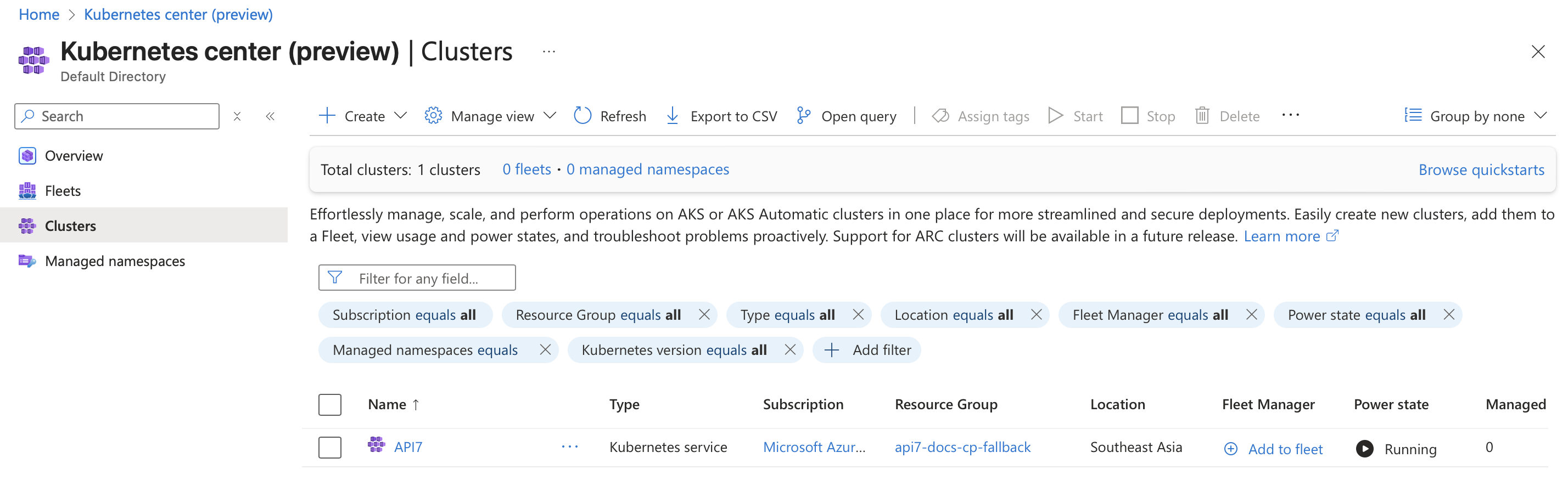
For detailed instructions on creating a cluster, see the official Azure documentation for the Azure CLI or the Azure Portal.
Azure Storage Account and Blob Containers
Create an Azure storage account to store configuration data for API7 Enterprise gateway instances.
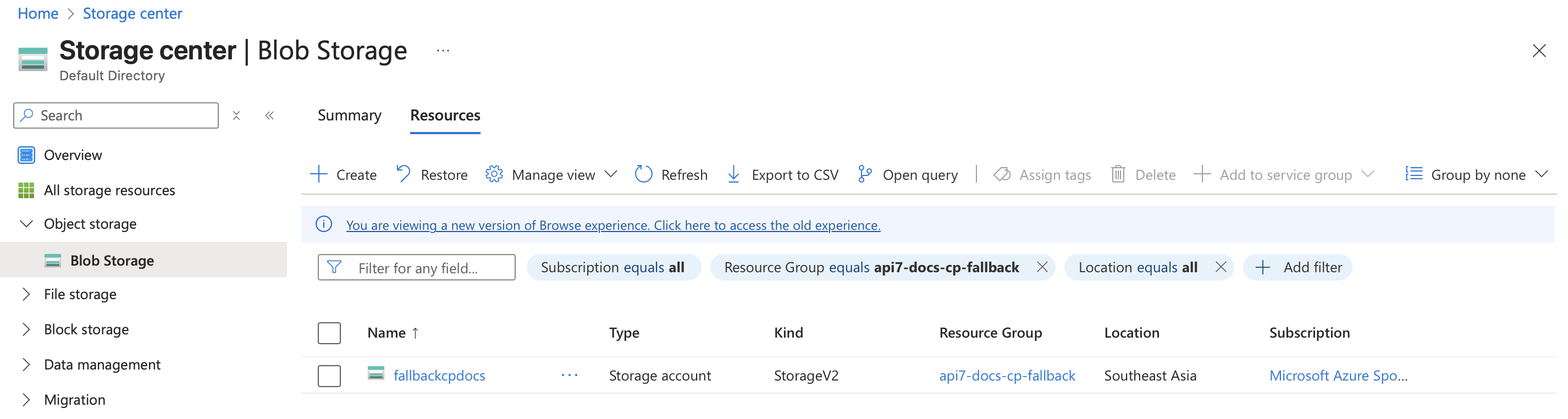
Within the storage account, create two Blob containers (the container names below are examples):
fallback-cp-data- used to back up the dynamic configuration of the gateway group, such as keyring and discovery data.fallback-cp-config- used to back up gateway resource configuration, such as routes and services.
The storage account and container names will be referenced later in gateway deployments.
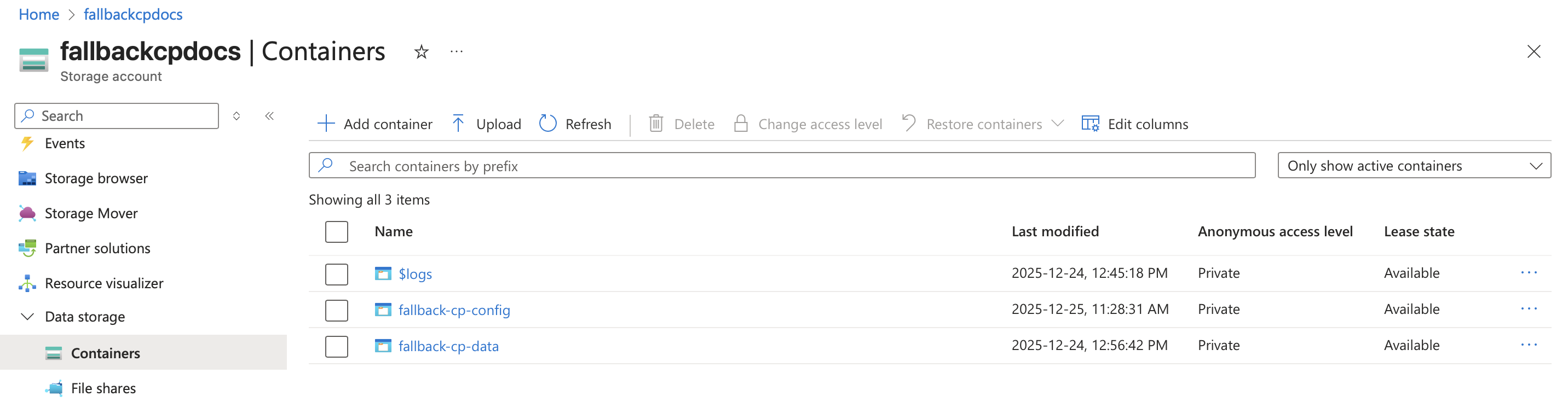
For detailed instructions on creating a storage account and Blob containers, see the official Azure documentation for Azure Storage accounts and Blob containers.
Managed Identity
Create a user-assigned managed identity to enable workload identity for AKS workloads. This identity will be used when creating the Service Connector, allowing the gateway instances to authenticate securely with Azure resources without using static credentials.
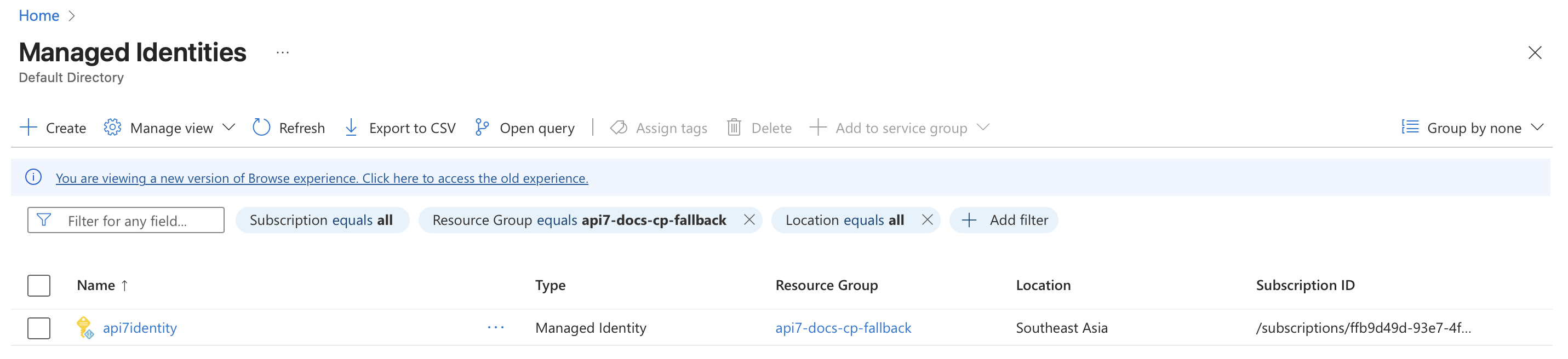
For detailed instructions on creating a user‑assigned managed identity, see the official Azure documentation for the Azure CLI or the Azure Portal.
Service Connection
Create a service connection using Azure Service Connector to link the AKS cluster with the Azure storage account securely. This connection allows API7 Enterprise gateway instances to access the Blob containers using the user-assigned managed identity without requiring static credentials.
Follow instructions in the official Azure documentation Create service connection with Service Connector.
Ensure that the service connection is configured in the same Kubernetes namespace as the one where the gateway instances are deployed.
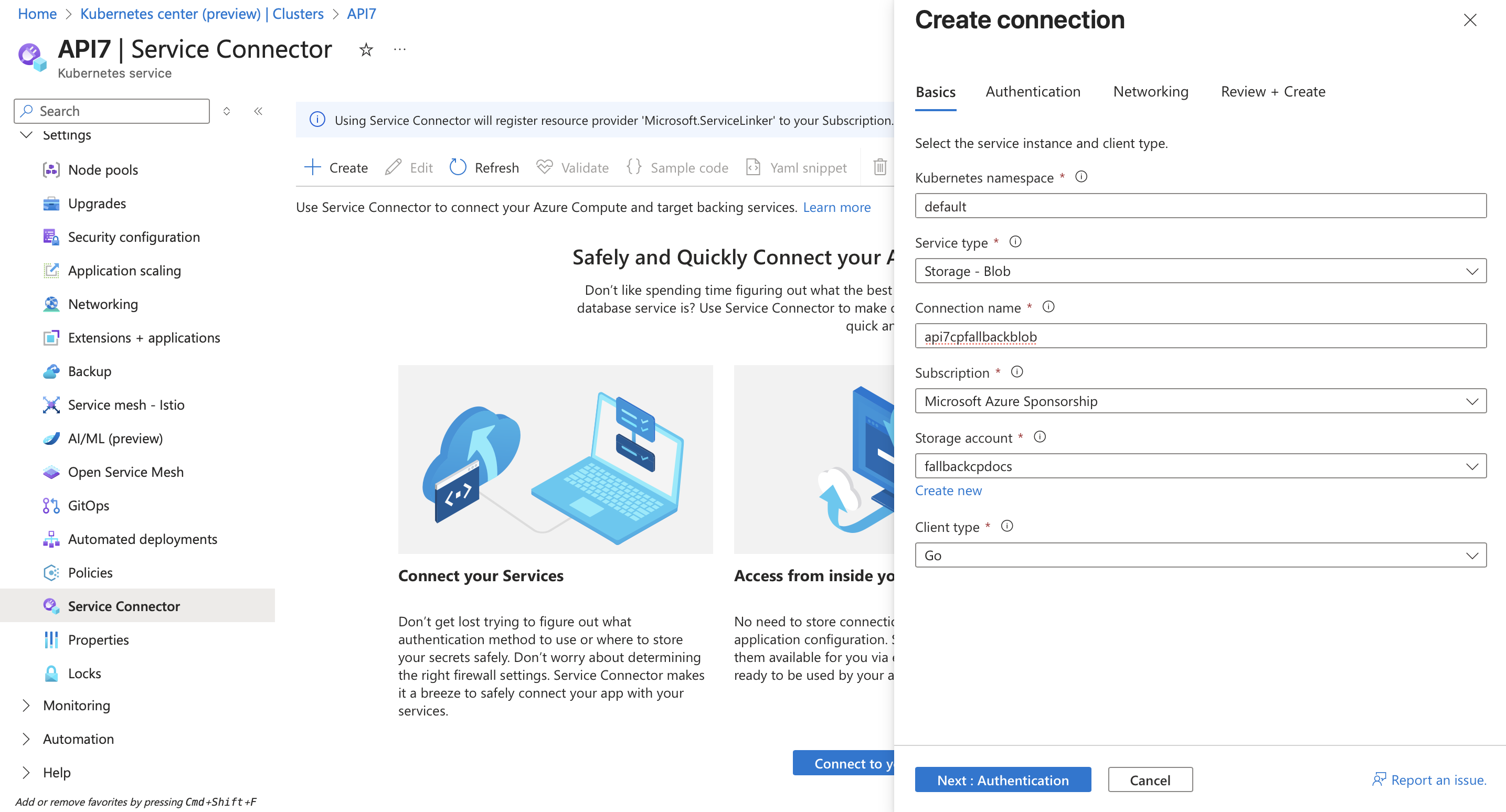
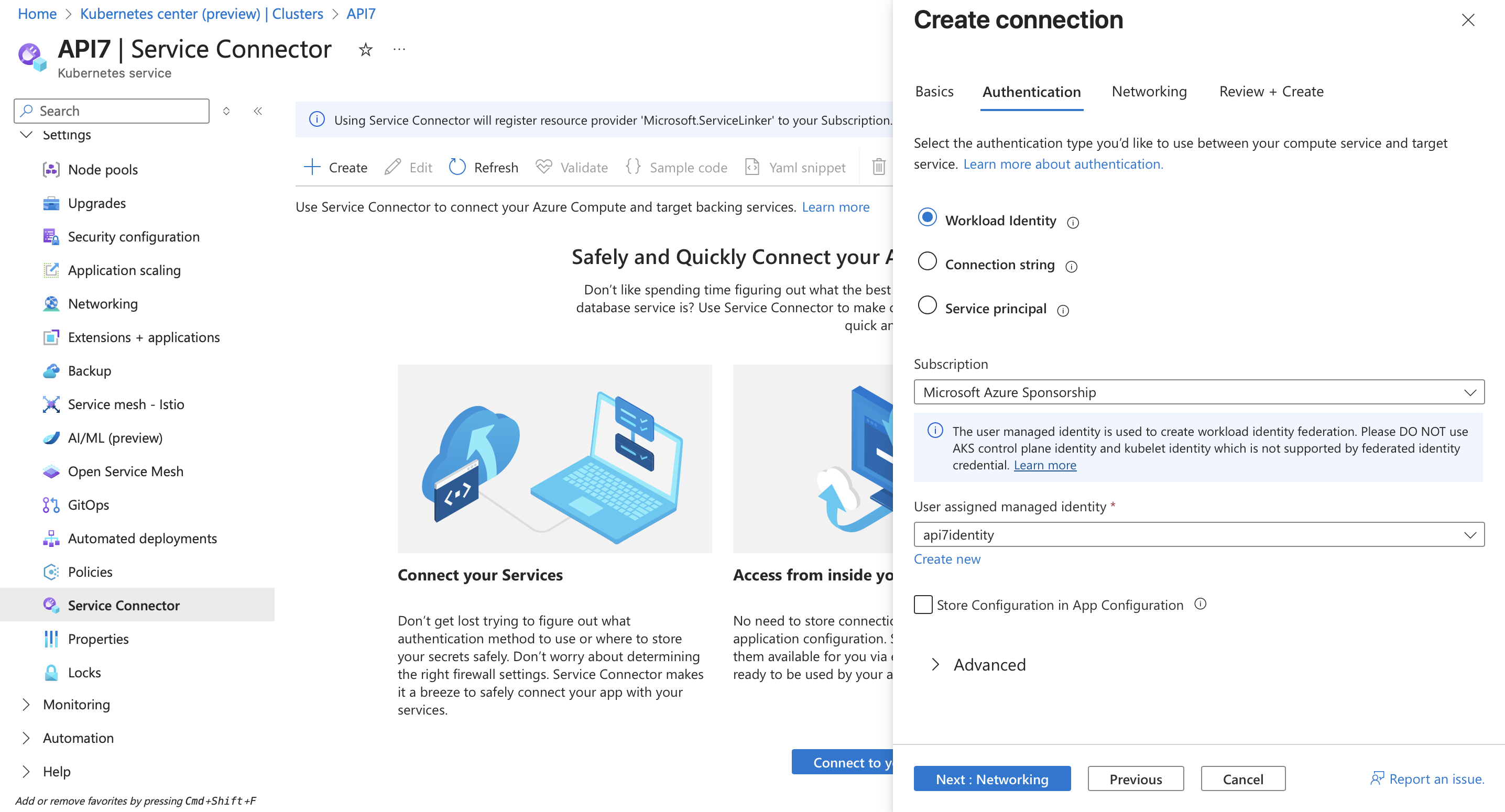
After the connection is created, the Service Connector page displays details about the new connection, including the service account and secret names.
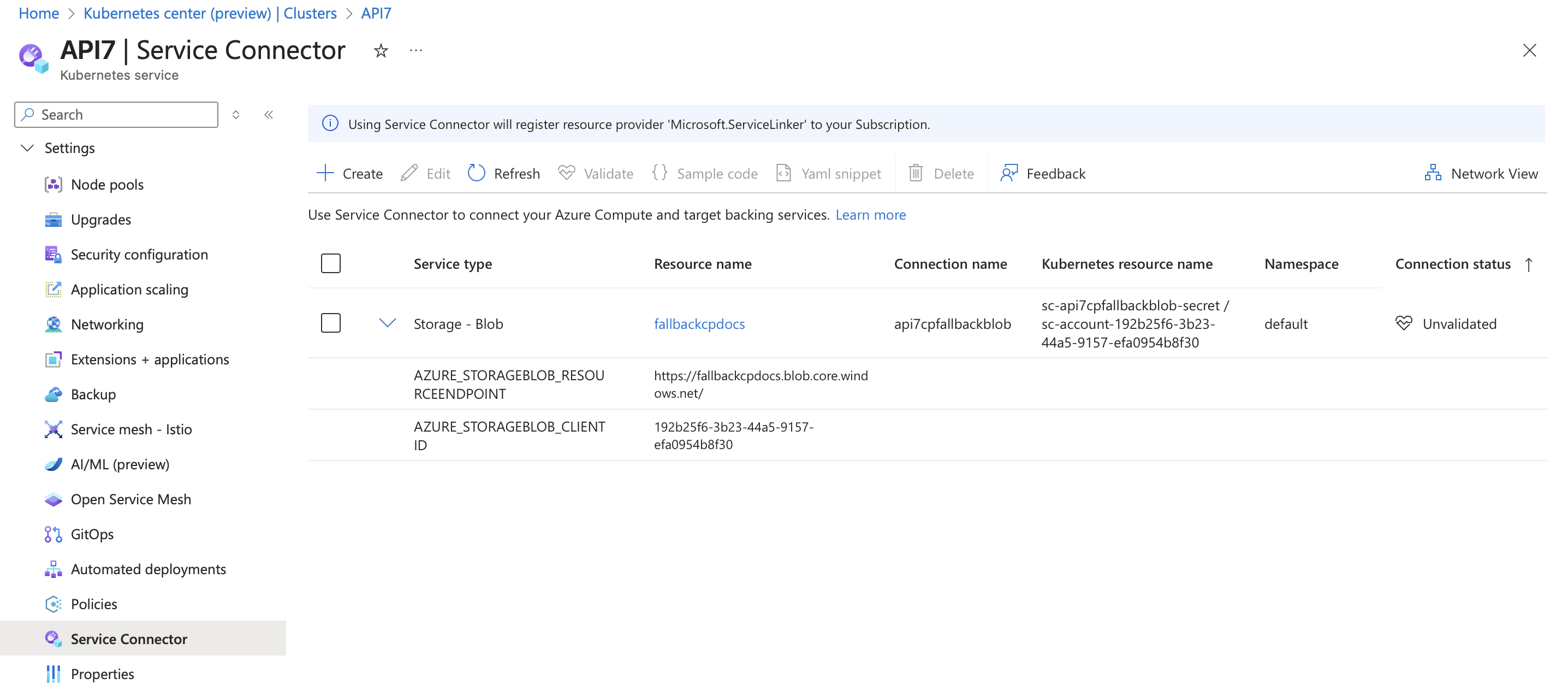
Note down the Kubernetes service account and secret names, as well as the environment variable names provided by the Service Connector:
# Kubernetes service account and secret names
sc-api7cpfallbackblob-secret
sc-account-192b25f6-3b23-44a5-9157-efa0954b8f30

# Corresponding environment variables provided by the Service Connector
AZURE_STORAGEBLOB_RESOURCEENDPOINT   # The Blob storage resource endpoint URL
AZURE_STORAGEBLOB_CLIENTID           # The client ID of the managed identity used for authentication
Deploy a Backup Gateway Node
In the API7 Dashboard, navigate to Gateway Instances > Add Gateway Instance. Switch to the Kubernetes tab and fill in the following details before the deployment script generation:
- Customize the Helm release name.
- Specify the namespace where the gateway will be deployed.
- Specify the Azure Service Connector Kubernetes service account.
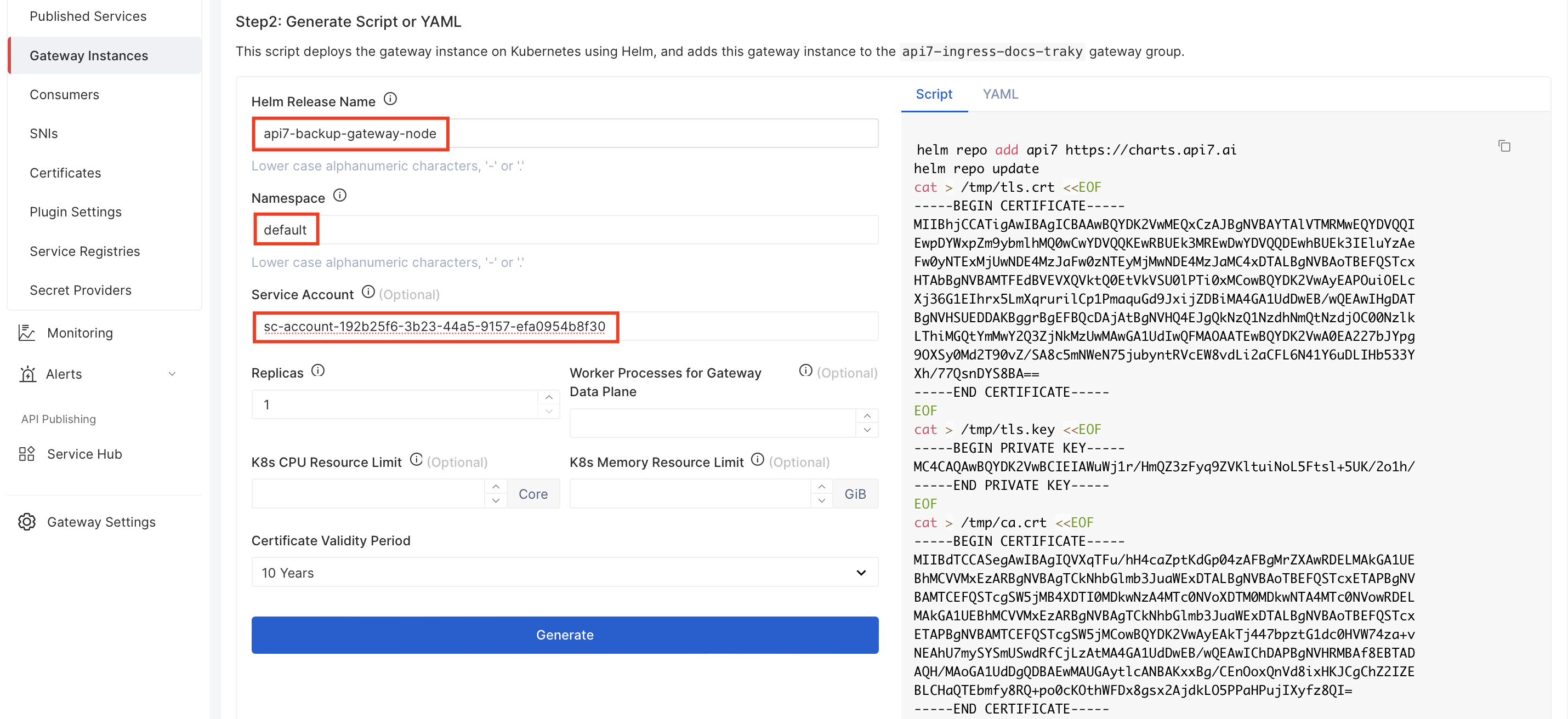
Click Generate to generate the deployment script. You should see the service account name has already been set in the helm upgrade command. Next, manually add the highlighted --set flags below to the helm upgrade command:
helm upgrade --install -n default --create-namespace api7-backup-gateway-node api7/gateway \
  --set ... \ # other parameters
  --set "serviceAccount.name=sc-account-192b25f6-3b23-44a5-9157-efa0954b8f30" \
  --set "apisix.extraEnvVarsSecret=sc-api7cpfallbackblob-secret" \
  --set 'apisix.podLabels.azure\.workload\.identity\/use=true' \
  --set "nginx.envs[0]=AZURE_STORAGEBLOB_RESOURCEENDPOINT" \
  --set "nginx.envs[1]=AZURE_STORAGEBLOB_CLIENTID" \
  --set "deployment.fallback_cp.interval=60" \
  --set "deployment.fallback_cp.mode=write" \
  --set "deployment.fallback_cp.azure_blob.account_name=fallbackcpdocs" \
  --set "deployment.fallback_cp.azure_blob.resource_container=fallback-cp-data" \
  --set "deployment.fallback_cp.azure_blob.config_container=fallback-cp-config"
❶ Inject environment variables from the Kubernetes Secret created by Service Connector into the gateway pods. Update with your Kubernetes Secret name from the service connection.
❷ Add the required pod label to enable Azure Workload Identity for the gateway pods.
❸ Expose the Azure Blob Storage resource endpoint and client ID to NGINX as environment variables.
❹ Configure the time interval of configuration backup in seconds.
❺ Configure the gateway in backup write mode, allowing it to periodically export CP-derived configuration to external storage.
❻ Specify the Azure storage account name used to store fallback CP configuration. Update with your storage account name used in the service connection.
❼ Specify the Blob containers that store resource and config data.
In the Azure Portal, navigate to your AKS cluster, connect to it by following the portal’s instructions, and then run the updated deployment script to deploy the backup gateway node.
Examine the pod status and logs to ensure that there are no errors related to connectivity with Azure Blob containers.
Verify
In this section, you will verify that configuration data is successfully backed up to Blob containers and that traffic gateway nodes can continue operating using the fallback configuration when the Control Plane is unavailable.
Review Data Backup in Blob Containers
In the Azure Portal, navigate to your Azure storage account and open the containers. Verify that data is being written to both the fallback-cp-data and fallback-cp-config containers.
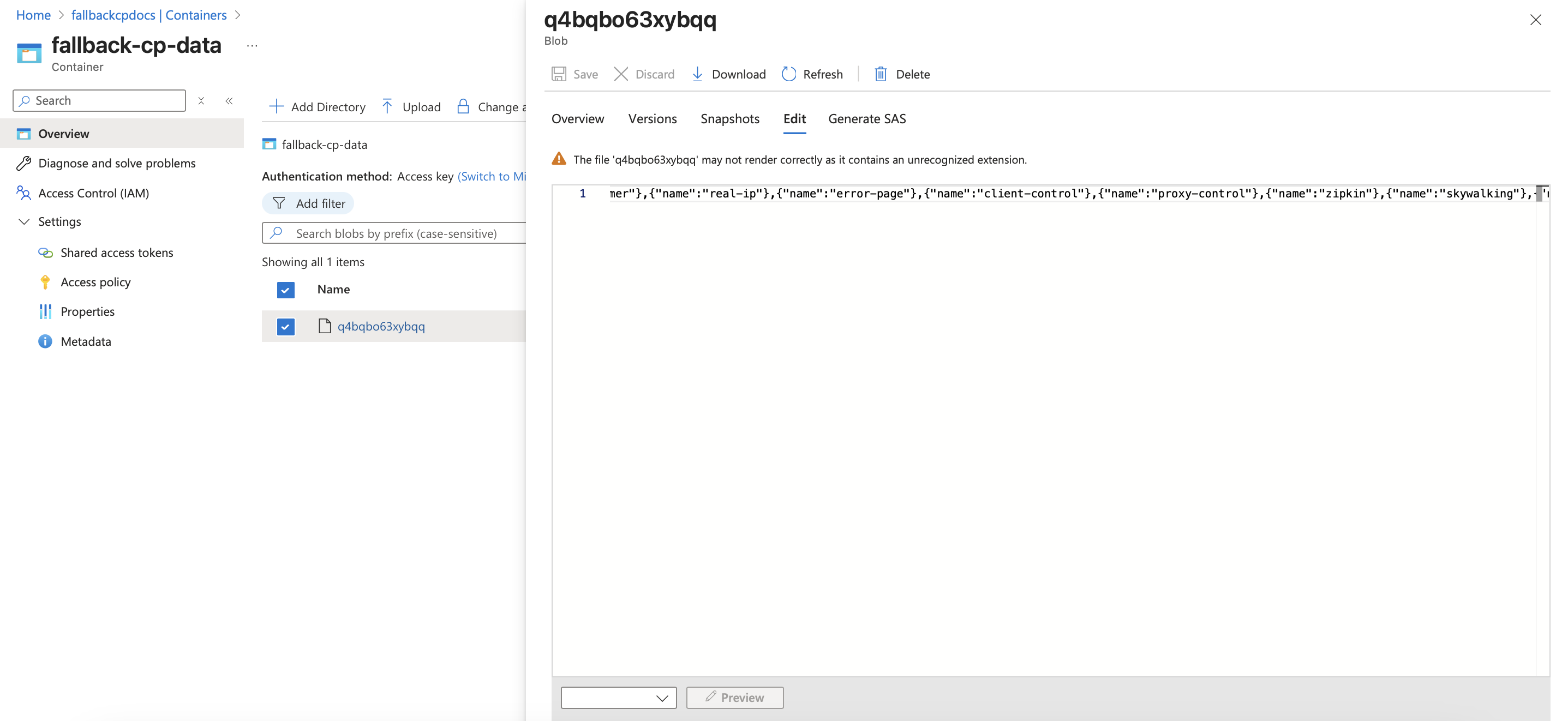
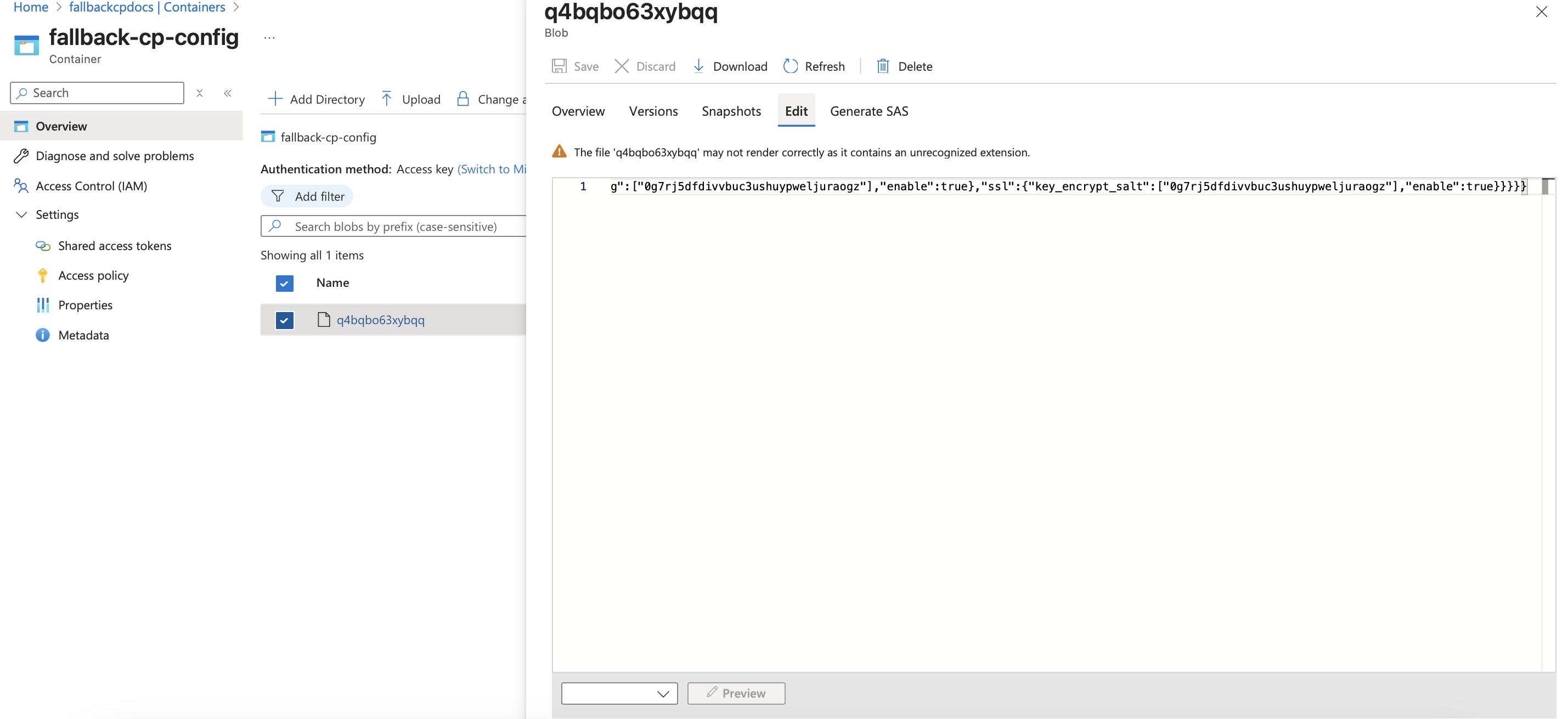
You should see configuration files periodically updated by the backup gateway node, indicating that CP-derived configuration is being successfully backed up.
Ensure Traffic Gateway Nodes Use Fallback Configuration
Suppose the Control Plane (CP) becomes unavailable and you need to configure Data Plane (DP) traffic nodes to fetch configuration from external storage.
Whether you are updating existing traffic gateway nodes or starting new ones, generate the deployment script from the API7 Dashboard and manually apply the following highlighted --set flags in the helm upgrade command.
helm upgrade --install -n default --create-namespace api7-traffic-gateway-node api7/gateway \
  --set ... \ # other parameters
  --set "etcd.host[0]=https://INVALID_DOMAIN:7943" \
  --set "serviceAccount.name=sc-account-192b25f6-3b23-44a5-9157-efa0954b8f30" \
  --set "apisix.extraEnvVarsSecret=sc-api7cpfallbackblob-secret" \
  --set 'apisix.podLabels.azure\.workload\.identity\/use=true' \
  --set "nginx.envs[0]=AZURE_STORAGEBLOB_RESOURCEENDPOINT" \
  --set "nginx.envs[1]=AZURE_STORAGEBLOB_CLIENTID" \
  --set "deployment.fallback_cp.azure_blob.account_name=fallbackcpdocs" \
  --set "deployment.fallback_cp.azure_blob.resource_container=fallback-cp-data" \
  --set "deployment.fallback_cp.azure_blob.config_container=fallback-cp-config"
❶ Simulate Control Plane unavailability by setting an invalid ETCD host.
❷ Specify the Kubernetes service account created by the Azure Service Connector. Update with your service account name.
❸ Inject environment variables from the Kubernetes Secret created by Service Connector into the gateway pods. Update with your Kubernetes Secret name from the service connection.
❹ Add the required pod label to enable Azure Workload Identity for the gateway pods.
❺ Expose the Azure Blob Storage resource endpoint and client ID to NGINX as environment variables.
❻ Specify the Azure storage account name used to store fallback CP configuration. Update with your storage account name used in the service connection.
❼ Specify the Blob containers that store resource and config data.
In the Azure Portal, navigate to your AKS cluster, connect to it by following the portal’s instructions, and then run the updated deployment script to deploy or upgrade the traffic gateway node. The node should now operate based on the configuration stored in Azure Blob Storage.
To verify the setup, send requests to your gateway. The responses should reflect the configuration previously defined in the CP, including any routes, services, or plugins you have configured.
This confirms that the traffic gateway node is correctly using the fallback configuration and can continue serving traffic even when the CP is unavailable.
Use Storage Account and Access Key
This method uses the Azure storage account name and key to authenticate gateway pods. It requires managing static credentials.
Prepare Azure Resources
Follow the linked documentation to create and configure the necessary Azure resources:
- Create a resource group to hold all relevant resources.
- Create an Azure storage account.
- Create two Blob containers within the storage account (the container names below are examples):
fallback-cp-data: to store dynamic gateway configuration, such as keyring and discovery data.fallback-cp-config: to store gateway resource configuration, such as routes and services.
- Obtain the storage account name and access key from the storage account.
Deploy a Backup Gateway Node
- Docker
In the API7 Dashboard, navigate to Gateway Instances > Add Gateway Instance. Switch to the Docker tab, fill in a name for the backup gateway node, and click Generate to generate the deployment script.
In the running gateway, add the fallback_cp configuration to the gateway's configuration file:
deployment:
  fallback_cp:
    interval: 60
    mode: "write"
    azure_blob:
      account_name: your-storage-account-name
      account_key: your-storage-account-key
      config_container: fallback-cp-config
      resource_container: fallback-cp-data
❶ Configure the time interval of configuration backup in seconds.
❷ Configure the gateway in backup write mode, allowing it to periodically export CP-derived configuration to external storage.
❸ Replace with your storage account name and access key.
❹ Replace with your Blob containers that store resource and config data.
Reload the gateway instance for configuration changes to take effect. Examine the gateway logs to ensure that there are no errors related to connectivity with Azure Blob containers.
The gateway should start running as a backup node and pushing configurations to the Blob containers regularly.
Verify
In this section, you will verify that configuration data is successfully backed up to Blob containers and that traffic gateway nodes can continue operating using the fallback configuration when the Control Plane is unavailable.
Review Data Backup in Blob Containers
In the Azure Portal, navigate to your Azure storage account and open the containers. Verify that data is being written to both the fallback-cp-data and fallback-cp-config containers.
You should see configuration files periodically updated by the backup gateway node, indicating that CP-derived configuration is being successfully backed up.
Ensure Traffic Gateway Nodes Use Fallback Configuration
Suppose the Control Plane (CP) becomes unavailable and you need to configure Data Plane (DP) traffic nodes to fetch configuration from external storage.
- Docker
Whether you are updating existing traffic gateway nodes or starting new ones, in the running traffic gateway nodes, add the fallback_cp configuration to the gateway's configuration file:
deployment:
  role: data_plane
  role_data_plane:
    config_provider: json
  fallback_cp:
    azure_blob:
      account_name: your-storage-account-name
      account_key: your-storage-account-key
      config_container: fallback-cp-config
      resource_container: fallback-cp-data
❶ Configure the gateway to run in standalone mode.
❷ Replace with your storage account name and access key.
❸ Replace with your Blob containers that store resource and config data.
Reload the gateway instances for configuration changes to take effect. The gateways should start running in standalone mode and fetching configurations from Blob containers.
To verify the setup, send requests to your gateway. The responses should reflect the configuration previously defined in the CP, including any routes, services, or plugins you have configured.
This confirms that the traffic gateway node is correctly using the fallback configuration and can continue serving traffic even when the CP is unavailable.