
Configure SCIM Provisioning for a Custom Developer Portal with Okta
SCIM (System for Cross-domain Identity Management) lets Okta create and update identities in a custom Developer Portal based on API7 Developer Portal Boilerplate v0.10.0. This integration adds a Better Auth server plugin and database schema; it is not a setting that enables an endpoint in the released frontend image.
Provisioning an identity does not automatically add the user to a portal organization, grant access to API products, or revoke previously issued gateway credentials. Connect the provisioning lifecycle to the custom application's authorization model before using it to manage developer access.
SCIM provisioning also does not configure interactive sign-in. The plugin creates a user and a SCIM-provider account, but it does not create a password, session, or OpenID Connect login. Implement a separate authentication and account-linking path before treating a provisioned user as able to access the portal. Deliberately map the SCIM identity to the interactive identity provider, then verify that sign-in resolves to the intended user.
Prerequisites
- A custom Developer Portal based on Boilerplate
v0.10.0, which declares Better Auth^1.6.11and resolves1.6.19in its released lock file. - A working portal authentication database and access to its auth routes.
- An administrator account that can sign in to the custom portal and generate the SCIM credential.
- A reviewed design for interactive authentication and account linking between SCIM identities and the sign-in provider.
- An Okta account with administrative privileges.
Create a SCIM Application in Okta
Before modifying portal code, create a SCIM application in Okta.
- Log in to the Okta Admin Console.
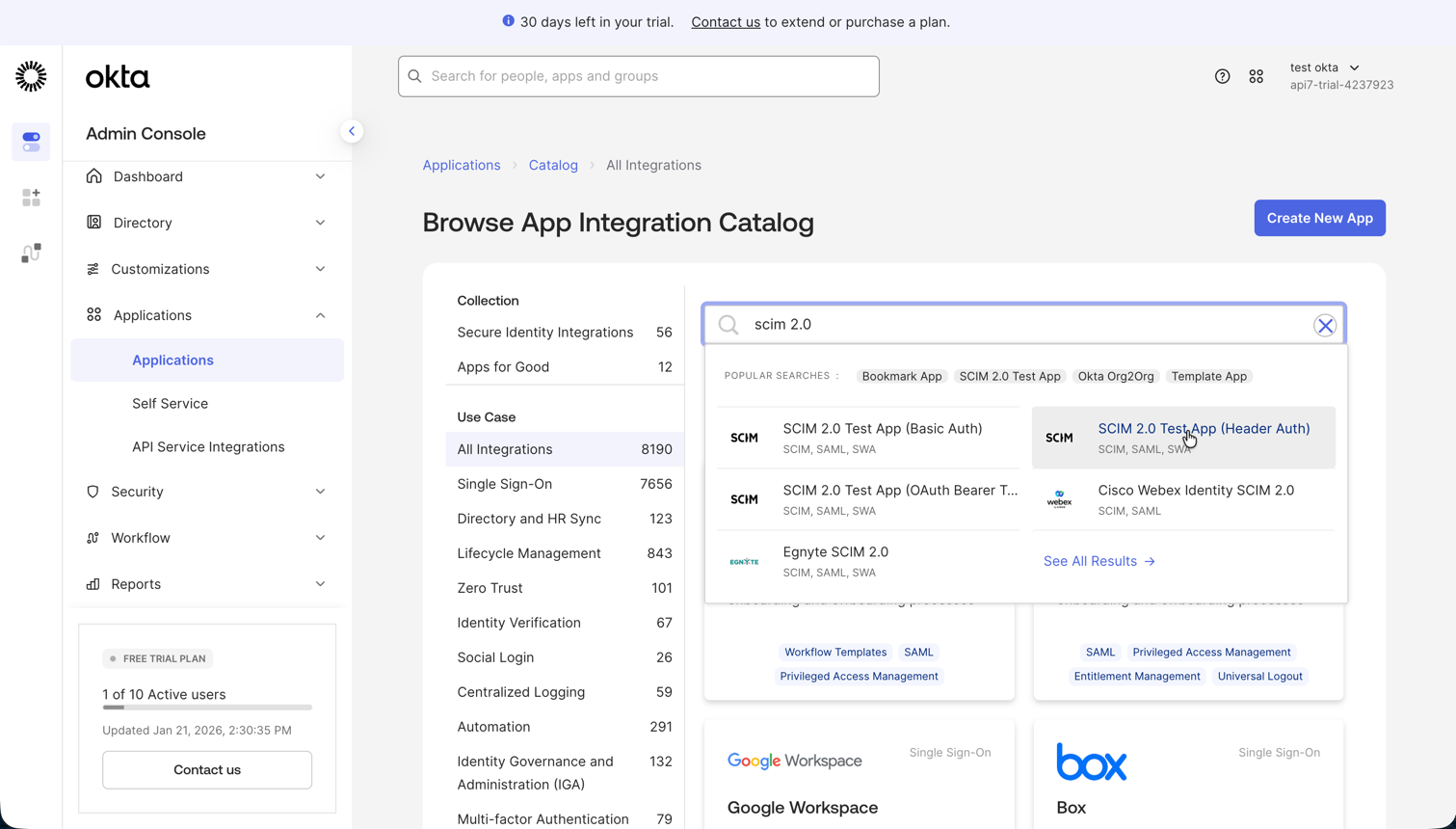
- Go to Applications, then Applications.
- Click Browse App Catalog.
- Search for
SCIM. - Select SCIM 2.0 Test App (Header Auth).
- Click Add Integration.
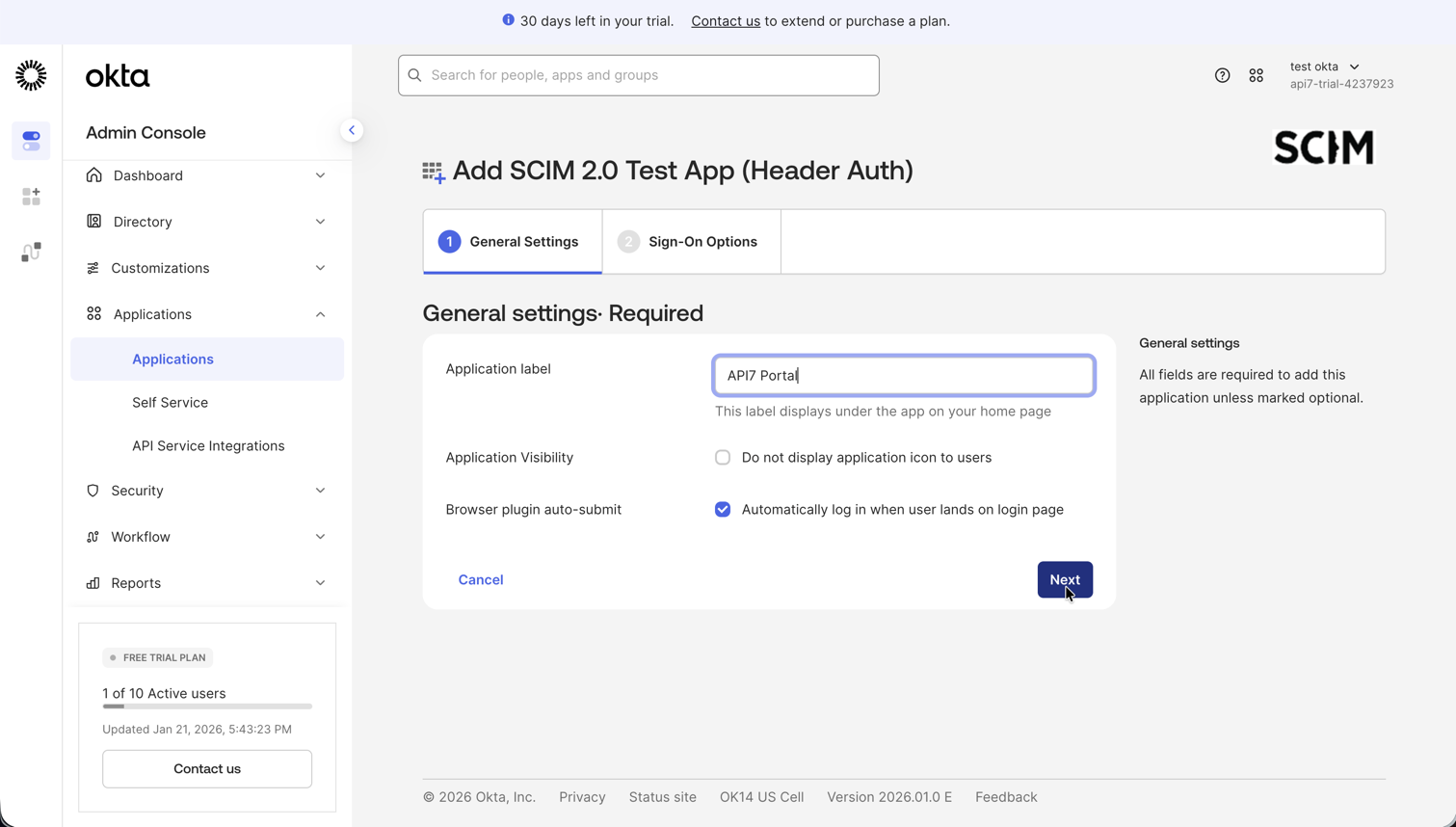
- In General Settings, name the application, such as
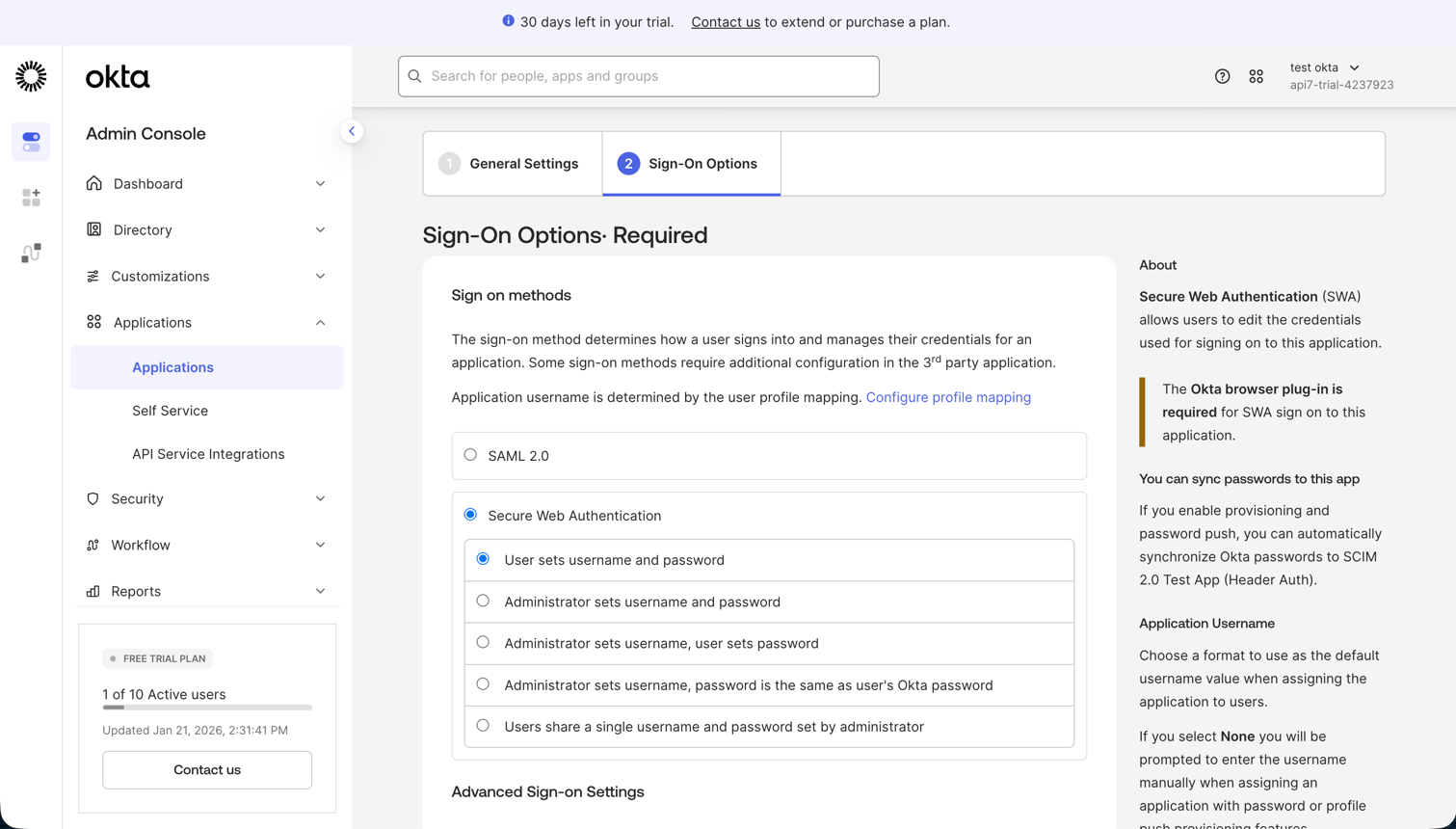
API7 Portal. - In Sign-On Options, select Secure Web Authentication (SWA).
- Click Done.
Install and Register the SCIM Plugin
From the Boilerplate workspace root, install SCIM 1.6.19. This version matches the locked Better Auth 1.6.19, better-call 1.3.6, and @better-auth/utils 0.4.2 dependencies:
pnpm --filter @api7ee/site add \
  @better-auth/scim@1.6.19 \
  server-only@0.0.1
In apps/site/src/lib/auth/server.ts, import the plugin and add it to the existing server plugin list. Keep the other plugins and hooks in their current order:
import { scim } from '@better-auth/scim';

export const auth = betterAuth({
  // Keep the existing Better Auth options.
  plugins: [
    // Keep the existing plugins.
    scim({
      providerOwnership: { enabled: true },
      storeSCIMToken: 'hashed',
      beforeSCIMTokenGenerated: async ({ user }) => {
        const roles = (user as typeof user & { role?: string }).role
          ?.split(',')
          .map((role) => role.trim());
        const isAdmin =
          config.auth.adminUserIds.includes(user.id) || roles?.includes('admin');
        if (!isAdmin) {
          throw APIError.from('FORBIDDEN', {
            code: 'SCIM_ADMIN_REQUIRED',
            message: 'Only portal administrators can generate SCIM tokens',
          });
        }
      },
    }),
    nextCookies(),
  ],
});
The callback restricts token generation to portal administrators. Provider ownership restricts later provider management and token rotation to the administrator who generated it. Storing the token as a hash prevents the provisioning credential from being recovered from the authentication database. The cleartext token is returned only when it is generated.
Update the Auth Route
The Boilerplate route initially exposes only GET and POST. SCIM also uses PUT, PATCH, and DELETE. Update the existing handler:
import { auth } from '@/lib/auth/server';
import { toNextJsHandler } from 'better-auth/next-js';

export const { GET, POST, PUT, PATCH, DELETE } = toNextJsHandler(auth.handler);
Apply Database Migrations
Add the version-matched SCIM provider table to apps/site/src/lib/db/schema.ts without replacing the existing Better Auth tables:
export const scimProviders = pgTable('scim_providers', {
  id: text('id').primaryKey(),
  providerId: text('provider_id').notNull().unique(),
  scimToken: text('scim_token').notNull().unique(),
  organizationId: text('organization_id'),
  userId: text('user_id'),
});
Generate and apply the Drizzle migration. The react-server condition lets Drizzle load the Boilerplate's server-only configuration module:
cd apps/site
NODE_OPTIONS='--conditions=react-server' pnpm db:generate
NODE_OPTIONS='--conditions=react-server' pnpm db:migrate
Review the generated SQL before applying it. For an unmodified Boilerplate v0.10.0 schema, this change should create scim_providers, including the optional owner user_id, with no unrelated table or column changes. Remove or investigate any unrelated statement before running the migration.
Generate a SCIM Token
Create a temporary server-side script that signs in an administrator and generates the credential for the okta provider:
import { auth } from '@/lib/auth/server';

const email = process.env.SCIM_ADMIN_EMAIL;
const password = process.env.SCIM_ADMIN_PASSWORD;

if (!email || !password) {
  throw new Error('SCIM_ADMIN_EMAIL and SCIM_ADMIN_PASSWORD are required');
}

async function main() {
  const login = await auth.api.signInEmail({
    returnHeaders: true,
    body: { email: email!, password: password! },
  });

  const result = await auth.api.generateSCIMToken({
    headers: {
      cookie: login.headers.get('set-cookie') ?? '',
    },
    body: {
      providerId: 'okta',
    },
  });

  console.log(result.scimToken);
}

main().catch((error) => {
  console.error(error);
  process.exitCode = 1;
});
Run the script from the workspace root:
read -rp "Portal administrator email: " SCIM_ADMIN_EMAIL
read -rsp "Portal administrator password: " SCIM_ADMIN_PASSWORD && echo
export SCIM_ADMIN_EMAIL SCIM_ADMIN_PASSWORD

NODE_OPTIONS='--conditions=react-server' \
  pnpm --filter @api7ee/site exec tsx scripts/get-scim-token.ts

unset SCIM_ADMIN_EMAIL SCIM_ADMIN_PASSWORD
Copy the generated token into an approved secret manager, then remove the temporary script. Only the portal user who generated this provider can manage its metadata or replace its credential. Generating another token with the same provider ID replaces the stored credential, so update Okta immediately after rotation.
Configure Okta API Integration
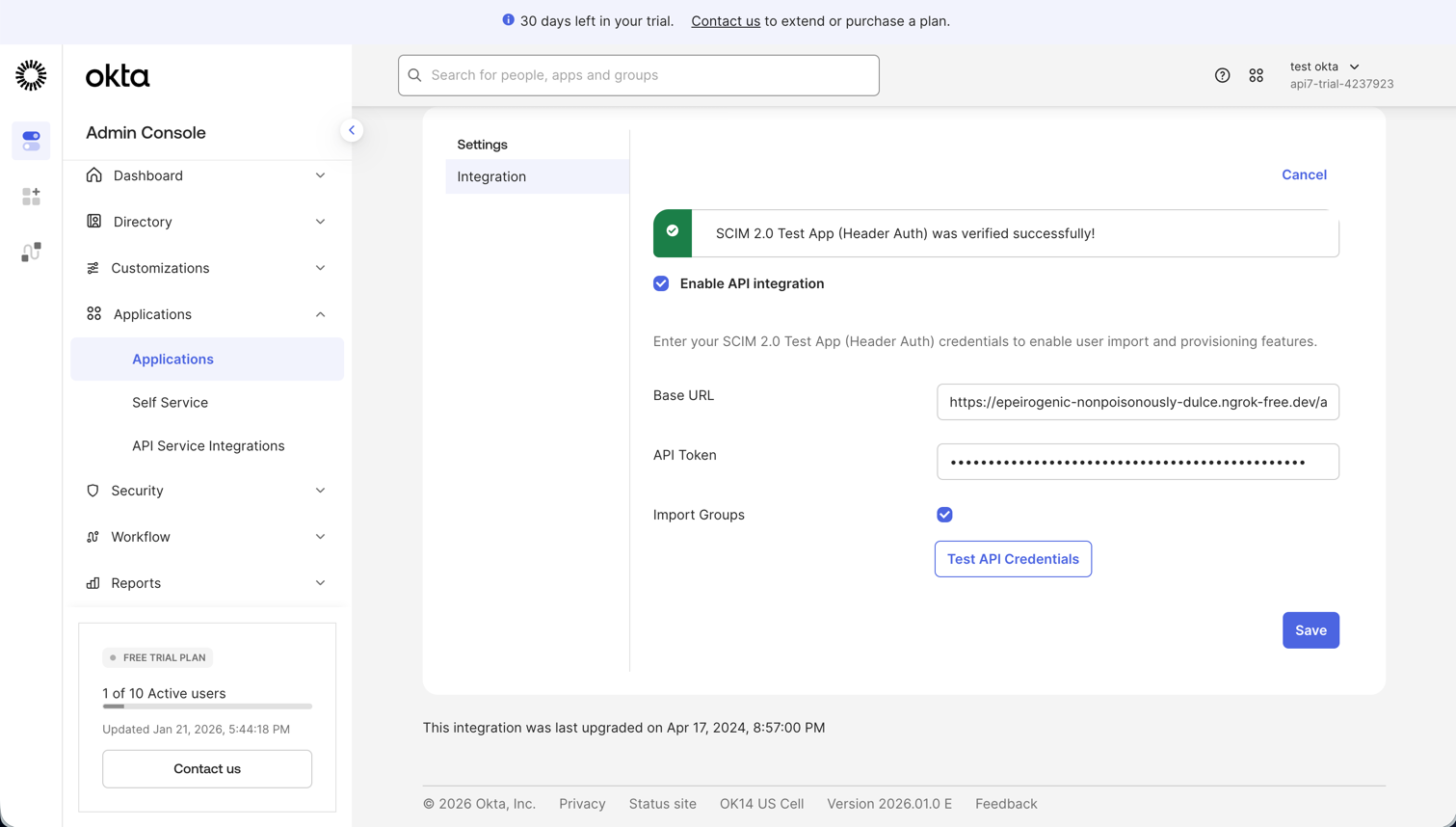
- In Okta, open the Provisioning tab of your SCIM application.
- Click Configure API Integration.
- Enable API integration.
- Set:
- SCIM 2.0 Base URL to
https://<YOUR_PORTAL_DOMAIN>/api/auth/scim/v2 - API Token to
Bearer <YOUR_SCIM_TOKEN>
- SCIM 2.0 Base URL to
- Click Test API Credentials.
- If the test succeeds, click Save.
Configure Provisioning and Assign Users
Configure Provisioning
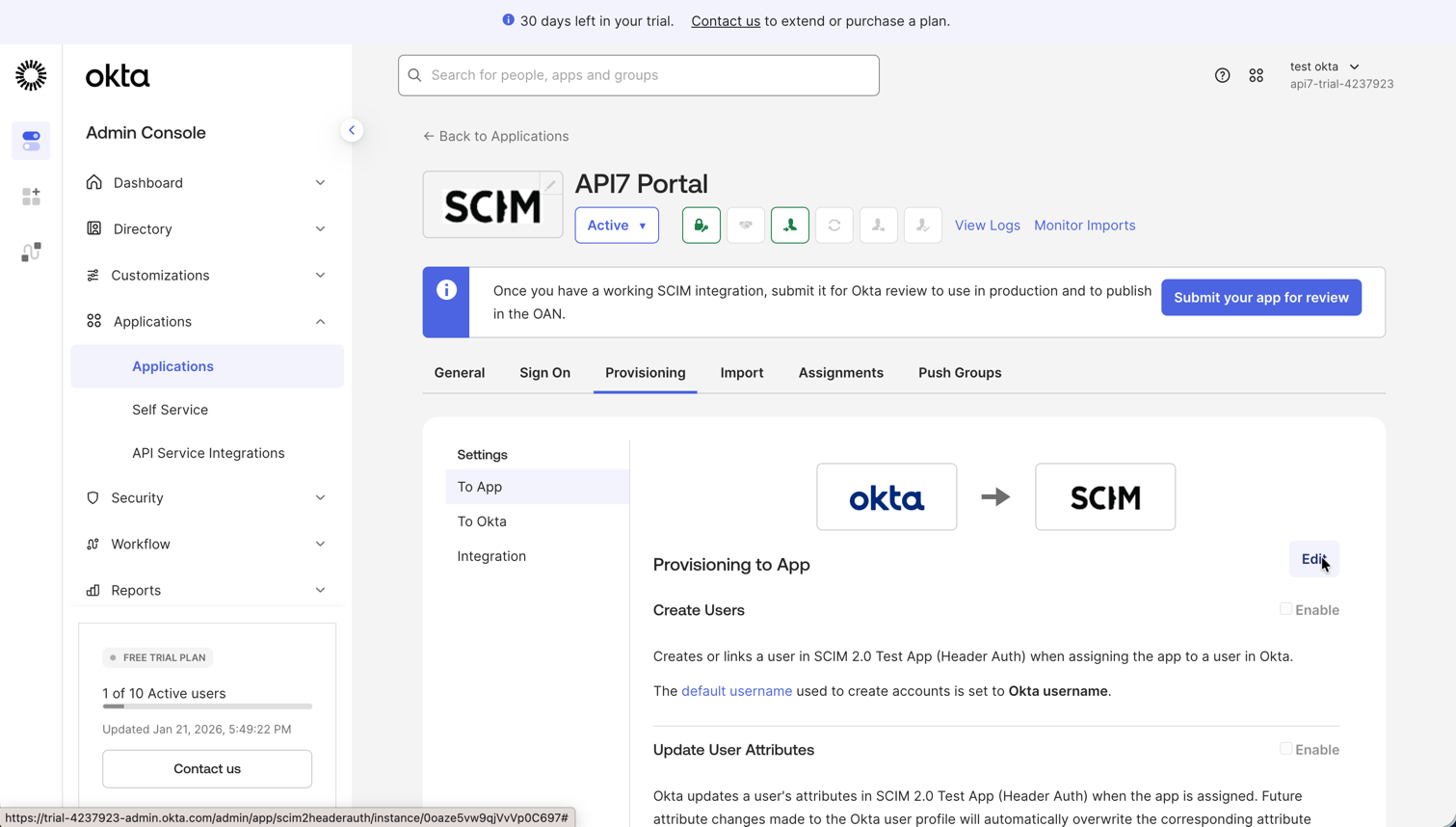
- In the Provisioning tab, select To App.
- Click Edit.
- Enable the features you need:
- Create Users
- Update User Attributes
- Click Save.
Leave Deactivate Users disabled. SCIM plugin 1.6.19 treats the active attribute as read-only and does not provide a verified Okta deactivation workflow for this baseline. Implement and test a compatible deprovisioning path before allowing the identity provider to deactivate users.
Assign Users
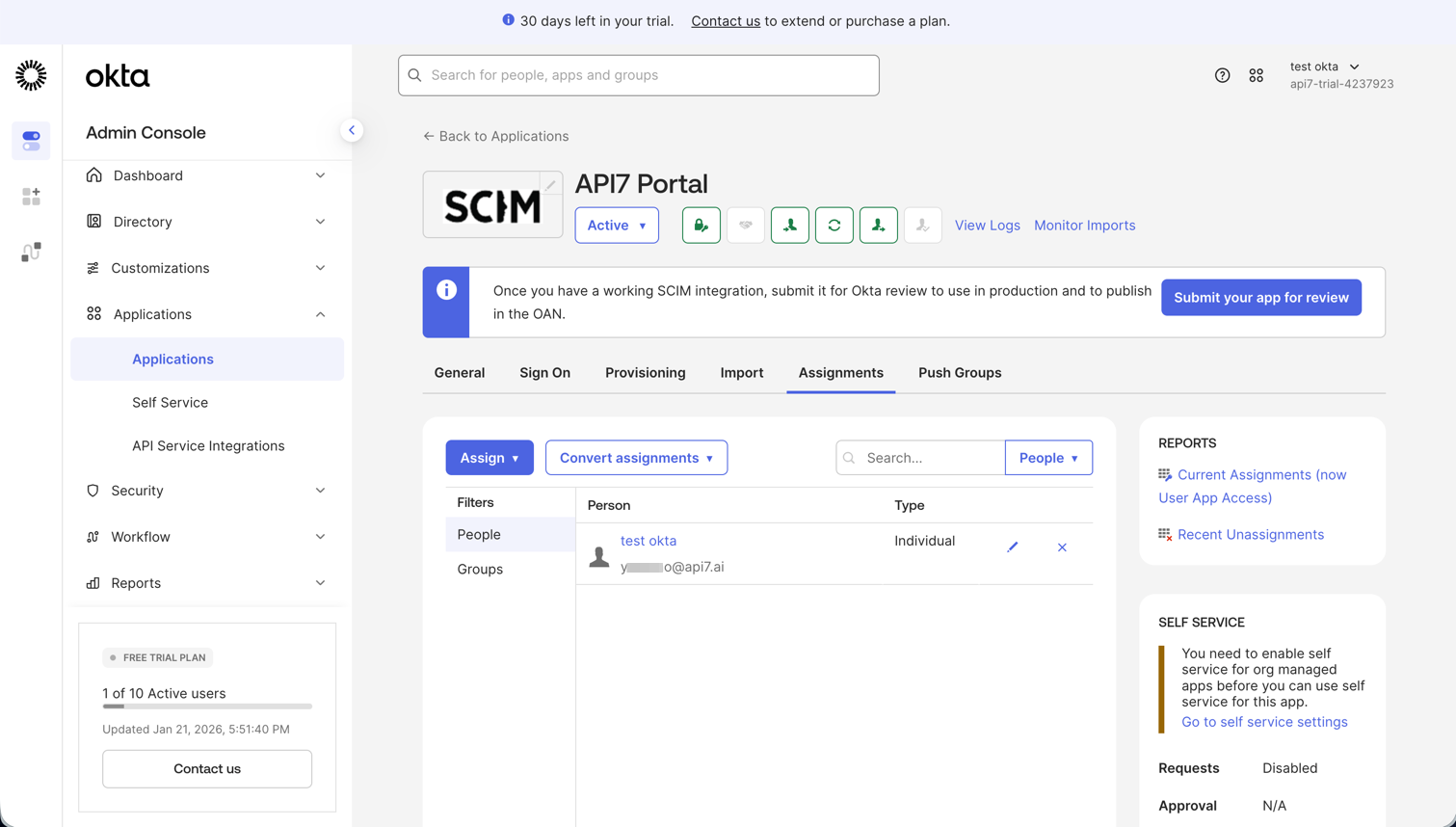
- Open the Assignments tab.
- Click Assign, then Assign to People or Assign to Groups.
- Select the users or groups to provision.
- Click Assign, then Done.
Verify Provisioning
Verify the supported lifecycle before relying on the integration:
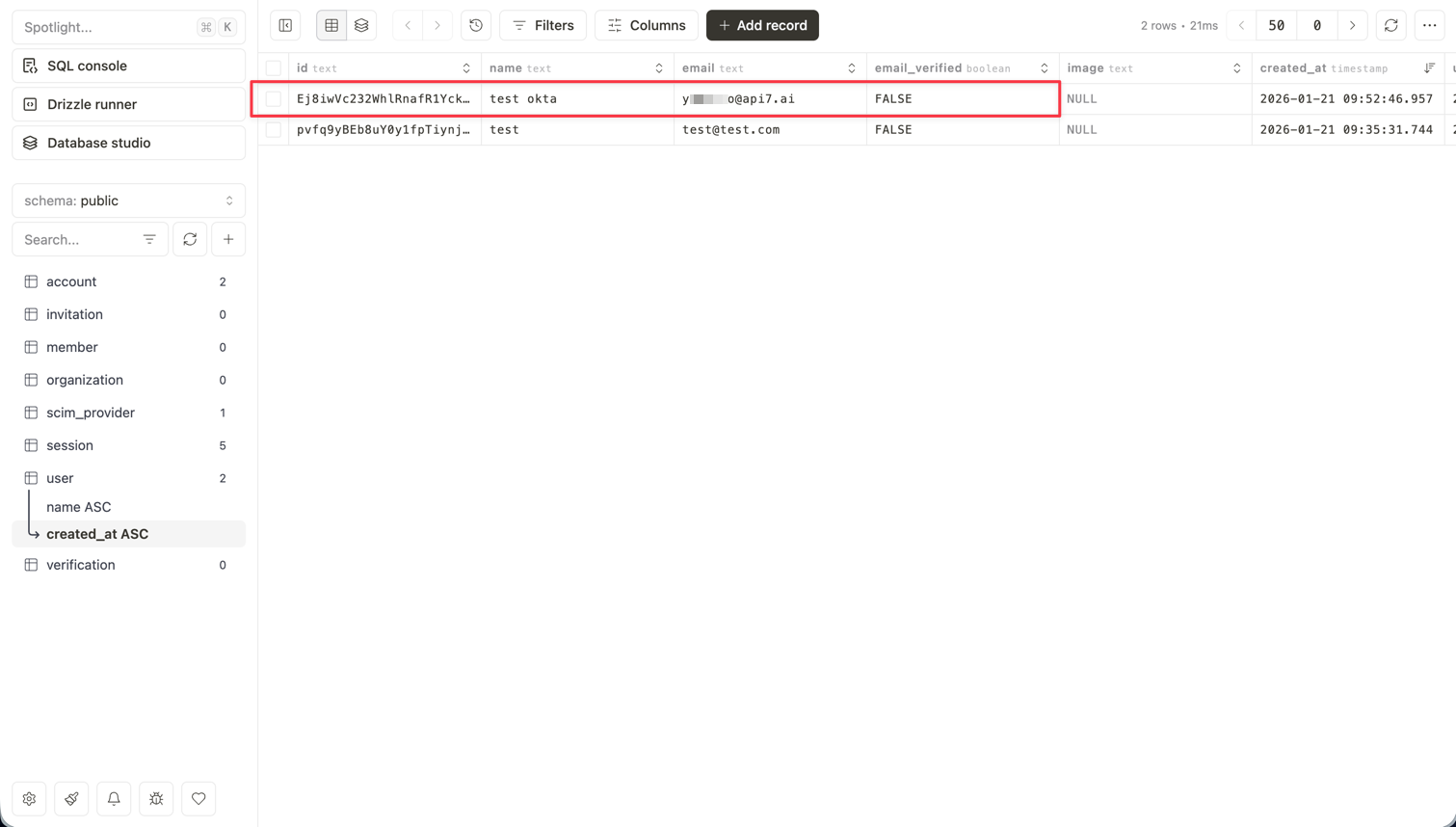
- Assign a test user and confirm a SCIM resource is created in the portal authentication database.
- Change an assigned attribute and confirm the SCIM resource is updated.
- Sign in through the separately configured interactive provider and confirm that account linking maps the sign-in to the intended SCIM-provisioned user rather than creating a duplicate account.
- Test the separate authorization integration that maps the provisioned identity to the intended portal organization, API products, subscriptions, and credentials.
Do not treat an Okta credential test or successful user update as proof of deprovisioning. Test any custom deactivation or deletion workflow independently, including session revocation and the handling of previously issued API credentials.
Next Steps
- Configure the Developer Portal to manage released portal settings and application configuration.
- Customize the Developer Portal to extend Boilerplate
v0.10.0with additional behavior. - Developer Portal SSO Status to review the released component mismatch before planning interactive login options.