
Authorize M2M Requests with Microsoft Entra ID (Azure AD)
Microsoft Entra ID, formerly Azure Active Directory, is Microsoft's cloud-based identity and access management service. In addition to authenticating users, it can issue access tokens to applications so that background services, scheduled jobs, and automation can call APIs without an end user signing in.
The OAuth 2.0 Client Credentials flow is designed for this type of machine-to-machine (M2M) communication. Apache APISIX can protect the target API by validating each token's signature, issuer, audience, and assigned application permissions before proxying the request.
The guide shows how to configure Microsoft Entra ID and APISIX for this M2M scenario. One Microsoft Entra application represents the protected API, while another represents the calling service. The calling service receives an application permission and uses a client secret to request an access token. APISIX validates the token locally with Microsoft Entra ID's JSON Web Key Set (JWKS) and removes authentication data before forwarding the request to the sample upstream.
Prerequisite(s)
- Install Docker.
- Install cURL and jq.
- Follow the Getting Started tutorial to start APISIX with Docker.
- Have access to a Microsoft Entra tenant and permission to register applications, create application roles, and grant tenant-wide admin consent. The Cloud Application Administrator role or a higher-privileged role is sufficient.
- If you plan to use ADC, install and configure ADC before continuing.
- If you use the Admin API examples and authentication is enabled, export an admin-role key as
ADMIN_API_KEY. Configure the key underdeployment.admin.admin_key. The Docker quickstart disables authentication for local evaluation; keep it enabled in production.
Configure Microsoft Entra ID
Create separate application registrations for the protected API and the M2M client. This separation lets Microsoft Entra ID issue a token for the correct API audience and include only application permissions granted to the client.
Register the Protected API
Sign in to the Microsoft Entra admin center and register the application that represents the protected API:
- Select Entra ID → App registrations → New registration.
- Enter
APISIX Protected APIas the application name. - Under Supported account types, select Single tenant only.
- Leave Redirect URI blank because this application does not sign in users.
- Select Register.
On the application's Overview page, record the Application (client) ID and Directory (tenant) ID.
Add an Application Role
Configure an identifier for the protected API:
- Select Expose an API.
- Beside Application ID URI, select Add.
- Accept the generated
api://<application-client-id>value. - Select Save.
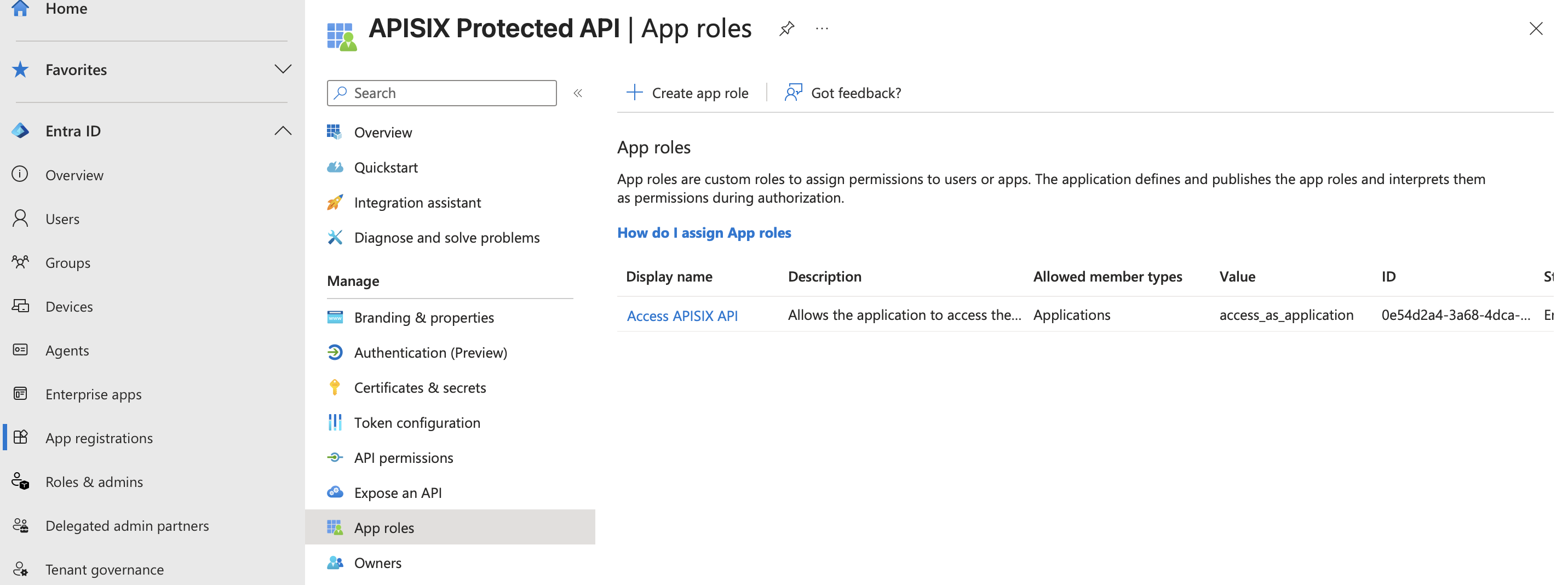
Next, create the application role that grants access to the API:
-
Select App roles → Create app role.
-
Configure the role:
- Display name:
Access APISIX API - Allowed member types:
Applications - Value:
access_as_application - Description:
Access the API protected by APISIX - Do you want to enable this app role?: selected
- Display name:
-
Select Apply.
Configure Version 2 Access Tokens
Configure the protected API to receive version 2 access tokens:
- Select Manifest.
- In the
apiobject, findrequestedAccessTokenVersion. - Change its value from
nullto2. - Select Save.
This setting makes Microsoft Entra ID issue version 2 access tokens for this protected API. It is required in this example because APISIX validates the tokens against the tenant-specific version 2 issuer and audience format.
Register the M2M Client
Return to App registrations and create the application that will call the protected API:
- Select New registration.
- Enter
APISIX M2M Clientas the application name. - Under Supported account types, select Single tenant only.
- Leave Redirect URI blank because this application does not sign in users.
- Select Register.
On the application's Overview page, record the Application (client) ID.
Create a Client Secret
Create a credential that the M2M client can use to request access tokens:
- In the M2M client application, select Certificates & secrets.
- Select Client secrets → New client secret.
- Enter a description and select an expiration period that follows the organization's credential-rotation policy.
- Select Add.
Copy the client secret Value immediately. Microsoft Entra ID displays it only once. The Secret ID is not the client secret.
This example uses a client secret for local testing. For production applications, Microsoft recommends using a certificate credential or workload identity federation instead.
Grant the Application Permission
Assign the protected API's application role to the M2M client:
- In the M2M client application, select API permissions → Add a permission.
- Select My APIs → APISIX Protected API.
- Select Application permissions.
- Select Access APISIX API.
- Select Add permissions.
If the protected API does not appear under My APIs, add the current administrator as an owner of both application registrations and try again.
Grant tenant-wide consent for the application permission:
- Select Grant admin consent for followed by the tenant name.
- Confirm the action.
The permission status should show Granted for followed by the same tenant name.
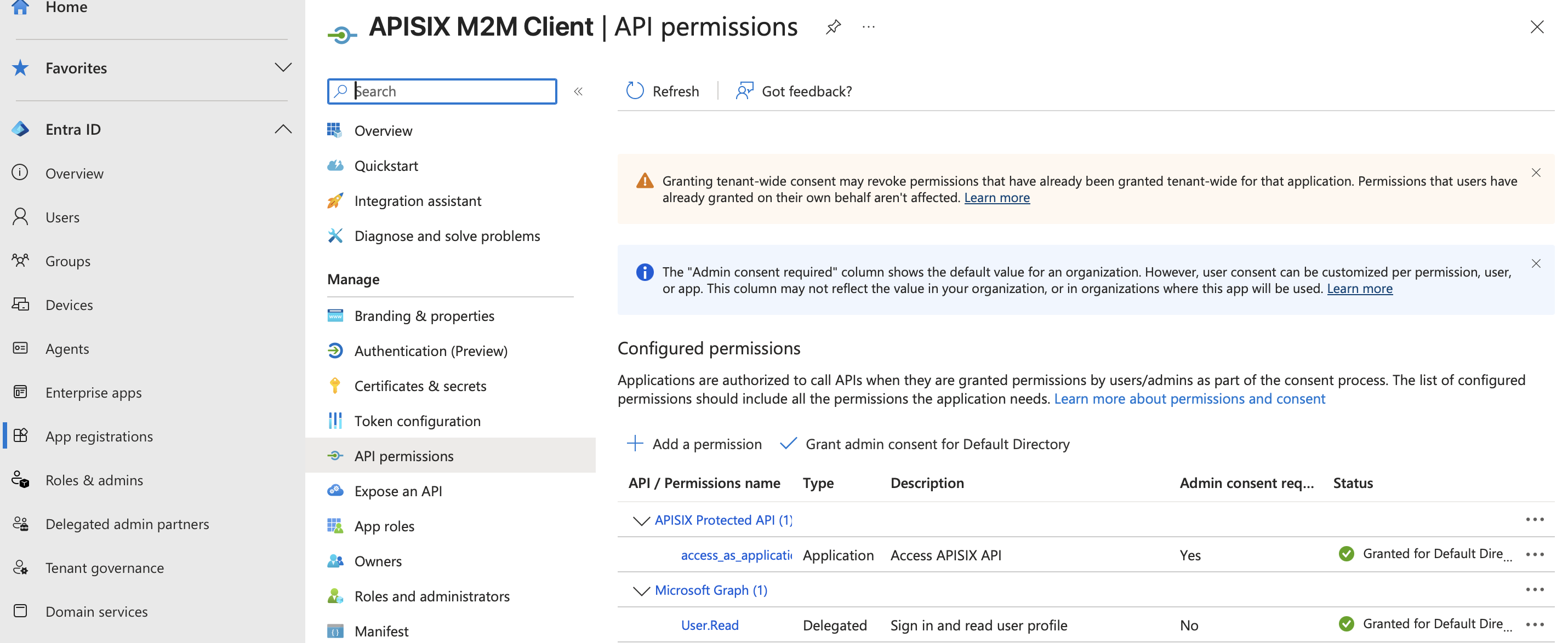
Microsoft Entra ID may also show the automatically added Microsoft Graph User.Read delegated permission. It is not used by this M2M flow.
Save the tenant ID, protected API client ID, M2M client ID, M2M client secret, and related values to environment variables, replacing the example values:
export ENTRA_TENANT_ID=replace-with-your-tenant-id
export ENTRA_API_CLIENT_ID=replace-with-your-protected-api-client-id
export ENTRA_M2M_CLIENT_ID=replace-with-your-m2m-client-id
export ENTRA_M2M_CLIENT_SECRET=replace-with-your-m2m-client-secret
export ENTRA_DISCOVERY="https://login.microsoftonline.com/${ENTRA_TENANT_ID}/v2.0/.well-known/openid-configuration"
export ENTRA_API_ID_URI="api://${ENTRA_API_CLIENT_ID}"
Configure APISIX
Configure a route that accepts Microsoft Entra ID bearer tokens before forwarding requests to httpbin.org, a public HTTP request and response service. The /anything/m2m/* endpoint returns request details for verification.
Choose either the Admin API or ADC to configure the route.
- Admin API
- ADC
Create a route that validates bearer tokens locally with Microsoft Entra ID's JWKS:
curl "http://127.0.0.1:9180/apisix/admin/routes/entra-m2m" -X PUT \
  -H "X-API-KEY: ${ADMIN_API_KEY}" \
  --data-binary @- <<EOF
{
  "uri": "/anything/m2m/*",
  "plugins": {
    "openid-connect": {
      "client_id": "$ENTRA_API_CLIENT_ID",
      "discovery": "$ENTRA_DISCOVERY",
      "bearer_only": true,
      "use_jwks": true,
      "claim_validator": {
        "audience": {
          "required": true,
          "match_with_client_id": true
        }
      },
      "claim_schema": {
        "type": "object",
        "properties": {
          "roles": {
            "type": "array",
            "contains": {
              "const": "access_as_application"
            }
          }
        },
        "required": ["roles"]
      },
      "set_access_token_header": false,
      "set_id_token_header": false,
      "set_userinfo_header": false
    },
    "proxy-rewrite": {
      "headers": {
        "remove": ["Authorization"]
      }
    }
  },
  "upstream": {
    "type": "roundrobin",
    "nodes": {
      "httpbin.org:80": 1
    }
  }
}
EOF
The discovery value is the tenant-specific Microsoft Entra ID version 2 OIDC discovery document. APISIX uses its issuer and JWKS endpoint when validating tokens.
❶ bearer_only: Set to true to require a bearer access token instead of starting an interactive browser sign-in flow.
❷ use_jwks: Set to true to validate JWT signatures locally with the public keys published by Microsoft Entra ID.
❸ claim_validator.audience: Requires the token's aud claim to match the protected API application ID configured as client_id.
❹ claim_schema: Requires the token's roles claim to contain the application permission assigned to the M2M client.
❺ set_access_token_header, set_id_token_header, and set_userinfo_header: Set to false to prevent APISIX from adding the access token, ID token, and token claims to upstream request headers.
❻ proxy-rewrite.headers.remove: Removes the original bearer token before APISIX proxies the request. Review these header settings if the upstream application must receive the access token or its claims.
Create an adc.yaml file with the same route configuration:
services:
  - name: entra-m2m
    routes:
      - name: entra-m2m
        uris:
          - /anything/m2m/*
        plugins:
          openid-connect:
            client_id: "${ENTRA_API_CLIENT_ID}"
            discovery: "${ENTRA_DISCOVERY}"
            bearer_only: true
            use_jwks: true
            claim_validator:
              audience:
                required: true
                match_with_client_id: true
            claim_schema:
              type: object
              properties:
                roles:
                  type: array
                  contains:
                    const: access_as_application
              required:
                - roles
            set_access_token_header: false
            set_id_token_header: false
            set_userinfo_header: false
          proxy-rewrite:
            headers:
              remove:
                - Authorization
    upstream:
      type: roundrobin
      nodes:
        - host: httpbin.org
          port: 80
          weight: 1
The discovery value is the tenant-specific Microsoft Entra ID version 2 OIDC discovery document. APISIX uses its issuer and JWKS endpoint when validating tokens.
❶ bearer_only: Set to true to require a bearer access token instead of starting an interactive browser sign-in flow.
❷ use_jwks: Set to true to validate JWT signatures locally with the public keys published by Microsoft Entra ID.
❸ claim_validator.audience: Requires the token's aud claim to match the protected API application ID configured as client_id.
❹ claim_schema: Requires the token's roles claim to contain the application permission assigned to the M2M client.
❺ set_access_token_header, set_id_token_header, and set_userinfo_header: Set to false to prevent APISIX from adding the access token, ID token, and token claims to upstream request headers.
❻ proxy-rewrite.headers.remove: Removes the original bearer token before APISIX proxies the request. Review these header settings if the upstream application must receive the access token or its claims.
ADC reconciles services as desired state. The label selector limits this example to its own labeled resources. Preview the scoped changes and confirm that they contain no unintended updates or deletions:
adc diff -f adc.yaml \
  --include-resource-type service \
  --label-selector docs-example=entra-m2m
Synchronize the reviewed service configuration:
adc sync -f adc.yaml \
  --include-resource-type service \
  --label-selector docs-example=entra-m2m
Verify M2M Authorization
Request an access token for the protected API from Microsoft Entra ID:
export ENTRA_ACCESS_TOKEN="$(
  curl -sS "https://login.microsoftonline.com/${ENTRA_TENANT_ID}/oauth2/v2.0/token" \
    -H "Content-Type: application/x-www-form-urlencoded" \
    --data-urlencode "client_id=${ENTRA_M2M_CLIENT_ID}" \
    --data-urlencode "client_secret=${ENTRA_M2M_CLIENT_SECRET}" \
    --data-urlencode "scope=${ENTRA_API_ID_URI}/.default" \
    --data-urlencode "grant_type=client_credentials" | \
  jq -er '.access_token'
)"
Send the access token to the protected route:
curl -i "http://127.0.0.1:9080/anything/m2m/get" \
  -H "Authorization: Bearer ${ENTRA_ACCESS_TOKEN}"
An HTTP/1.1 200 OK response verifies that APISIX accepted a token issued for the protected API with the required application role. The response body should contain fields similar to these:
{
  "args": {},
  "data": "",
  "files": {},
  "form": {},
  "headers": {
    "Accept": "*/*",
    "Host": "localhost",
    "User-Agent": "curl/8.7.1",
    "X-Amzn-Trace-Id": "Root=1-...",
    "X-Forwarded-Host": "localhost:9080"
  },
  "json": null,
  "method": "GET",
  "origin": "192.168.155.1, xxx.xxx.xxx.xxx",
  "url": "http://localhost:9080/anything/m2m/get"
}
Header values and the reported origin address vary by client and network environment. The upstream request headers should not include Authorization, X-Access-Token, X-Id-Token, or X-Userinfo because the route prevents them from being proxied.
Send the same request without a token:
curl -i "http://127.0.0.1:9080/anything/m2m/get"
APISIX should return an HTTP/1.1 401 Unauthorized response because the route requires a bearer token.
Next Steps
You have now configured APISIX to authorize M2M requests using access tokens and application permissions from Microsoft Entra ID. For browser-based user authentication, see Set Up SSO with Microsoft Entra ID. See the openid-connect plugin reference for more token-validation and authorization options.